MiniMax Code · Tutorial 03
Your First Safe Task: Modes and Workspace
Choose Coding or Work mode, attach one disposable folder, and finish an inspect-plan-change-verify loop.

0 of 6 complete
Essentials · Step 3 of 6 · View the route
Last checked and updated: August 25, 2026
Your first useful task is intentionally small: change one status line in the disposable minimax-code-practice folder from Lesson 2. The lesson is about the operating method, not the difficulty of the edit.
You will:
- select the right mode;
- confirm the workspace and authoritative file;
- ask the agent to inspect and plan without editing;
- approve one exact change;
- verify the changed path and file content yourself.
The finish line is evidence: one expected file changed, the new sentence is present, and no unrelated path changed.
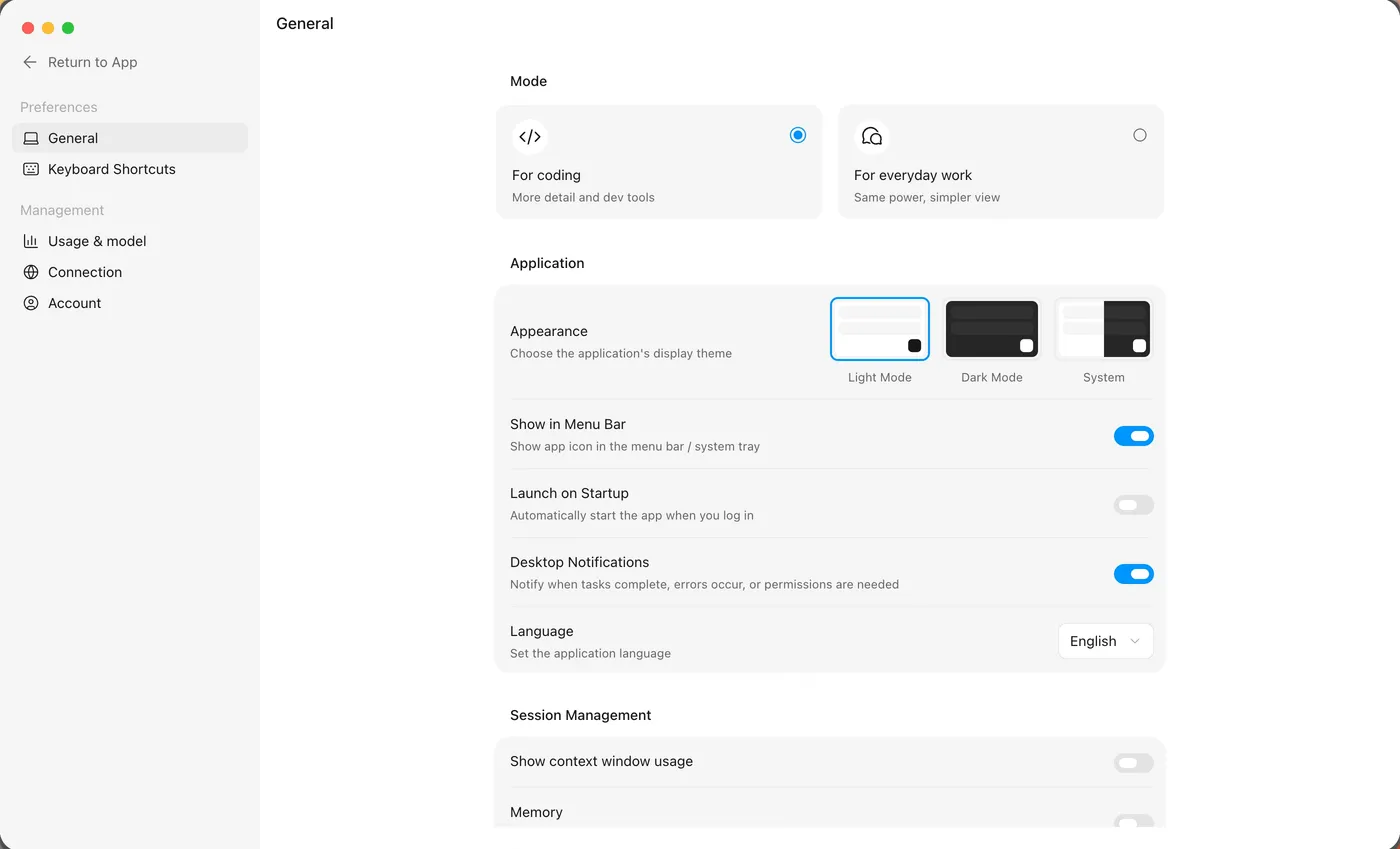
Coding mode or Work mode?
MiniMax says both modes use the same underlying Agent capabilities but emphasize different surfaces.
| Choose Coding mode when… | Choose Work mode when… |
|---|---|
| The task reads or edits a codebase | You mainly need a report or finished document |
| You need Files, Changes, Terminal, or browser panels | Progress and deliverables matter more than development details |
| You will run a check, inspect a diff, or debug a preview | The job is research, spreadsheet work, content, or everyday automation |
Use Coding mode for this exercise because seeing the file and the change is part of the proof. Work mode may hide some developer panels; hiding detail does not mean no file or command action can occur.
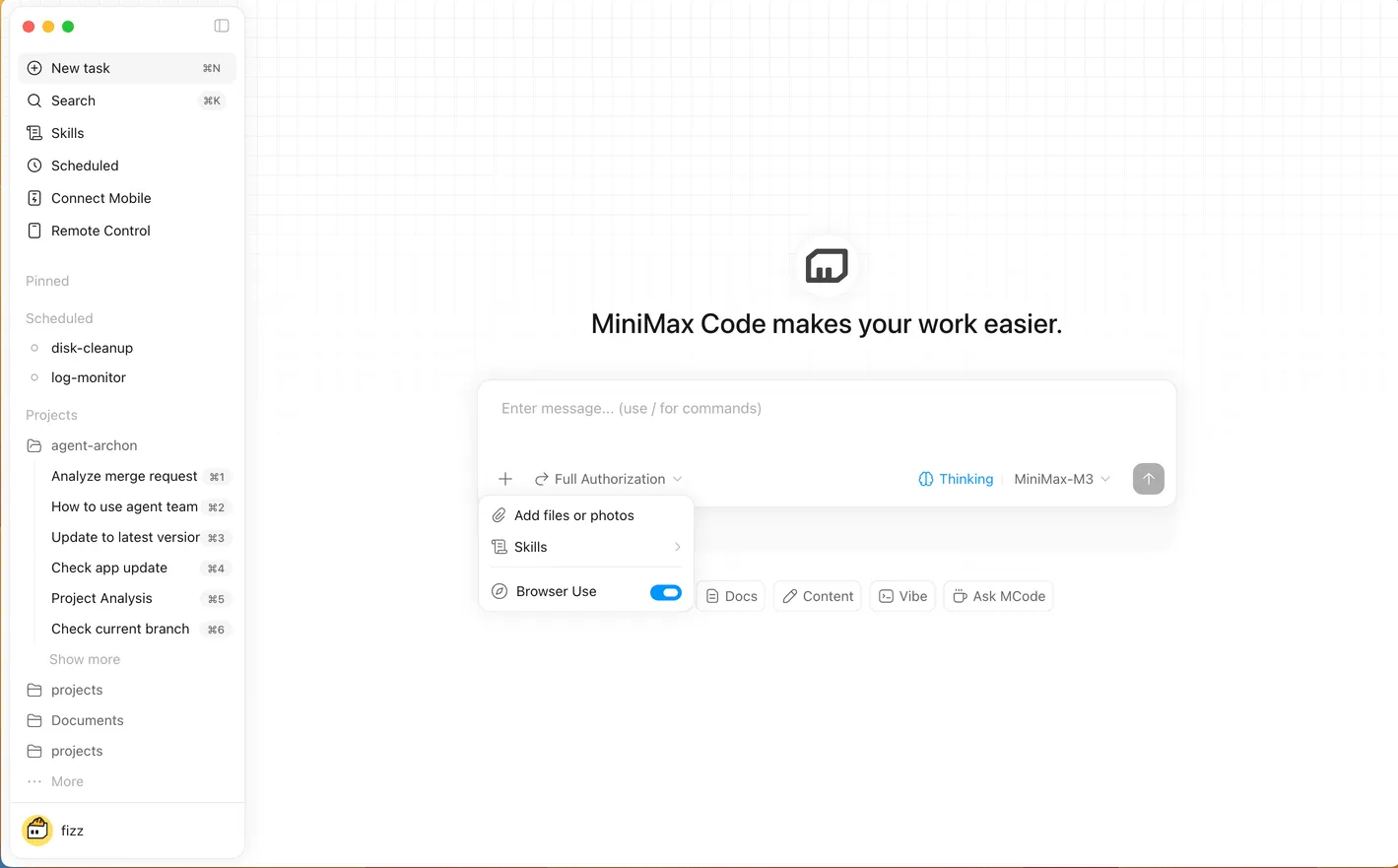
Workspace is context, not automatic containment
The selected workspace tells MiniMax Code which local project belongs to the task. Official documentation says the agent can understand files, scripts, and conventions there, then read files, run commands, create artifacts, and report changes.
Treat that selection as a working boundary you must state and check—not as proof of an operating-system sandbox. A public issue report described a write outside the selected project. It is one user’s report, not a measured failure rate, but it is enough reason to review every changed path.
Check the starting state
Open the minimax-code-practice folder from Lesson 2. README.md should contain:
# MiniMax Code Practice

Status: draft.
Before the task:
- close private projects and unrelated sensitive documents;
- confirm the active workspace name in MiniMax Code;
- open
README.mdfrom the Files panel; - confirm the Changes panel is empty;
- do not attach your Documents folder, home folder, or an entire drive.
If the starting state differs, correct your practice file manually or record the difference. Do not ask the agent to “clean everything up.”
Step 1: inspect and plan, then stop
Start a new task in Coding mode with minimax-code-practice attached. Mention @README.md, then copy this prompt:
Outcome
Prepare one safe wording change in README.md: change “Status: draft.” to
“Status: ready for review.”

Scope
Read only README.md inside the active minimax-code-practice workspace.

Evidence
The current contents of @README.md are authoritative.

Constraints and approvals
For this turn, inspect and propose a plan only. Do not edit any file, run a command,
open a sibling folder, use the network, or create a new file.

Checks
State the active workspace, current sentence, proposed replacement, expected changed path,
and how I can verify it.

Finish line
Stop after the plan and wait for my approval.
Review the response. A safe plan names only README.md, quotes the exact before/after text, and proposes a file-content check. If it adds dependencies, rewrites the document, or touches another path, reject that part before proceeding.
Step 2: approve the bounded change
If the plan is correct, send:
Approved: make only the proposed one-line change in README.md.
Do not change any other file or run commands.
After editing, report every changed path and quote the final status line.
Read any permission prompt before accepting it. The action, exact path, and reason should match what you approved. A broad request to access another directory does not become safe because the underlying edit is small.
Step 3: verify independently
Do not stop at the agent’s “done” message.
- Open Changes and confirm only
README.mdappears. - Inspect the diff. It should remove
Status: draft.and addStatus: ready for review. - Open Files → README.md and read the saved file.
- Confirm the heading remains unchanged.
- Check that no new file or sibling-folder change appears.
- Record the result:
Workspace checked: minimax-code-practice
Expected changed path: README.md
Observed changed paths: README.md
Expected new line: Status: ready for review.
Observed new line: Status: ready for review.
Unexpected changes: none observed
Result: pass
The Changes panel is evidence of the local diff; the saved file is evidence of the current content. Neither proves a website deploy, external publication, or production change.
Step 4: practise a correction
Send one deliberately precise follow-up:
Restate the task boundary in one sentence. If your previous work changed anything except
README.md, stop and list those paths without making further changes.
This teaches a useful habit: correct the scope explicitly instead of starting a long argument with the agent. If a task moves in the wrong direction, interrupt it, preserve the evidence, and restate the objective and boundary.
Safety boundary
For a first task, do not authorize:
- access outside
minimax-code-practice; - delete, overwrite, bulk move, or dependency-install commands;
- a production repository, deployment, purchase, message, or upload;
- credential entry, account changes, or private web content;
- a permission described more broadly than the approved action.
This exercise uses only documented workspace and file/change surfaces. It does not claim that general desktop computer use is active.
Troubleshooting
| Symptom | Likely cause | Recovery |
|---|---|---|
| Files, Changes, or Terminal are missing | You are probably in Work mode | Switch to Coding mode and reopen the developer panel |
The agent cannot find README.md | Wrong workspace or the file was not mentioned correctly | Confirm the active folder, open the file manually, then mention @README.md again |
| The agent edited before your approval | The prompt mixed planning and execution or the agent did not follow the boundary | Interrupt, inspect every changed path, restore the practice file manually if needed, then restart with a plan-only turn |
| More than one path appears in Changes | The request was interpreted broadly or another change already existed | Stop; separate pre-existing and new changes, reject out-of-scope work, and do not approve more commands |
| Work mode says the task is complete but you cannot inspect the diff | The interface is prioritizing deliverables over developer detail | Switch to Coding mode and verify Files and Changes before accepting completion |
| The status line looks right in chat but not on disk | The agent may have described a change without saving it, or you opened a different copy | Open the file from the active workspace and verify its path and saved contents |
FAQ
Does Coding mode make the agent safer?
Not by itself. It makes development evidence easier to see. Safety comes from a narrow workspace, explicit approvals, changed-path review, and reversible work.
Can I use Work mode for code?
The underlying agent capabilities are shared, but MiniMax recommends Coding mode when you need project context, files, diffs, commands, or browser debugging.
Why use two prompts for one tiny change?
The two-turn pattern teaches you to separate inspection from authorization. Later, you can streamline trusted, low-risk routines without losing the mental model.
What if the project already has changes?
Record them before starting and do not attribute them to the agent. Lesson 5 adds Git status and checkpoints so old and new work are easier to separate.
Is the selected workspace a security sandbox?
The official docs describe it as local project context. This course does not claim it is an isolation boundary. Keep sensitive sibling folders out of scope and review actual paths.
Official sources
- Create your first task
- Coding and Work modes
- Workspace and project context
- Files, Changes, and Terminal panels
- Permissions and safety
What’s next
Turn a vague request into a testable contract and decide whether it deserves Goal mode in L04: Goals and Task Briefs.