MiniMax Code · Tutorial 02
Install MiniMax Code on macOS or Windows
Install the correct desktop build, sign in, confirm account state, and open a disposable practice workspace.

0 of 6 complete
Essentials · Step 2 of 6 · View the route
Last checked and updated: August 25, 2026
This lesson takes you from the official download page to a safe practice folder. Your proof is not merely “the app opened.” You will confirm the installed platform build, signed-in account, current plan/model screen, update control, and active practice workspace without exposing personal or billing information.
MiniMax’s current requirements are:
| Platform | Minimum documented version | Package choice |
|---|---|---|
| macOS | macOS 11 Big Sur or later | arm64 for Apple silicon; x64 for Intel |
| Windows | Windows 10 or later | Windows 64-bit installer |
The official public download page currently lists macOS and Windows. This course does not imply that a Linux desktop build is available.
A dated version-number mismatch
On August 25, 2026, the official global download served a signed Apple-silicon package labelled 3.0.67, while the public changelog still ended at 3.0.66 from August 19. Record the version the installed app actually shows and the installer source. Do not call a changelog entry the newest downloadable build when those official surfaces disagree.
Before downloading
- Make sure the operating system meets the current requirement.
- Allow several gigabytes of working space for the app, practice files, dependencies, and backups.
- Decide which regional site fits your account and network:
- Global download for users outside mainland China.
- Mainland China download for mainland China network environments.
- Use a MiniMax account you are comfortable using for practice.
- Do not create or share an API key for this core setup.
Only download from the official MiniMax domains above. Search ads, mirrors, direct-message attachments, and “pre-activated” packages are not acceptable sources.
macOS: choose and install the right build
Step 1: identify Apple silicon or Intel
Open Apple menu → About This Mac.
- If Chip says Apple M1, M2, M3, M4, or a later Apple chip, choose arm64.
- If Processor says Intel, choose x64 or Intel.
Do not guess from the computer’s age. Record the result on your setup card.
Step 2: install
- Download the matching
.dmgfrom the correct official regional page. - Open the downloaded disk image.
- Drag MiniMax Code into Applications.
- Launch it from Applications.
- If macOS shows a security confirmation for the downloaded app, confirm that the publisher and source match the official download you chose before opening.
Step 3: sign in
- Choose sign in inside MiniMax Code.
- Complete the browser-based account flow.
- Return to the app when the browser asks to open MiniMax Code.
- Confirm the app shows the account you intended to use.
Never send a password, one-time code, or recovery code to the agent. Enter it only in the official sign-in surface.
Windows: install and sign in
- Download the Windows installer from the correct official regional page.
- Open the installer from Downloads.
- Read the publisher and destination prompts before continuing.
- Follow the installation steps, then launch MiniMax Code.
- Complete sign-in in the browser and allow the browser to return to the app.
- If the installer offers a custom data directory, choose a location you control with enough space. The official FAQ says Windows supports a custom local data directory.
Do not make --no-sandbox your normal launch method. MiniMax’s troubleshooting documentation describes it only as a temporary diagnostic for a particular renderer-permission failure because it weakens Electron security isolation.
Confirm the product state before a real task
Open settings and record these fields without copying secrets:
Checked: 2026-08-25
Platform: macOS / Windows
Architecture: arm64 / x64
MiniMax Code version: [visible version]
Regional installer: Global / Mainland China
Signed-in account: [yes; do not record full email publicly]
Plan state: [name shown in Usage settings]
Model selected: [name shown in the app]
Update available: yes / no
Plan names, quotas, points, and model options can change. Use the current Usage and Model screen as the authority for your account instead of copying a number from an old tutorial.
Step-by-step: create a safe practice workspace
Use Finder on macOS or File Explorer on Windows:
- Open Documents.
- Create a folder named
minimax-code-practice. - Inside it, create a plain-text Markdown file named
README.md. - Put this content in the file:
# MiniMax Code Practice

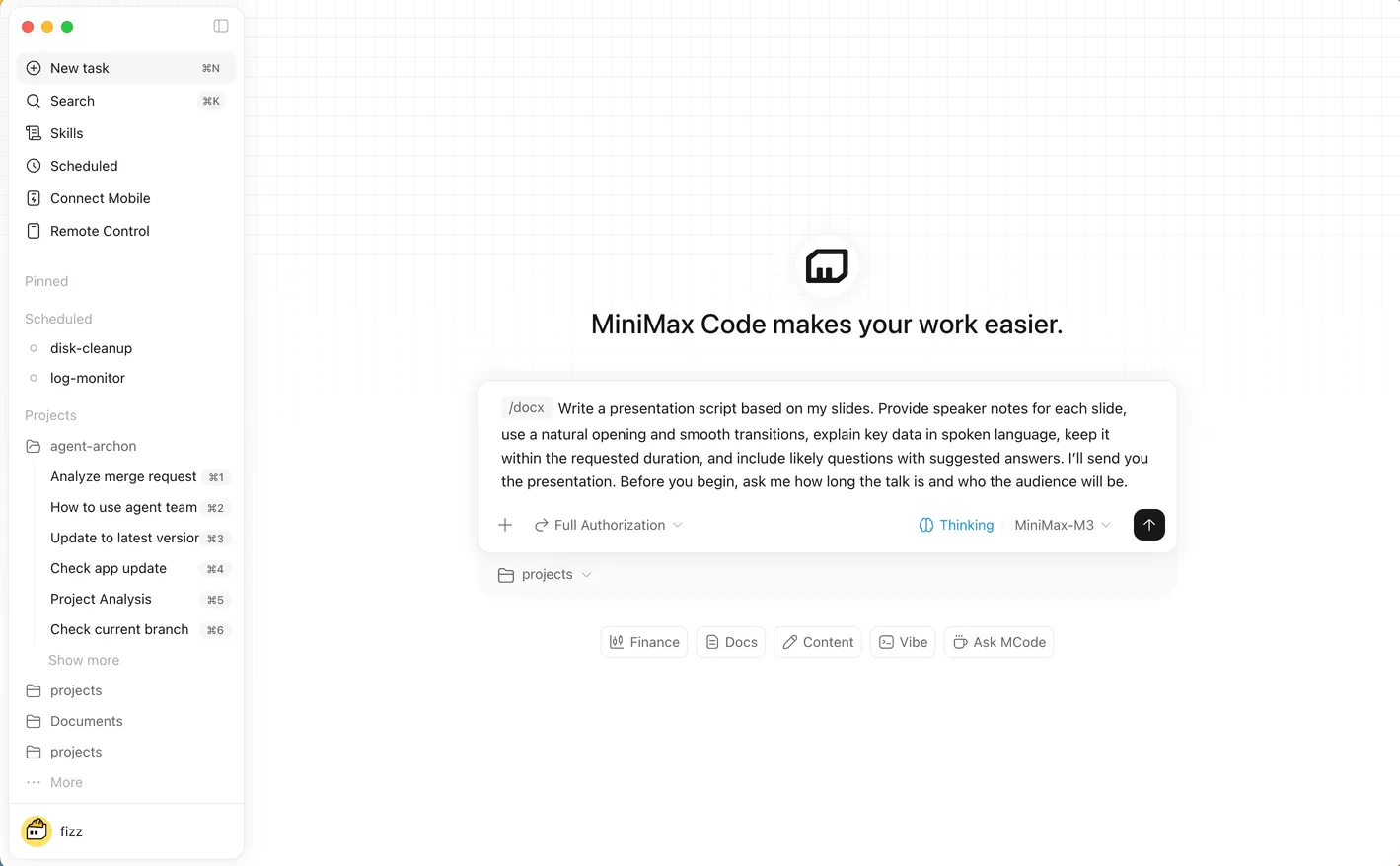
Status: draft.- In MiniMax Code, choose New Task or use the home composer.
- Select the
minimax-code-practicefolder as the workspace. - Switch to Coding mode if the Files, Changes, and Terminal panels are not visible.
- Mention
@README.mdand ask the agent only to inspect it.
Copy this prompt:
Outcome
Confirm that this is the disposable practice workspace for the course.

Scope
Read only README.md inside the currently selected workspace.

Evidence
The visible workspace path and the contents of @README.md.

Constraints and approvals
Do not edit files, run commands, open sibling folders, install anything, or use external services.

Checks
Report the workspace folder name, the file name, its heading, and its status line.

Finish line
Stop after the read-only report. If the file or workspace differs, report the mismatch.
The expected result names minimax-code-practice, README.md, MiniMax Code Practice, and Status: draft. Nothing should appear in the Changes panel.
Capture proof without leaking private data
Take one screenshot showing the signed-in practice task and visible workspace name. Before saving or sharing it, crop or redact:
- full email addresses and account IDs;
- subscription, invoice, and billing details;
- home-directory usernames or unrelated folder names;
- browser tabs, notifications, and private project names;
- tokens, keys, QR codes, or one-time sign-in links.
Add the capture date and app version in your notes, not as invented text inside a product screenshot.
Safety boundary
The practice folder must not contain credentials, wallet files, customer data, tax documents, private source code, or links that grant access. Selecting a workspace gives the agent project context; it is not proof that every action is isolated to that folder. Keep permissions conservative and verify changed paths in later lessons.
Stop and investigate before:
- bypassing an operating-system security warning;
- installing from a mirror or chat attachment;
- changing access-control lists or deleting app data;
- purchasing a plan or entering billing details;
- pasting any API key into a conversation.
Troubleshooting
| Symptom | Likely cause | Recovery |
|---|---|---|
| macOS app will not start | Wrong architecture or an older problematic installer | Confirm Apple silicon vs Intel, download the latest matching official build, and reinstall |
| Sign-in button does nothing | A proxy or system policy may be blocking the browser redirect | Use the official regional sign-in link documented on the Common Issues page, complete sign-in, then choose to open MiniMax Code |
| App remains pending or unresponsive | Network, regional routing, service state, or a stuck local process | Check the network and in-app service indicator, fully quit, restart, then update if needed |
| Windows window flashes and exits | One documented cause is abnormal install-directory ACL permissions | Use the current official Common Issues steps; treat --no-sandbox only as a temporary confirmation, not the fix |
| Service fails to start after restart | Leftover processes or damaged local app data may be involved | End minimax processes first; before deleting .mavis or .minimax, follow official instructions and make a backup |
| Account opens but plan/model looks wrong | Signed-in account, region, or entitlement may not match what you expected | Verify the account and regional installer, then inspect current Usage and Model settings; do not solve this by pasting credentials into chat |
If the issue continues, use the app’s feedback flow. MiniMax documents that Upload Logs opens the feedback dialog and may attach the task title, session ID, workspace path, client version, and system information. Review screenshots and context for sensitive data before submitting.
Public reports: useful signals, not frequency data
The official repository contains individual reports about Token Plan authentication failing behind a generic service error and a team-plan selection mismatch. Use them as reminders to separate account, plan, region, and service checks. They do not establish that installation or sign-in commonly fails.
FAQ
Which Mac installer should I choose?
Choose arm64 for Apple silicon and x64 for Intel. Confirm in About This Mac first.
Can I install MiniMax Code on Linux?
The official public download page checked for this lesson offers macOS and Windows. Do not infer Linux desktop support from third-party packages or requests in an issue tracker.
Why are there Global and Mainland China sites?
MiniMax recommends the global site outside mainland China and the China site for mainland China network environments. Use the site that matches your account and network.
Do I need to install Git now?
Not for this read-only setup check. Lesson 5 uses Git for checkpoints and undo; it starts by checking whether Git is available.
Is a screenshot proof that everything is configured correctly?
It proves only the visible state. A stronger setup check combines the screenshot with the correct workspace, a read-only file result, app version, and current Usage and Model screen.
Official sources
- Download and install
- Create your first task
- Workspace and project context
- Token Plan and credits
- Updates and feedback
- Common issues
- MiniMax Code desktop FAQ
What’s next
Make one bounded change and prove it independently in L03: Your First Safe Task.