MiniMax Code · Tutorial 01
MiniMax Code Explained: App, M3, Token Plan, CLI, and API
Choose the right MiniMax product before you install anything, buy a plan, or paste an API key.

0 of 6 complete
Essentials · Step 1 of 6 · View the route
Last checked and updated: August 25, 2026
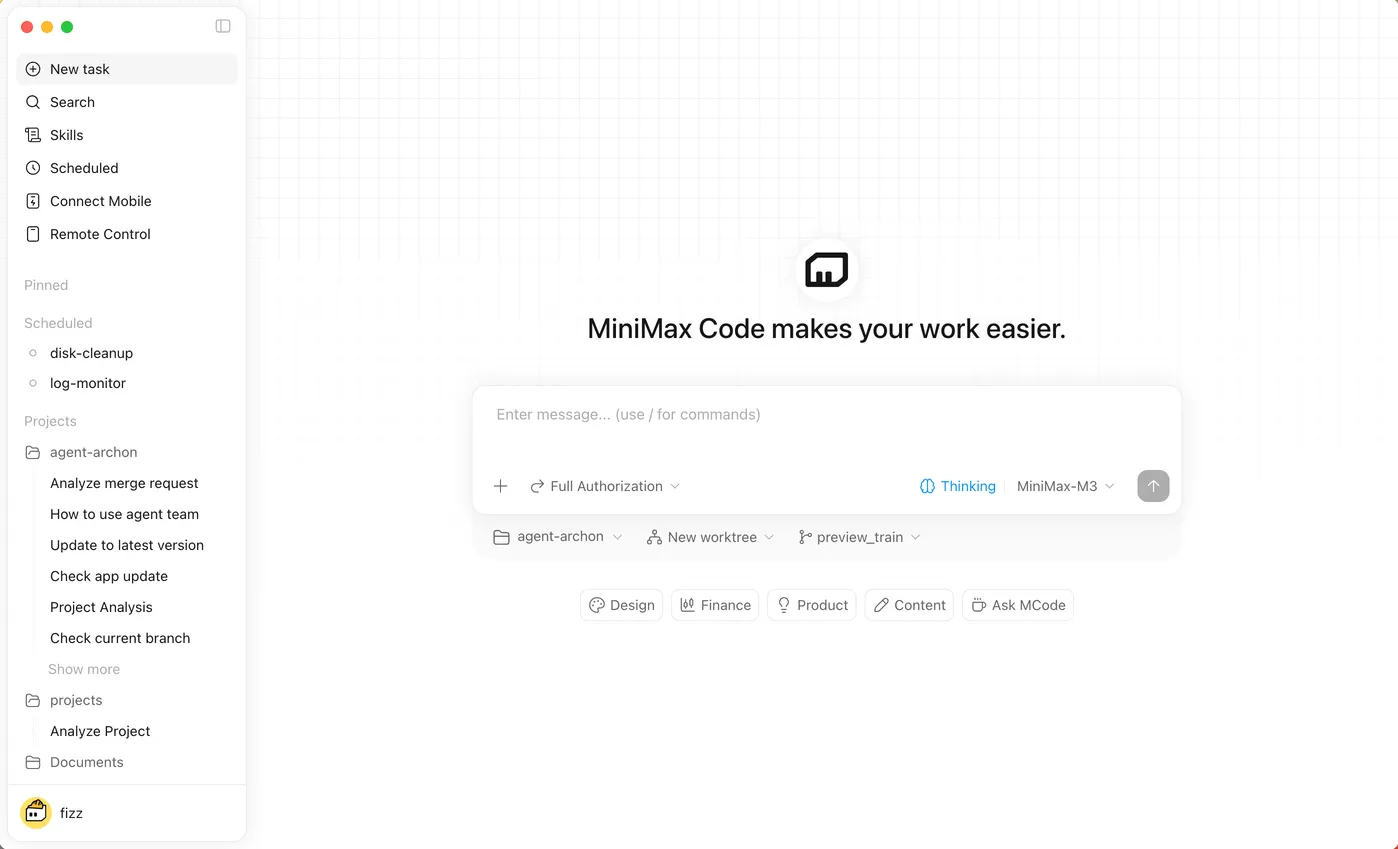
MiniMax uses similar names for several different things. The core course is about MiniMax Code: the desktop agent that can work with a selected local project, files, commands, previews, tasks, memory, and automation.
You do not install the mmx command-line tool to get the MiniMax Code desktop app. You also do not normally need to paste an API key into a chat to start the app. Those are separate paths for people connecting MiniMax models and media tools to terminals, coding clients, or their own software.
By the end of this lesson, you will have a one-page decision card that tells you which path fits your job.
The five names in plain English
| Name | What it is | Choose it when |
|---|---|---|
| MiniMax Code | A desktop AI agent with tasks, local workspace context, files, command output, browser previews, memory, skills, schedules, and Agent Teams | You want an app to work on a project or everyday deliverable |
| MiniMax M3 | MiniMax’s coding and agentic model—the engine that can power work, not the desktop interface | You are comparing model capability or selecting the active model |
| Token Plan | A subscription and usage pool shown in MiniMax Code’s usage settings; a Token Plan can also have a separate API credential | You need to understand access, allowance, credits, or external-tool usage |
MiniMax CLI (mmx) | A separate terminal tool for MiniMax text, search, vision, image, speech, video, and music capabilities | You deliberately want to call MiniMax from a terminal or another agent |
| MiniMax API / custom model key | Credentials and endpoints for software integrations or bring-your-own-model setup | You are building software or connecting a supported third-party client |
You may still see Coding Plan in an older URL, package, or community discussion. Treat it as older naming around the current Token Plan—not as a second desktop product you must install.
A useful mental model
Think of the pieces as a workshop:
- MiniMax Code is the workbench and controls.
- M3 is one possible engine doing the reasoning.
- Your Token Plan or credits are the usage meter.
mmxis a separate handheld tool used from a terminal.- An API key is a credential for a programmatic connection.
The workbench can use local project context, but selecting a folder is not the same as placing the agent in a perfect security sandbox. You still review permissions, changed paths, commands, and external actions. Lessons 3–5 teach that operating loop.
What MiniMax Code officially brings together
The current MiniMax Code overview describes one local workspace combining chat, project context, file operations, terminal sessions, browser previews, skills, memory, and automation. It offers two interface modes:
- Coding mode keeps files, changes, terminal output, and browser tools visible.
- Work mode emphasizes progress and the finished deliverable for research, documents, spreadsheets, and other everyday work.
Those modes change the interface focus, not the underlying intelligence. MiniMax also describes M3 as a long-context, multimodal model. A large context window can help with large projects, but it does not make every file relevant or every remembered statement current. Good tasks still name the authoritative files, conflicts, constraints, and checks.
What one early user found useful
In a February 25, 2026 X post, Kevin Ma described using the older MiniMax Agent/M2.5 product for weekly-report aggregation, presentations, market research, and batch file organization. Treat this as a dated personal example—not proof of current MiniMax Code quality or availability. Its useful beginner lesson is that the product is worth learning through finished work products, not abstract chat demos.
This lesson does not assume that general computer use is enabled in your build or account. The core exercises use documented file, change, terminal, and preview surfaces. If a later lesson asks you to act in another desktop app, first confirm that the capability is visible in your current product and keep irreversible actions behind approval.
Step-by-step: make your product-path decision card
Use this scenario: you want an assistant to update a small local website, but search results also show mmx, API keys, and model integrations.
- Write the outcome: “Update a local practice website and let me inspect every changed file.”
- Ask whether the job needs a graphical task workspace. Here, yes.
- Ask whether you are building your own program against an API. Here, no.
- Ask whether you specifically need media/search commands in a terminal. Here, no.
- Choose MiniMax Code desktop for the core job.
- Record
mmxand the API as optional later paths, not setup requirements. - Add one proof: success means the selected workspace opens and you can see the Files, Changes, or Terminal surfaces in Coding mode.
Copy this prompt into any assistant when the product names are unclear:
I want to accomplish this outcome:
[describe the finished result]

Compare these paths without installing or purchasing anything:
1. MiniMax Code desktop app
2. MiniMax CLI (mmx)
3. MiniMax API or Token Plan API key

Tell me which path fits, what account or credential it requires, what it can access,
and one harmless proof that setup worked. Separate confirmed official facts from assumptions.
Do not ask me to paste a key into chat.
Your finished decision card can be this short:
Job: Make and review a bounded change in a local practice project.
Primary path: MiniMax Code desktop, Coding mode.
Account: MiniMax sign-in; confirm current plan in Usage settings.
Not required for this job: mmx CLI, custom provider, API key.
Proof: Correct workspace is visible; file/change panels can be inspected.
Stop: Before any purchase, key creation, external publishing, or unrelated file access.
Safety boundary
Credentials are capabilities, not prompt context. Never paste an API key, session token, recovery code, or billing detail into a chat, screenshot, repository, skill, or memory. If a later integration needs a key, use the supported secure settings field and run its connection test.
For your first tasks, use a disposable folder with no secrets, client data, wallets, production credentials, or personal documents. Do not give a new agent access to your home folder or a broad drive merely because it would be convenient.
What can change after publication
Plans, quotas, model labels, download builds, and account eligibility change faster than lesson copy. The current app’s Usage and Model settings are the source of truth for your account. This course teaches where to check rather than promising a fixed price or allowance.
Public issue reports also show why the distinctions matter. One user reported Token Plan authentication surfacing as a generic service error, and another reported a plan-selection mismatch. These are individual public reports in the official repository, not evidence that most users have the same problem.
Troubleshooting
| Symptom | Likely cause | Recovery |
|---|---|---|
You installed mmx but cannot find the desktop interface | The CLI and desktop app are different products | Download MiniMax Code from the official global or mainland China download page |
| A tutorial immediately asks for an API key | It is probably teaching an integration path, not the core desktop path | Return to the official desktop download and sign-in flow; only configure a key when you intentionally choose API/BYOK |
| The app opens but your expected plan or model is missing | Account, region, entitlement, or current product state may differ | Open Usage and Model settings, confirm the signed-in account, plan, credits, and current model list |
A connection test returns 401 | Wrong key type, wrong region, base URL, or expired/revoked credential | Do not retry the key in chat; verify the integration’s credential type and region in secure settings |
| A feature described here is absent | The app may be outdated or the feature may not be enabled in your environment | Check the installed version and update controls, then use the current official docs and visible UI as the authority |
FAQ
Do I need an API key for the first five lessons?
The normal MiniMax Code path documented by MiniMax is to install the app and sign in with a MiniMax account. You only need a key if you intentionally configure MiniMax API access or another model provider.
Is MiniMax M3 the same thing as MiniMax Code?
No. M3 is a model; MiniMax Code is the agent application and working environment.
Should I install mmx now?
No. Install it only when you reach the optional CLI track and have a task that benefits from MiniMax commands in a terminal.
Does selecting a workspace guarantee the agent cannot reach anything else?
Do not treat it as that guarantee. The workspace supplies project context. Permission prompts, narrow paths, Git checkpoints, and changed-file review remain necessary.
Is MiniMax Code only for programming?
No. Official docs position Coding mode for development and Work mode for research, documents, spreadsheets, content, and everyday automation. This course starts with code-like local files because they make changes easy to inspect and undo.
Official sources
- MiniMax Code overview
- Download and install
- Token Plan and credits
- MiniMax API key in MiniMax Code
- Custom models / BYOK
- Official MiniMax CLI repository
What’s next
Install the correct desktop build and open a safe practice folder in L02: Install MiniMax Code on macOS or Windows.