Tencent WorkBuddy · Tutorial 13
WorkBuddy Automation and Mobile Remote Control
Turn a successful task into a low-frequency schedule, test it, review history, and connect a mobile Assistant without exposing broad authority.
0 of 1 complete
Reference guide · Read when needed · View the route
Last checked and updated: September 3, 2026
WorkBuddy Automations run a prompt on a schedule with a chosen workspace, model, skills, and optional mini-program push. Official guidance describes local automation configuration and warns that unattended tasks still use your identity, authorised tools, connectors, and credits.
Automation readiness gate
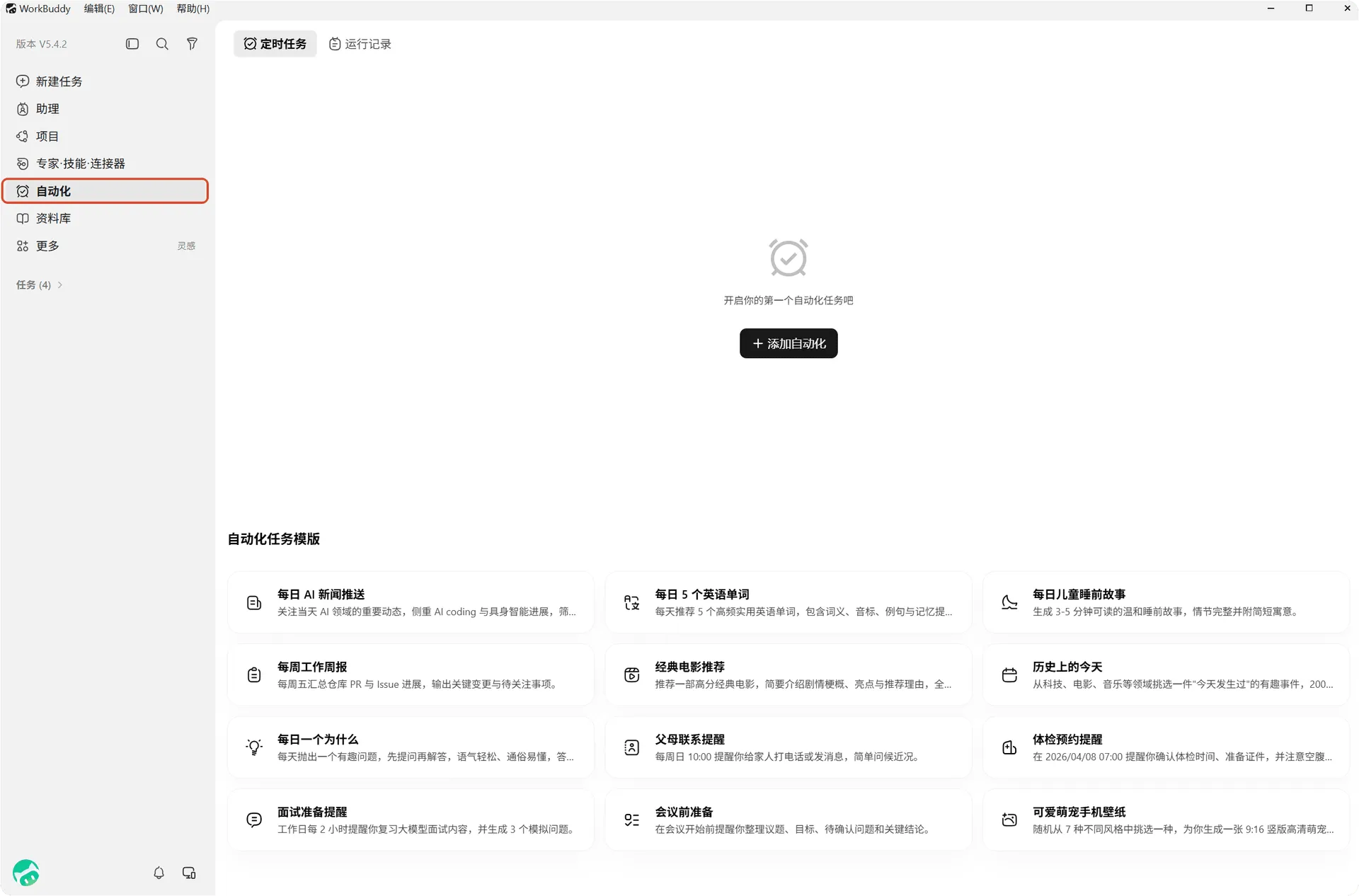
Do not schedule a task until all are true:
- It succeeded at least twice under supervision.
- Inputs and output paths are stable.
- Every external service and credential is documented.
- Failure has a visible result and safe retry.
- It does not send, publish, delete, purchase, or change permissions without human review.
- Typical credit use is measured.
- One person owns monitoring and shutdown.
Practice: a local weekly folder digest
Create weekly-input-copy with a few synthetic Markdown notes. Manually run:
Read Markdown files created in the selected weekly-input-copy workspace during the last 7 days.
Create weekly-digest.md with:
- files included and excluded,
- completed items,
- open items,
- contradictions or missing owners,
- source filename beside each item.
Do not edit source files, use connectors, send messages, or publish.
If no eligible files exist, create no digest and report “No eligible input.”
Verify it twice with different input, including the empty case.
Create the schedule
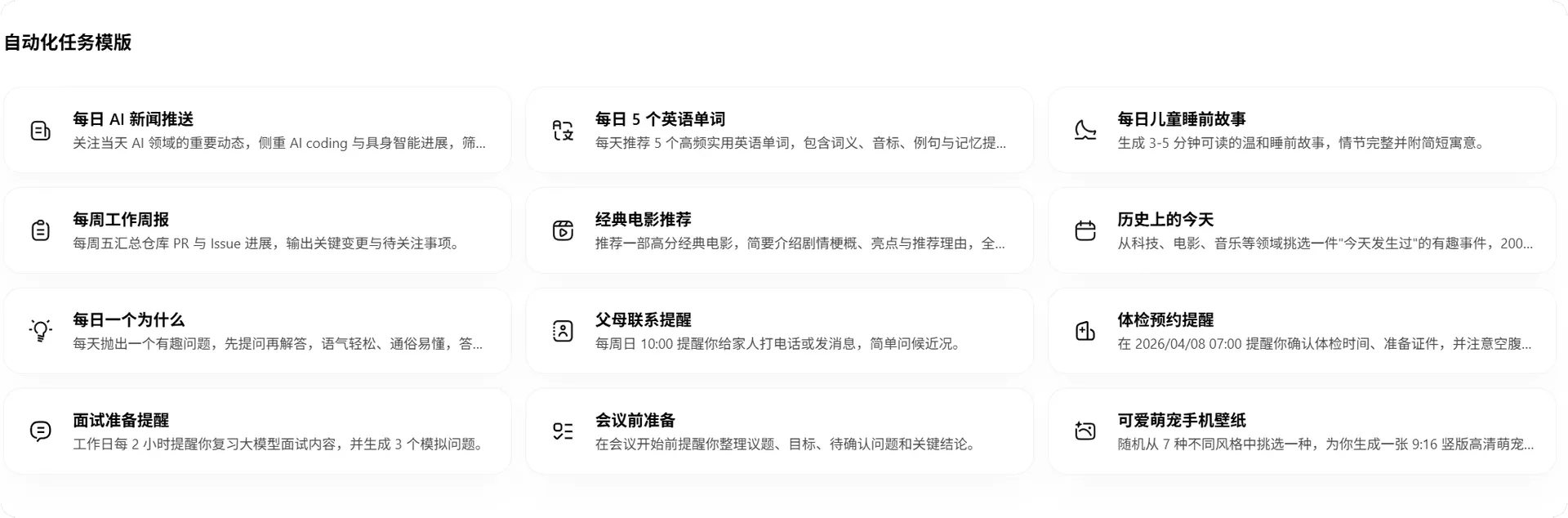
Configure:
- Name: Practice weekly digest
- Workspace: the copied practice folder
- Prompt: the tested prompt, including no-input behaviour
- Model: the measured lowest-cost model that passes
- Skills: none unless the manual task proved one necessary
- Schedule: one test run, then weekly
- Push: off until the local result is correct
Run the built-in test. Compare the scheduled artefact with a manual run.
Remote Assistant is a different surface
Assistant lets a phone message remotely control the desktop WorkBuddy through WeChat, WeCom, QQ, DingTalk, or Feishu. The desktop computer must remain on, WorkBuddy must be running, and the network must be available.
Official documentation says Assistant uses a dedicated folder, one continuing session, and retained history. Local normal tasks can use freely selected workspaces and separate conversations. Use Assistant for remote triggers and status—not as a replacement for the full local workspace.
Bind one platform safely
- Open Settings → Assistant settings.
- Choose one platform; WeChat Assistant is the official recommended path.
- Follow the platform’s identity and bot setup.
- Store AppID/AppSecret only in the supported configuration field.
- Bind only the intended personal or test identity.
- Send a harmless status request first.
Test prompt:
Report whether the Practice weekly digest automation is enabled and the timestamp of its last run.
Do not run it, change it, open source files, or send any artefact.
Then test a bounded run with synthetic data. Confirm high-risk file, command, and system actions still request confirmation as documented.
Mobile file boundary
The official FAQ says mobile messaging clients cannot directly upload arbitrary desktop files because of device and path limits. Point the desktop task to an already authorised local path; do not send a secret file through chat merely to make it reachable.
Monitor and stop
Review:
- Trigger time and duration
- Model and credits
- Files and services accessed
- Output path
- Failures or retries
- Mobile notification content
Pause the automation after repeated failure, unexpected scope, stale inputs, increased cost, or owner absence. Unbind Assistant when remote access is no longer required. Official documentation says unbinding removes local platform configuration while platform-side bots/apps may still need separate cleanup.
Success check
The system passes when a test schedule produces the expected digest from the correct folder, empty input behaves safely, credit use is known, history is inspectable, the phone can request status, and unbinding prevents new remote commands.
FAQ
Will desktop Automation run while the computer is off?
Do not plan on it. The desktop automation is local and Assistant explicitly requires the computer on with WorkBuddy running. The mini program also has cloud-mode automation, which is a separate surface with its own availability.
Can I schedule an email send?
Generate a draft or digest automatically; keep the actual send behind human review of recipient, attachments, content, and identity.
How often should a new automation run?
Start with a manual test or low frequency. Increase only after outputs, failures, and credit use are stable.
Quick self-check
Q1. What is the best first mobile command after binding Assistant?
Answer: A read-only status request that proves the intended identity and connection without executing a task.
Official sources
What’s next
Audit the controls that keep an agent useful over time in L14: Security, Memory, Cost, and Troubleshooting.