Tencent WorkBuddy · Tutorial 03
Your First Safe WorkBuddy Task
Create a disposable workspace, use the right work mode, keep default permissions, and produce one harmless file you can inspect.
0 of 7 complete
Essentials · Step 3 of 7 · View the route
Last checked and updated: September 3, 2026
Your first task should not send an email, reorganise your real Documents folder, publish a page, or edit an important workbook. It should create one new file inside a disposable folder.
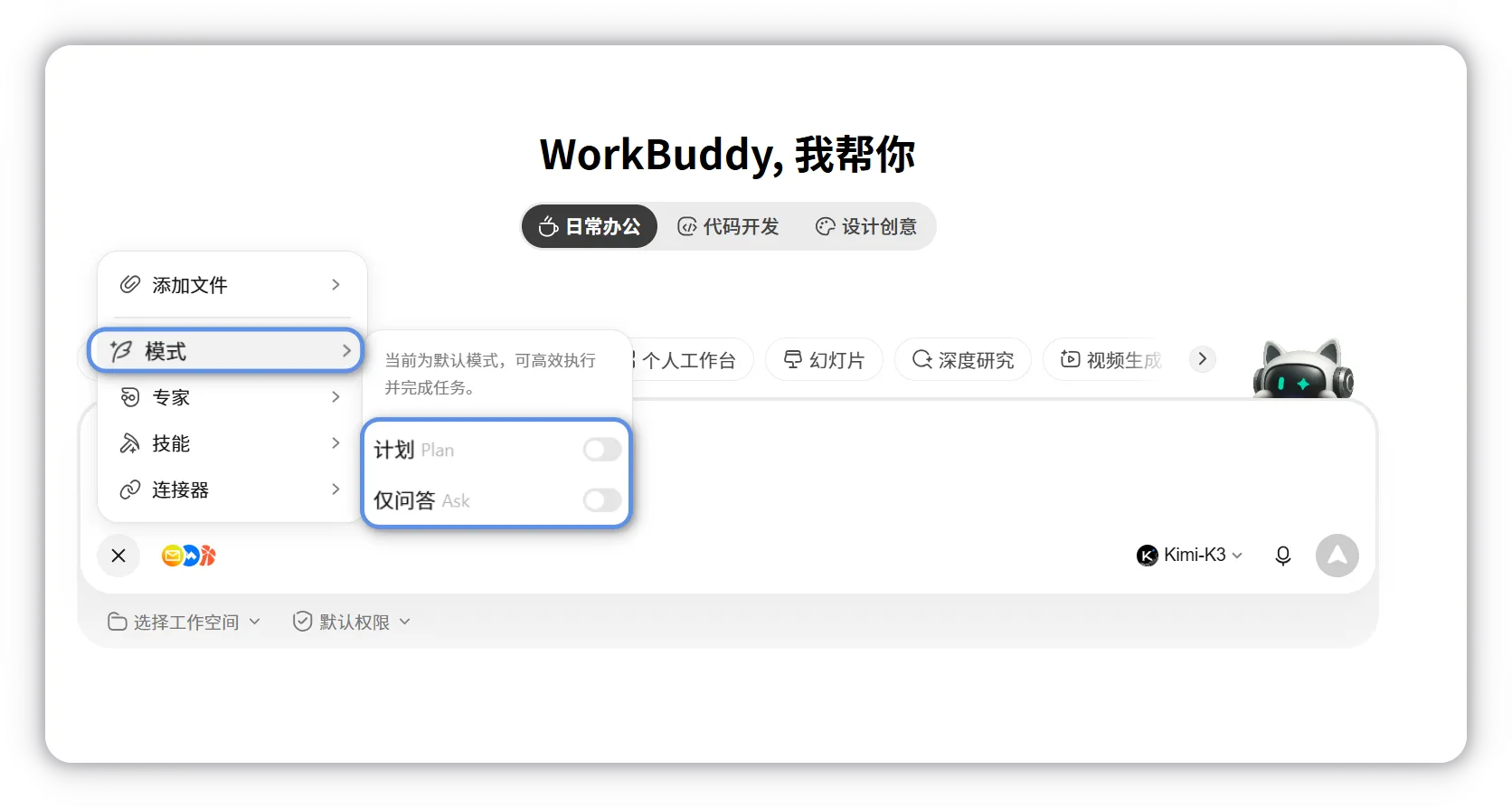
WorkBuddy’s current task interface offers three modes:
- Ask: questions and information without file changes.
- Craft: direct execution for a clear job that may modify files.
- Plan: a reviewable plan before execution for uncertain or multi-step work.
Prepare a practice workspace
Create a folder named workbuddy-practice. Put one harmless text file inside it named source-notes.txt:
Monday: Customer interview. People asked for a faster setup guide.
Tuesday: Support review. Three users could not find the export button.
Wednesday: Drafted a checklist and tested it with one colleague.
Do not use client data, legal material, credentials, wallet files, health records, production configuration, or the only copy of anything.
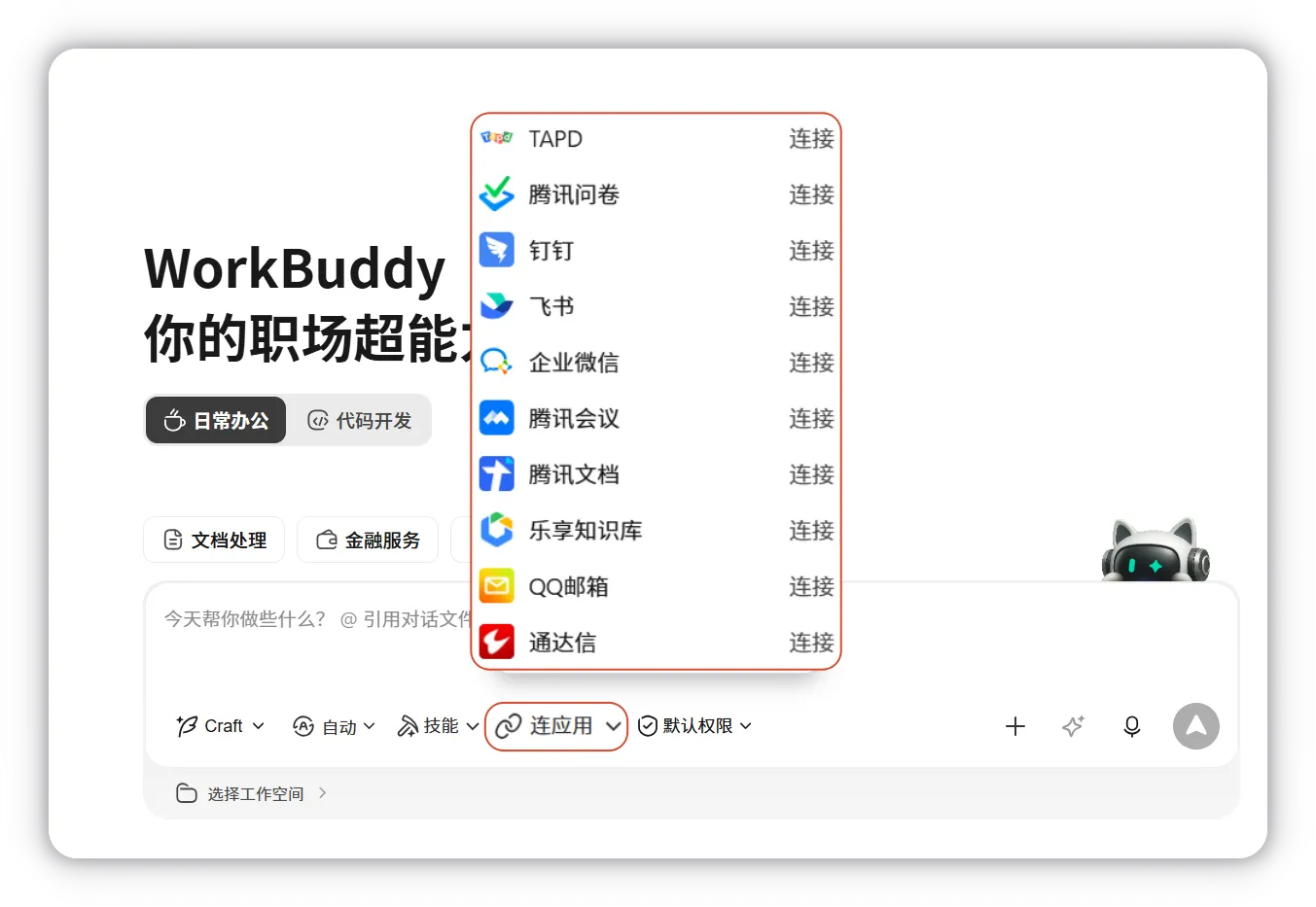
In WorkBuddy, start a new task and choose this folder as the workspace. Official guidance says tasks can receive their own automatic directory, but an explicitly selected practice folder makes the boundary easier to see.
Step 1: understand in Ask mode
Keep default permissions and select Ask mode. Send:
Read source-notes.txt in the selected practice workspace.
Do not create, edit, rename, move, or delete any file.
Tell me:
1. the three events in date order,
2. which statement is an observation versus an interpretation,
3. the exact filename you read.
Check the answer against the source. Ask mode is your low-risk way to test whether WorkBuddy sees the intended file and understands the boundary.
Step 2: plan the deliverable
Switch to Plan mode:
Plan how to create a new file named weekly-update.md from source-notes.txt.
The output must contain: a three-item activity summary, two clearly labelled findings,
one next action, and a source note naming source-notes.txt.
Do not change the source file. Do not use the internet or any connector.
Show the exact files you expect to read and write. Wait for my approval.
Review the plan. It should read one file and write one new file inside the workspace. If it proposes external research, broad folder access, or rewriting the source, ask it to narrow the plan.
Step 3: execute in Craft mode
After the plan is correct, approve execution or switch to Craft with the approved instructions. When WorkBuddy requests permission, inspect:
- Operation: read, write, execute, or delete?
- Path: exactly which file or folder?
- Need: does the deliverable require it?
Approve only the necessary write to weekly-update.md. If the prompt is vague, cancel and ask WorkBuddy to show the file list first.
Step 4: verify independently
Open the output in the result area and check:
- It contains all four requested sections.
- Every event matches
source-notes.txt. - Findings are labelled as interpretations, not facts from the file.
- The source note names the right file.
source-notes.txtremains unchanged.- No other files appeared.
Ask WorkBuddy to report the paths it changed, but also inspect the workspace yourself. An agent saying “done” is not the proof.
The five-line task brief
Reuse this pattern throughout the course:
Outcome: [one finished result]
Inputs: [authoritative files or sources]
Constraints: [allowed actions and forbidden actions]
Deliverable: [format, sections, and save location]
Proof: [checks that must pass before success]
Success check
The task passes only if one new weekly-update.md exists, the original file is unchanged, the content matches the source, and no external tool or unrelated path was used.
FAQ
Does the workspace guarantee WorkBuddy cannot reach outside it?
Treat the workspace as the intended context and default save area, not a reason to stop reading permission prompts. Official guidance says default permission requests confirmation for sensitive work such as operations outside the workspace.
Should I enable Full Access to remove prompts?
No for this exercise. Default permission is the recommended daily mode. Full Access removes useful review points and can permit high-risk actions without confirmation.
Why use Plan if the task is small?
You are learning the inspection loop. Later, use Craft for small, fully specified tasks and Plan when the execution path is uncertain or expensive.
Quick self-check
Q1. A permission asks to write outside workbuddy-practice. What should you do?
Answer: Cancel, ask why it is needed, and require a plan that keeps the output inside the selected workspace.
Official sources
What’s next
Turn the five-line brief into a better plan, model choice, and review routine in L04: Plan, Prompt, Model, and Review.