Tencent WorkBuddy · Tutorial 02
WorkBuddy Pricing, Access, and Installation
Choose the correct Windows or Mac build, understand the shared credit system, sign in, and verify setup without buying the wrong plan.

0 of 7 complete
Essentials · Step 2 of 7 · View the route
Last checked and updated: September 3, 2026
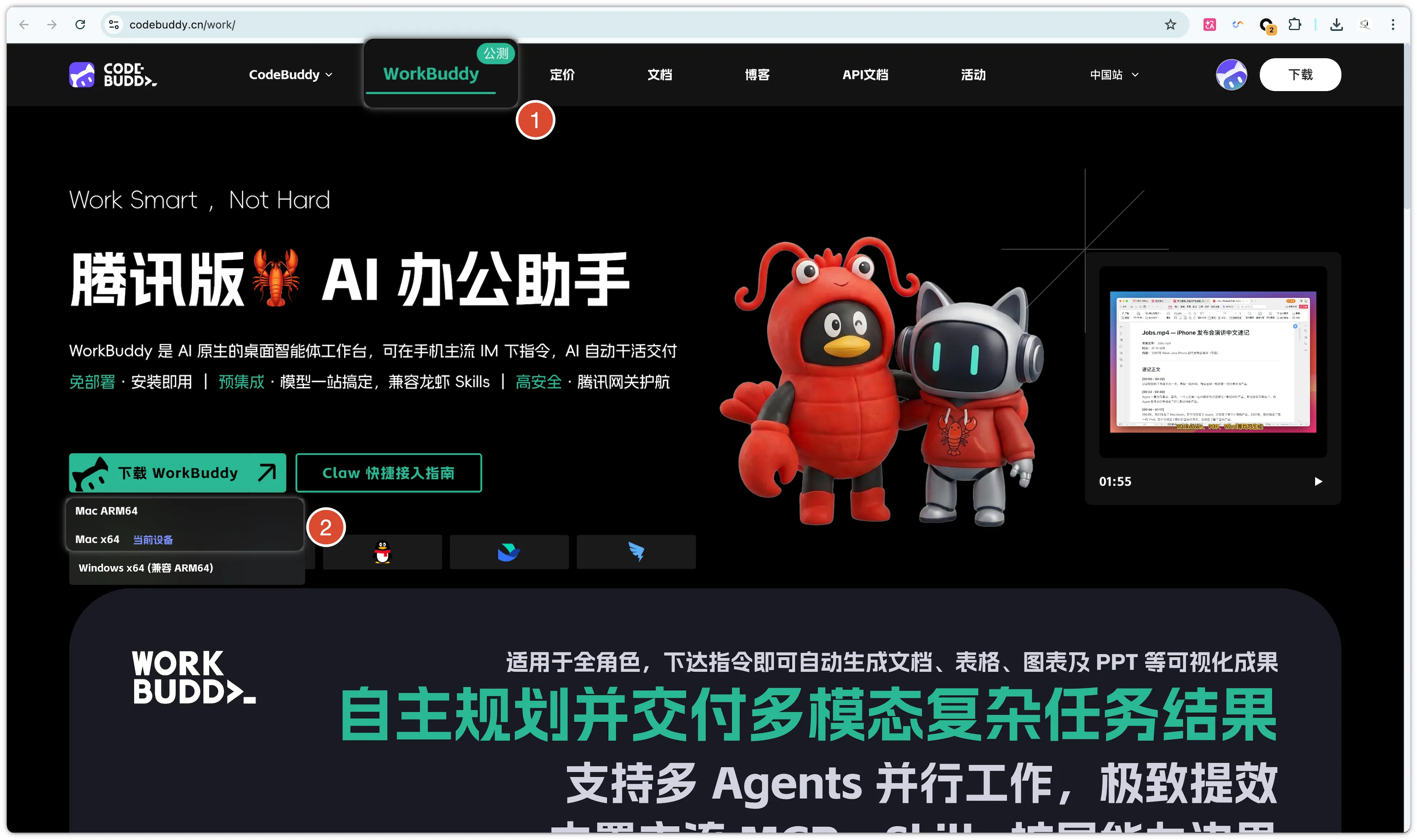
WorkBuddy currently provides desktop builds for Windows 10 or later and macOS 12 Monterey or later. Mac users must choose between Apple Silicon (ARM64) and Intel (X64). Personal sign-in uses a WeChat scan in the documented flow; enterprise seats use their enterprise login path.
What the plans mean today
The official pricing page currently lists a free Experience tier plus Standard, Advanced, and Flagship personal tiers. As checked on September 3, 2026, their headline monthly prices were ¥0, ¥99, ¥199, and ¥999. Continuous-month and annual discounts, bonus-credit promotions, automation limits, model access, project limits, and enterprise pricing have separate terms.
Two details matter more than memorising the table:
- WorkBuddy and CodeBuddy share credits on the same account. Heavy use in one product affects the pool available to the other.
- Every conversation-related request consumes credits. The amount varies by model, input/output length, tools, and task complexity.
Pricing changes quickly. Before purchasing, open the live pricing page and the Usage screen in your signed-in account. This course does not rely on a paid tier for the first safe task.
Step 1: check the machine
On Windows:
- Confirm Windows 10 or later.
- Download the 64-bit Windows installer from the official WorkBuddy site.
- Do not use an installer from a search ad, file mirror, or community post.
On Mac:
- Open Apple menu → About This Mac.
- Confirm macOS 12 or later.
- If the Chip says Apple M1, M2, M3, M4, or later M-series, choose Mac ARM64.
- If it says Intel, choose Mac X64.
Step 2: install
Windows
- Run the downloaded installer.
- Read and accept the displayed agreement only if you agree.
- Keep the default install path unless your organisation requires another.
- Finish installation and launch WorkBuddy.
macOS
- Open the
.dmgfile. - Drag WorkBuddy into Applications.
- Wait for copying to finish.
- Eject the mounted disk image.
- Launch WorkBuddy from Applications or Spotlight.
If macOS says the application is damaged or cannot be verified, do not follow a random command that disables Gatekeeper. Confirm the file came from the official site, redownload it, and consult the current official FAQ.
Step 3: sign in and inspect before subscribing
- Select Log in.
- Read the service terms and privacy agreement.
- Scan with the intended WeChat account.
- Choose personal or enterprise login to match your entitlement.
- Return to the client and confirm the account name.
- Open Usage or subscription management and record the current tier, remaining credits, expiry, model list, and automation allowance.
Use this small account card:
Signed-in identity: [masked account name]
Account type: personal / enterprise
Plan shown in app: [current tier]
Credits remaining: [current value]
Reset or expiry: [date shown]
Models visible: [names shown]
Shared with CodeBuddy: yes
Purchase made today: no
Never put a QR code, session cookie, access token, app secret, or complete account screenshot into a public lesson, repository, or chat.
Step 4: update and verify
Use the profile menu’s update check. Then create a new task but do not run a file-changing prompt yet. Setup is complete when:
- WorkBuddy opens without an update loop.
- The intended account is visible.
- A new local task can be created.
- Ask mode, workspace, model, and permission controls are visible.
- Usage details load for the same account.
Troubleshooting
| Symptom | What to check |
|---|---|
| App will not start on Windows | OS must be Windows 10 or later; confirm 64-bit installer and a complete download |
| Mac package will not run | Confirm macOS 12+, correct ARM64/X64 build, and official download source |
| Login completes in browser but not app | Retry from the client, confirm one intended account, update the app, and check network controls |
| Expected model or tier is missing | Confirm account type, entitlement, region, current Usage screen, and live plan terms |
| Credits fall unexpectedly | Check whether CodeBuddy used the shared pool and whether a long task, large input, or expensive model ran |
FAQ
Do I need to pay before learning?
No. The official page lists a free Experience tier. Its limits and promotional allowances can change, so use a short Ask task and one small practice file first.
Can I use email and password instead of WeChat?
The current personal installation guides document WeChat scanning. Enterprise access follows the enterprise route. Use the login methods actually presented to your account.
Should I buy Flagship for better answers?
Not before you know your workload. First measure a representative task, review the model and credit cost, and calculate how many successful runs you need per month.
Quick self-check
Q1. A Mac says “Apple M3.” Which installer should you choose?
Answer: Mac ARM64.
Official sources
What’s next
Create a disposable workspace and a harmless result in L03: Your First Safe WorkBuddy Task.