Tools · Tutorial 02
Vorssaint: Build a focused macOS utility setup
Install only the Mac utilities you need, grant permissions feature by feature, and configure sound, windows, monitoring, clipboard, and maintenance without turning on everything.

0 of 1 complete
Reference guide · Read when needed · View the route
Last tested and updated: August 26, 2026
Vorssaint is a free, open-source macOS menu-bar app that combines utilities people often install separately: per-app sound, system monitoring, window controls, clipboard history, screenshots, a command bar, file tools, and app maintenance.
The repository link in this tutorial currently redirects from vorssaint/vorssaint-utils to the maintainer’s vorssaintapp/vorssaint-utils organization. On August 26, 2026, the newest stable release was v3.3.2, published August 20. The main branch can include beta work beyond the stable build, so use the stable release page as the authority for a normal installation.
Vorssaint’s best design choice is that whole features can be installed or uninstalled inside the app. Start with a small outcome and add only what you use. Your finish line is a menu-bar setup with:
- one useful sound or window control;
- one system-health view;
- one carefully configured clipboard or quick-action feature;
- only the macOS permissions those choices require;
- a recorded way to disable, update, and remove the app.
Check compatibility first
Current stable requirements are:
| Requirement | Supported state |
|---|---|
| Processor | Apple silicon Mac |
| Operating system | macOS 14 Sonoma or newer |
| Account | No Vorssaint account required |
| Network | Not required for core local tools; used for visible actions such as updates, speed tests, Homebrew operations, temporary sharing, and feedback |
Do not try to bypass the architecture or OS requirement with an unofficial binary. The project says official builds are signed with an Apple Developer ID and notarized.
Step 1: install the stable app
With Homebrew:
brew install --cask vorssaintOr download Vorssaint-3.3.2.dmg from the official release page, open the disk image, and drag the app to Applications. Use the current stable filename when a later release exists.
Launch Vorssaint from Applications. Confirm:
- macOS identifies the downloaded app normally;
- a Vorssaint icon appears in the menu bar;
- the first-run feature picker opens;
- no account or subscription screen is required.
Step 2: choose a first feature set
The first-run flow offers bundles such as Essentials, Windows, and Battery and quiet, plus an individual feature picker. Choose individual features when you want the clearest permission and energy boundary.
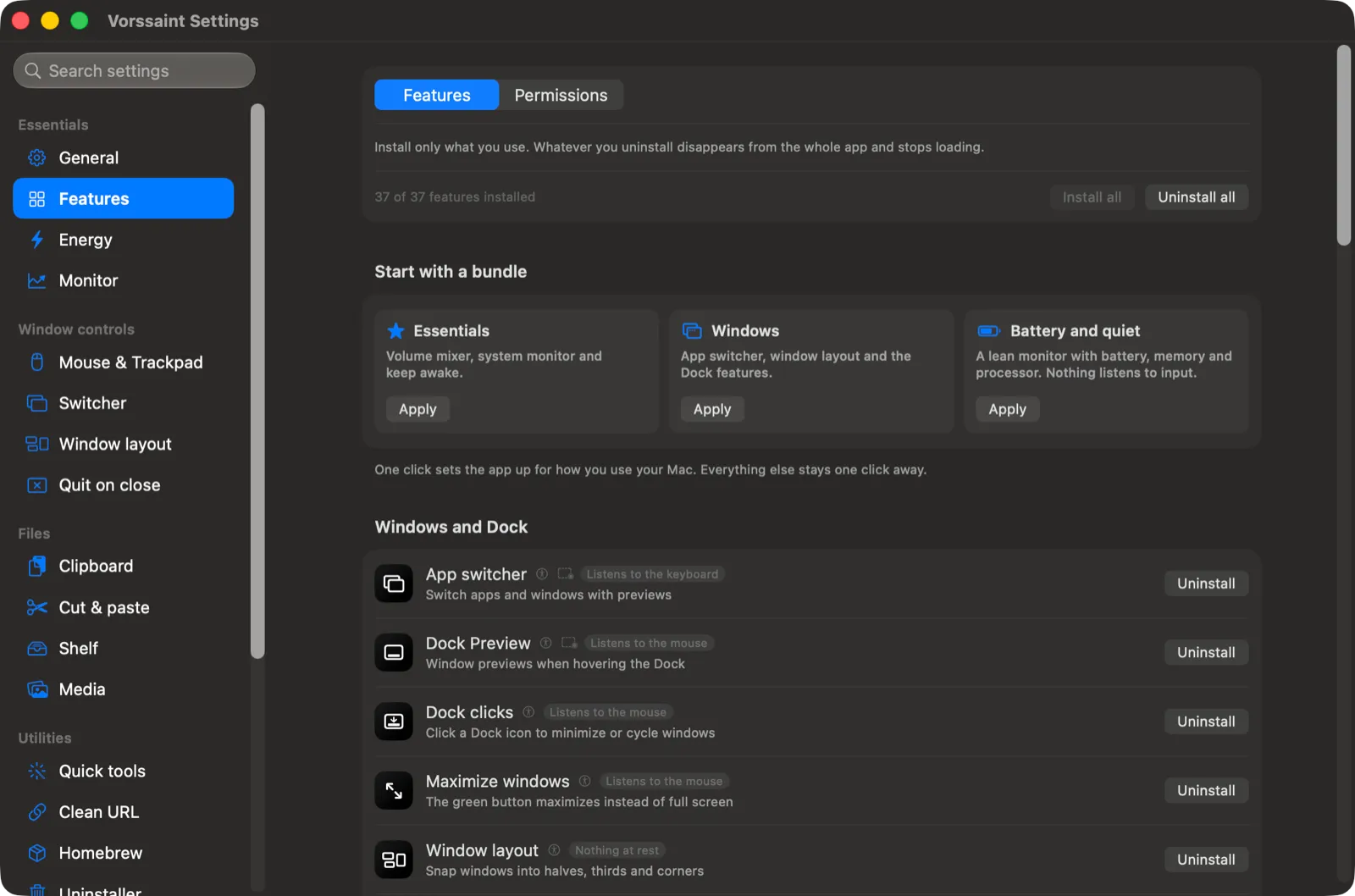
A sensible beginner set is:
| Goal | Start with | Leave off for now |
|---|---|---|
| Control noisy or quiet apps | Volume mixer and output switcher | Per-app routing until you have two outputs to test |
| See whether the Mac is under pressure | System monitor and selected menu-bar readouts | Frequent alerts until you know your normal baseline |
| Arrange work faster | Window Layout | App Switcher thumbnails and Dock Preview until you decide whether Screen Recording is worth it |
| Paste repeated items | Paste as plain text and a small clipboard history | Long retention of images, files, or sensitive text |
| Open tools quickly | Command Bar | Local scripts until each script is reviewed and tested separately |
Every extra background sampler, listener, capture tool, or history store has a cost. Vorssaint exposes energy badges for that reason. Install a feature because it solves a named problem, not because it is available.
Step 3: grant permissions by outcome
Vorssaint describes its permissions as optional. A denied permission should disable or reduce the related feature rather than block the whole app.
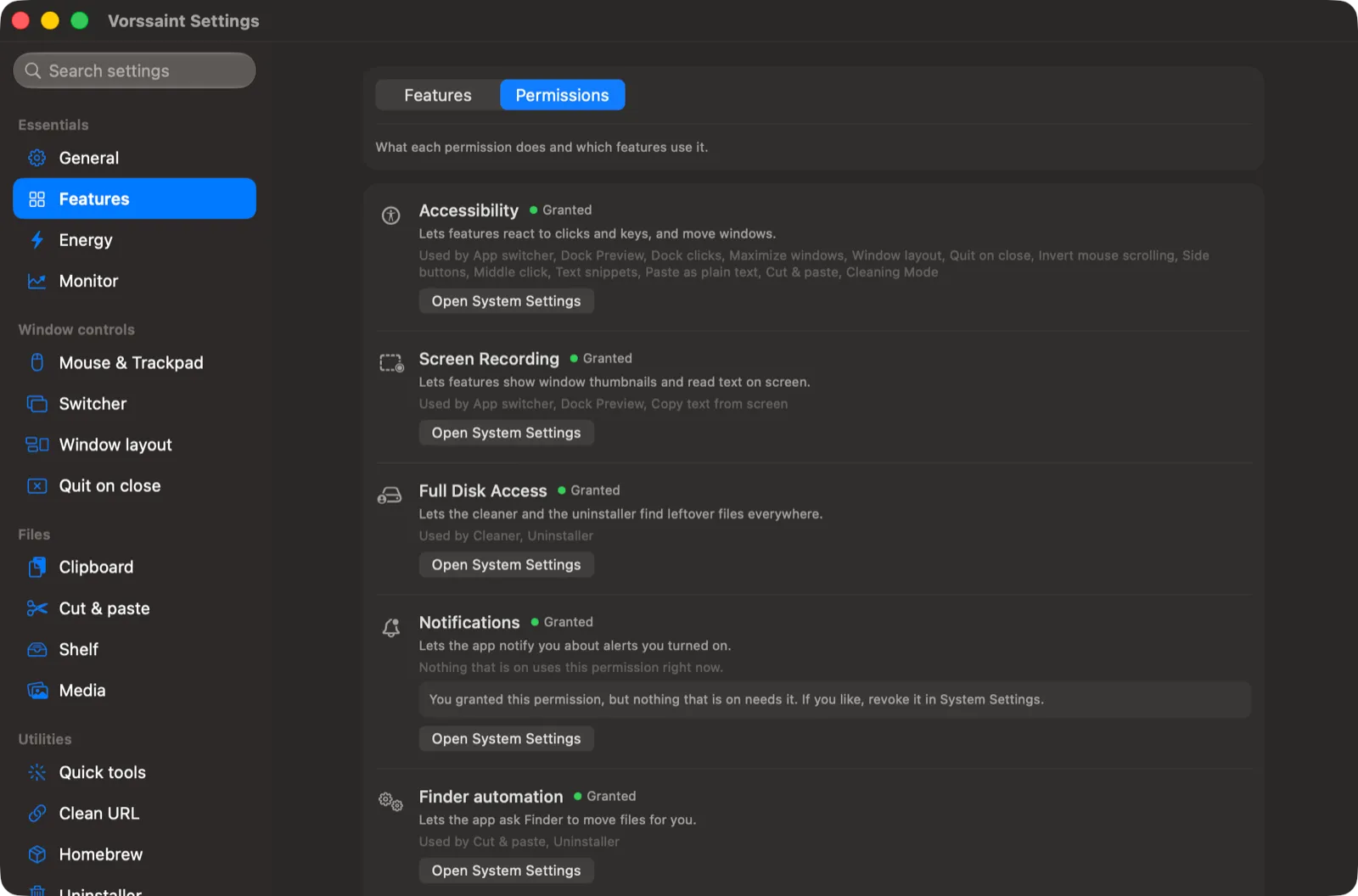
Use this map before accepting a macOS prompt:
| Permission | Used for | What to do if you do not need it |
|---|---|---|
| Accessibility | Window management, input actions, snippets, app switching, mouse and keyboard features | Leave it off; those controls remain unavailable |
| Screen Recording | Window titles/thumbnails, Dock Preview, screenshot tools, text recognition | Leave it off for icon-only/simple views and no capture features |
| System Audio Recording | Per-app volume and output routing | Leave it off if system-wide volume is enough |
| Microphone | Microphone tools and optional recording audio | Grant only when configuring those features |
| Camera | Camera preview | Leave it off unless you use the preview |
| Notifications | Monitor, battery, keep-awake, and update alerts | Leave it off if you prefer silent status checks |
| Full Disk Access | Deeper Cleaner and Uninstaller scans | Avoid until a specific reviewed removal requires it |
| Administrator, one time | Optional privileged helpers such as closed-lid behavior | Do not grant for ordinary menu-bar tools |
| Automation or App Management | Actions involving Finder, Terminal, app install/removal, or related system control | Accept only while performing the named action |
After changing a macOS privacy grant, quit and reopen Vorssaint. macOS often applies Screen Recording and Accessibility changes only after a restart.
Step 4: make the volume mixer useful
Open the Mixer panel and play audio in two apps you can identify, such as a browser and a music player.
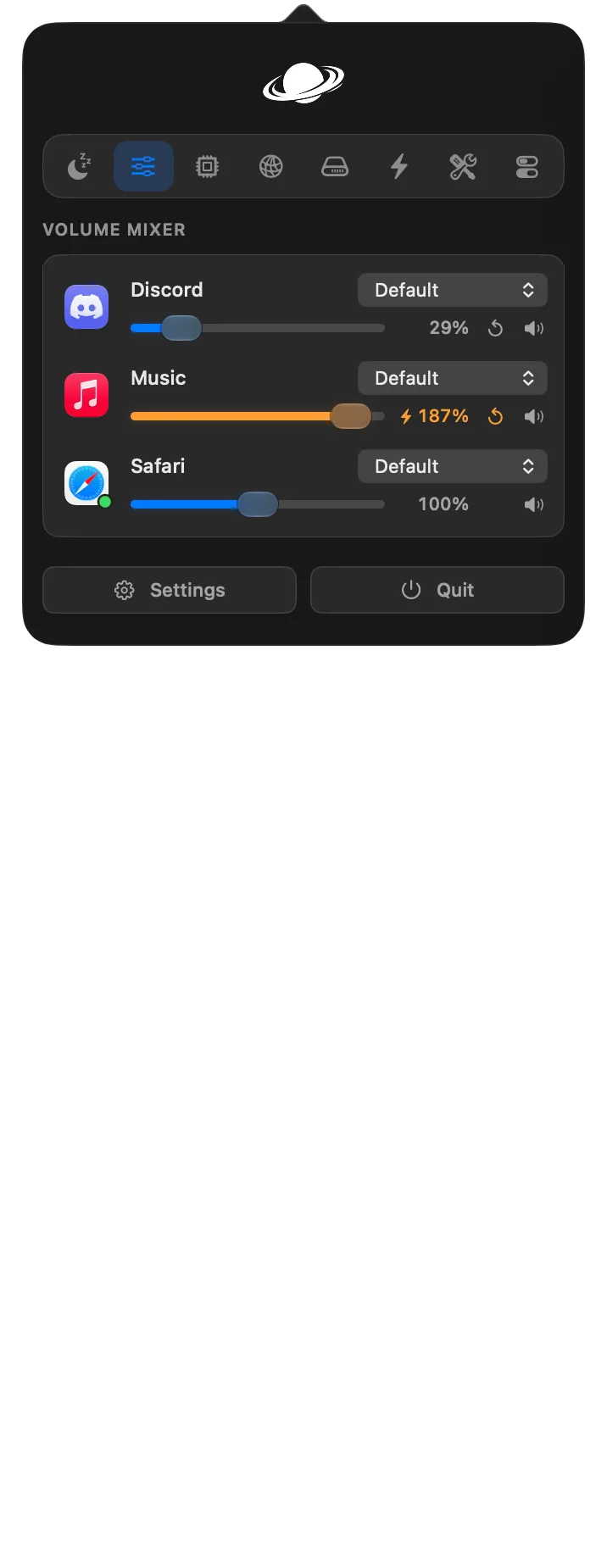
Configure it in this order:
- Set both apps near their normal volume.
- Move one app’s slider down and confirm only that app becomes quieter.
- Return it to the original level.
- Hide apps you never adjust so the panel stays short.
- If you have two outputs, route one test app to the second output and confirm the other app remains unchanged.
- Configure the output-switcher shortcut only after manual switching works.
Boosting above 100 percent can increase distortion and surprise you when content changes. Use the smallest boost that solves a genuinely quiet source, then return to a normal level.
Success check: the system output remains stable while one chosen app changes independently. If every app changes together, you are using the system slider rather than per-app control, or System Audio Recording is not active.
Step 5: establish a system-monitor baseline
Open the System panel while the Mac is idle, then while a normal workload is running. Record a range rather than reacting to one spike:
Idle sample: CPU [range], memory pressure [state], temperature [range]
Normal-work sample: CPU [range], memory pressure [state], temperature [range]
Apps using energy now: [top two visible apps]
Battery: [health/cycles if relevant]
Choose only one or two menu-bar readouts. Persistent CPU, GPU, temperature, network, and fan sampling can turn a monitoring tool into a source of noise and energy use. Alerts are most useful after you know what normal looks like.
Do not treat one temperature reading as a diagnosis. Confirm sustained behavior, the workload responsible, fan state, power source, ambient conditions, and whether macOS itself reports a problem.
Step 6: configure Window Layout without collisions
Install Window Layout, grant Accessibility, and test with a disposable window:
- Assign shortcuts to left half, right half, maximize, and restore.
- Open a Finder window or empty document.
- Trigger left half, then right half.
- Use restore and confirm the original frame returns.
- Add thirds, corners, edge snapping, or display movement only after the four core actions work.
Check existing app and macOS shortcuts before assigning global keys. A shortcut is not successful if it silently overrides a command you already use.
App Switcher and Dock Preview add live window discovery. Use simple/icon modes first if you do not want to grant Screen Recording. Turn on thumbnails only when their benefit is worth the extra visibility into window titles and previews.
Step 7: keep clipboard history intentionally small
Clipboard history can contain passwords, recovery codes, customer data, private links, copied files, and screenshots. Local storage is better than automatic cloud upload, but it still needs a retention decision.
Start with this setup:
- Enable text history only if the current build offers content-type controls.
- Choose a short history limit or clear routine.
- Pin only non-sensitive templates.
- Turn on Auto clear clipboard for screen lock or sleep if that matches your workflow.
- Add Paste as plain text as a separate shortcut.
- Copy harmless sample text, paste it from history, then clear it and confirm it disappears.
Vorssaint’s privacy documentation says clipboard, capture, shelf, and related data stay on the Mac unless you explicitly use a sharing action. That is not a reason to store secrets longer than necessary.
Step 8: use Command Bar as a reviewed launcher
The Command Bar can open apps, switch windows, run Vorssaint actions, insert snippets, search selected folders, perform calculations, and run saved local scripts.
Build it up in three levels:
- Safe navigation: open an app, open a System Settings pane, run a harmless quick toggle.
- Reusable text: create one non-sensitive snippet and insert it into a blank document.
- Local script: add only a script you wrote or reviewed, with no hidden download, deletion, credential, or privilege step.
For a local script, run the same command in Terminal first, inspect its output, and keep its permissions narrow. Convenience does not make a command safer.
What the remaining feature groups are for
| Group | Useful when | Important boundary |
|---|---|---|
| Screenshots and recording | You need capture, editing, OCR, or temporary sharing in one flow | Review Screen Recording, microphone/system-audio capture, save folder, and share-link expiry |
| Shelf and Finder tools | You frequently move files, links, or copied images between locations | Confirm the destination and Trash behavior before bulk actions |
| Cleaner and Uninstaller | You need reviewed cleanup of one app’s leftovers | Start without Full Disk Access; inspect every selected item before moving it to Trash |
| Homebrew manager and App Updates | You want one view of app/package updates | Read package source and release notes; updates still change installed software |
| Media tools | You need local image/video conversion or trimming | Keep originals until the exported result is checked |
| Keep Awake and displays | You run a bounded job or manage external displays | Use a timer; do not make permanent sleep changes for a one-off task |
| Snippets, Super key, mouse tools | Repeated input and navigation are slowing you down | Avoid collisions with accessibility tools, games, design apps, and existing shortcuts |
Privacy and network boundary
The project states that Vorssaint has no account, backend, analytics, or tracking. Core processing is local. Network activity is tied to visible actions such as:
- update checks;
- the network speed test;
- Homebrew search, install, and update actions;
- temporary screenshot or recording links you explicitly create;
- feedback you explicitly send.
Before creating a temporary share link, inspect the capture for notifications, account names, private tabs, API keys, wallet addresses, customer details, and location clues. A local capture becomes transmitted data when you ask the app to upload it.
Export a maintainable setup
After a week, open the Features hub and remove anything you did not use. Reorder or hide panel sections so the menu stays fast to scan. Export settings to a file only after checking what the export contains, then store it in a private location.
Keep this small audit note:
Installed features: [list]
Granted permissions: [list]
Global shortcuts: [list]
Clipboard retention/clear rule: [rule]
Network-using features enabled: [list]
Next review date: [date]
Troubleshooting
| Symptom | Likely cause | Recovery |
|---|---|---|
| App does not open | Unsupported Intel Mac, macOS older than 14, damaged download, or unofficial build | Confirm compatibility and reinstall the signed stable build from the official release |
| Window controls do nothing | Accessibility is off or stale | Re-enable it under Privacy & Security → Accessibility, then restart Vorssaint |
| Window titles or thumbnails are missing | Screen Recording is off | Accept icon-only behavior or grant Screen Recording and restart the app |
| Per-app volume does not move audio | System Audio Recording is off or the app has not produced audio yet | Grant the permission, restart, play audio, and test again |
| Permission is shown as enabled but does not stick | macOS privacy state is stale | Quit Vorssaint, toggle the permission off/on, restart, and reset only the affected permission if needed |
| A shortcut does nothing | Another app or macOS owns the combination | Assign a unique shortcut and retest with the conflicting app closed |
| Menu bar uses more energy than expected | Too many monitoring, capture, input, or preview features are installed | Remove unused features and reduce persistent menu-bar metrics |
The project’s documented permission reset commands are:
tccutil reset Accessibility com.vorssaint.utils
tccutil reset ScreenCapture com.vorssaint.utils
These revoke the chosen grant and make macOS ask again. Do not reset all privacy grants as a first step.
Update, uninstall, or build from source
For a Homebrew installation:
brew upgrade --cask vorssaintRead the stable changelog before updating features that touch audio, capture, fan control, cleanup, display state, or permissions.
Remove the Homebrew app with:
brew uninstall --cask vorssaintThat removes the installed application. The repository also provides Tools/uninstall.sh for a complete removal of settings and permissions. Review the script from the exact release before running it because complete removal is intentionally destructive.
To audit or contribute to the source:
git clone https://github.com/vorssaintapp/vorssaint-utils.git
cd vorssaint-utils
./build.sh
./build/Vorssaint --selftest
A successful self-test prints SELFTEST OK. The project documents Xcode Command Line Tools as the build requirement. Self-built copies are for development and auditing; use the signed release for normal daily operation.
FAQ
Does Vorssaint support Intel Macs?
The current documented requirement is Apple silicon. Do not assume an older or unofficial Intel build receives current fixes.
Do I need to grant every permission?
No. Grant only the permissions used by features you installed. The app can flag permissions that no current feature needs so you can revoke them.
Is Clipboard History safe for passwords?
Treat password managers as the right place for passwords. Keep clipboard retention short, clear sensitive items, and avoid pinning secrets even when history is local.
Why would I uninstall a feature inside the app?
Vorssaint removes that feature from the interface and stops loading its work while retaining settings for a later reinstall. This is useful for reducing background activity and permission scope.
Does temporary sharing remain local?
No. Creating a share link uploads the selected capture for the chosen expiry period. Review the content immediately before sharing and delete the link early when it is no longer needed.
Should I use the beta channel?
Use stable for a dependable daily utility. Opt into beta only if you are prepared to report regressions, keep backups, and distinguish beta features from the current stable release.
Official sources
- Vorssaint repository
- Latest stable release
- Permissions documentation
- Privacy documentation
- Troubleshooting
- Contributing and build guide
What’s next
Turn the terminal into a supervised build workflow in T03: Warp.