Tools · Tutorial 03
Warp: From terminal commands to a supervised agent workflow
Install Warp, learn Terminal and Agent modes, add project rules and cautious permissions, complete a reviewed change, save a Workflow, and connect MCP safely.

0 of 1 complete
Reference guide · Read when needed · View the route
Last tested and updated: August 26, 2026
Warp is an open-source, cross-platform terminal application with built-in local and cloud agent workflows. The terminal can run ordinary shell commands without turning every input into an AI request. Agent conversations add models, context, planning, file edits, command execution, and review controls.
That distinction is the foundation of this tutorial:
- use Terminal mode when you know the command and want direct shell behavior;
- use an Agent conversation when the work needs investigation, planning, several steps, or file changes;
- keep permissions conservative until the agent has proved the workflow;
- verify results with Git, tests, and the actual runtime rather than accepting a confident message.
Your finish line is one small project change with a reviewed diff, a passing check, a reusable command saved as a Workflow, and no secret or destructive command exposed to an agent.
Step 1: install Warp
Warp currently supports macOS, Windows, and Linux on Intel/x64 and ARM64 where documented.
macOS
Warp requires macOS 10.14 or later and Metal-capable hardware. Install from the official download page or Homebrew:
brew install --cask warpWindows
Warp requires Windows 10 version 1903/build 18362 or later, or Windows Server 2022 build 20348 or later. Install the signed download or use WinGet:
winget install Warp.WarpLinux
Warp documents glibc 2.31 or newer plus OpenGL ES 3.0 or Vulkan support. Download the package matching your distribution and architecture. On Debian or Ubuntu:
sudo apt install ./warp-terminal_*.debThe installed repository handles later package updates. Warp also publishes RPM, Pacman, and AppImage routes in its current installation guide.
Step 2: choose account and offline boundaries
Creating a Warp account is optional for the core app. Initial setup requires an internet connection, and Warp creates a unique identifier for an anonymous user if you continue logged out. After setup, the core terminal can work offline.
Features that need the network include agents, Warp Drive, collaboration, sharing, MCP, and other cloud-backed capabilities. Decide which product you are testing:
| Setup | What works | Important boundary |
|---|---|---|
| Logged out, online | Core terminal plus limited account-free product state | An anonymous identifier still meters relevant usage |
| Logged out, offline after first setup | Core shell/terminal behavior | AI, Warp Drive, MCP, and collaboration are unavailable |
| Signed in | Cloud objects, sync, agents, and plan-linked capabilities | Review privacy, credits, team scope, and shared data before use |
Do not create an account merely to finish the terminal smoke test. Sign in when a cloud or synchronized feature is part of your actual goal.
Step 3: verify the terminal before using AI
Open Warp and confirm the selected startup shell under Settings → Features → Session. Warp supports bash, fish, zsh, and PowerShell; it falls back to zsh when the configured shell is unsupported.
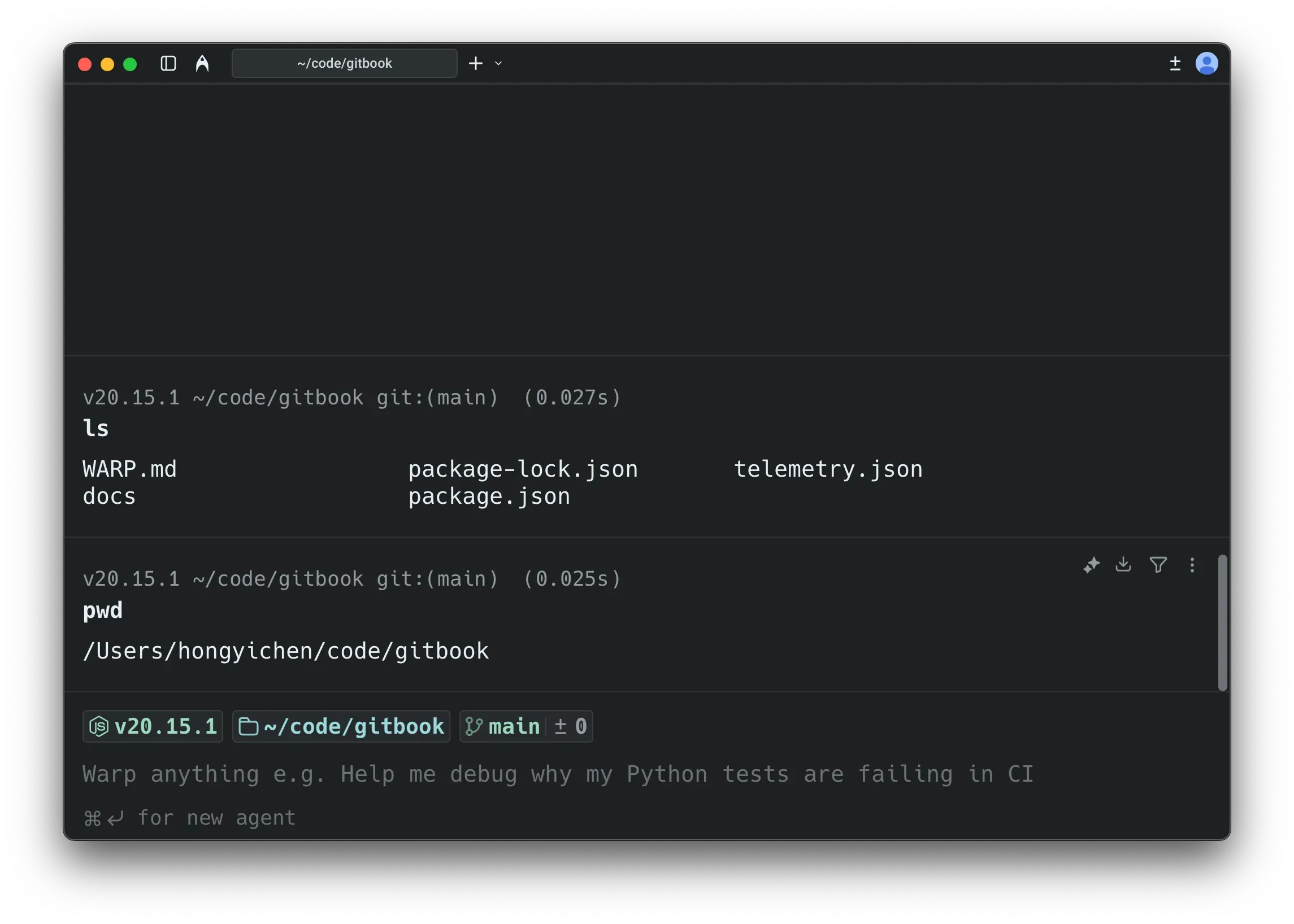
Run these harmless checks in a practice folder:
pwd
git --version
printf 'warp practice\n'
Warp groups a command and its output into a Block, which makes it easier to copy, filter, share, or attach the exact result as context. The shell still owns the command semantics. A polished Block does not make an unsafe command safe.
Open the Command Palette with Command+P on macOS or Ctrl+Shift+P on Windows/Linux. Search for Settings, Keyboard Shortcuts, and Open AI Rules to learn how to find controls without memorizing every menu.
Step 4: create a disposable Git project
Use a project with no credentials or private data:
mkdir warp-practice
cd warp-practice
git init
printf '# Warp Practice\n\nStatus: draft.\n' > README.md
git add README.md
git commit -m "chore: start Warp practice"
If Git needs a name or email, configure them intentionally for this practice repository. Do not copy an employer identity or private email into a public example without checking your Git settings.
Confirm the checkpoint:
git status --short
git log -1 --oneline
The status should be clean. The commit gives you a known rollback point before an agent edits anything.
Step 5: understand mode switching
From Terminal mode, start a new Agent conversation with:
Command+Enteron macOS;Ctrl+Shift+Enteron Windows or Linux;/agentor/newfrom the input.
Use Command+I on macOS or Ctrl+I on Windows/Linux to override auto-detection and switch the input between shell and agent behavior. Keep the terminal’s hint line visible while learning; it tells you whether Warp classified the input as a command or an agent prompt.
Use these modes deliberately:
| Need | Mode |
|---|---|
| Run an exact command you understand | Terminal |
| Explain the last error block | Agent with that Block attached |
| Investigate several files and propose a change | Agent conversation |
| Run a saved parameterized command | Workflow from Command Palette or Warp Drive |
| Branch an experiment without losing the original reasoning | /fork inside the agent conversation |
Step 6: add project rules before the first edit
Warp recognizes project rules in an all-caps AGENTS.md; WARP.md remains supported for compatibility. If both exist in one directory, Warp documents that WARP.md takes priority. Use AGENTS.md for a new project.
Run /init in Agent or auto-detection mode, or create the file yourself:
# Practice project rules

- Work only inside this repository.
- Read before editing.
- Do not install packages or use the network.
- Never read environment files, credentials, or parent directories.
- Keep the change limited to README.md.
- Before finishing, show git diff and run git diff --check.
- Do not commit or push.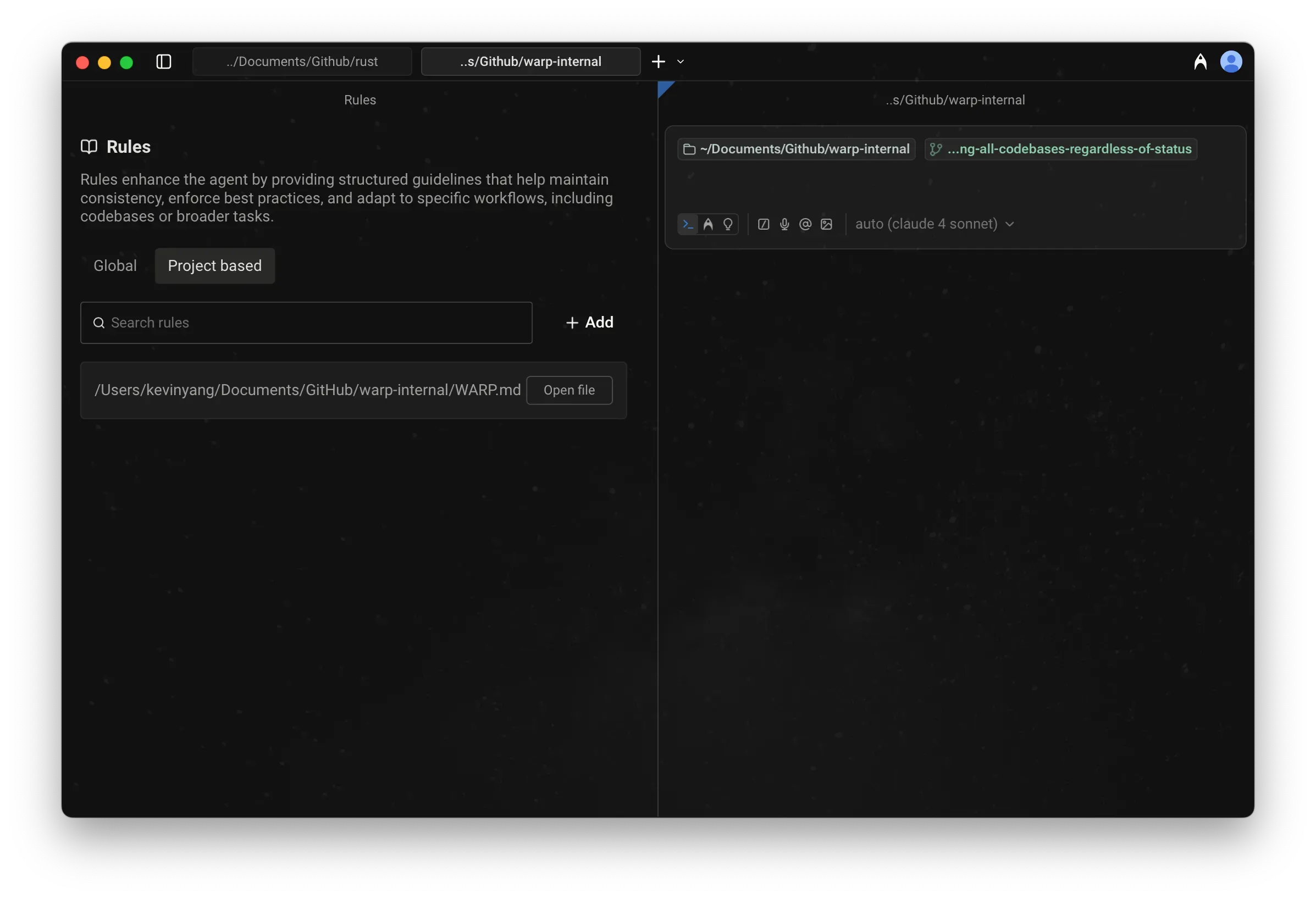
Commit the rule before continuing:
git add AGENTS.md
git commit -m "docs: add practice agent rules"
Use global rules only for preferences that genuinely apply everywhere. Repository-specific commands, paths, and deployment constraints belong in the repository.
Step 7: create a cautious Agent Profile
Open Settings → Agents → Profiles and duplicate the default profile. Name it Practice — cautious.
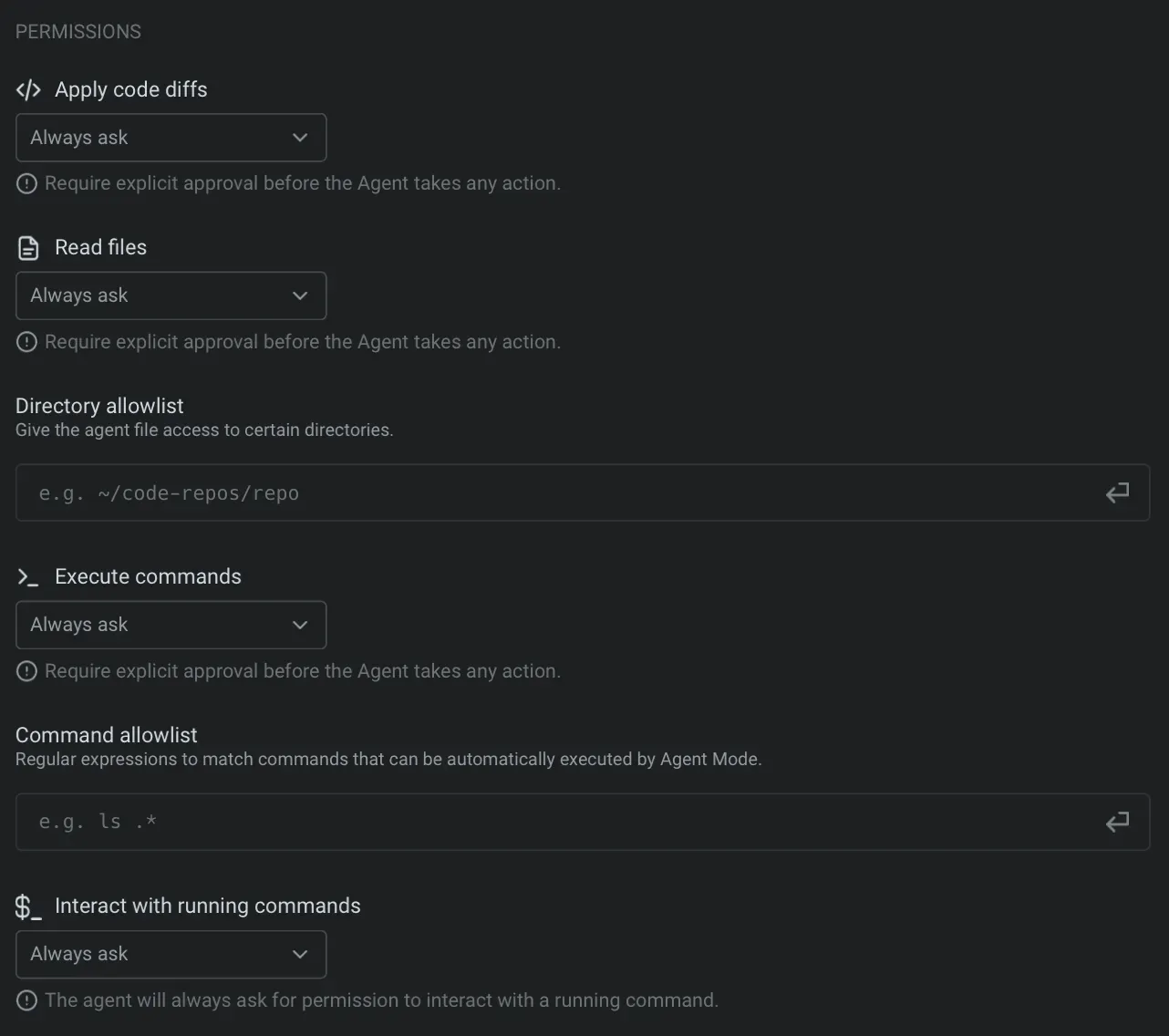
Use this starting policy:
| Permission | Beginner setting | Reason |
|---|---|---|
| Read files | Agent decides or always ask | The repository is disposable, but read scope still matters |
| Apply code diffs | Always ask | You should inspect every change before it lands |
| Execute commands | Always ask | Commands can download, delete, publish, or reveal data |
| Create plans | Allow | A plan is inspectable and does not change files by itself |
| Interact with running commands | Always ask | Interactive tools can expose prompts and produce side effects |
| Ask questions | Always ask or ask unless auto-approve | Clarification is safer than an unreviewed assumption |
Keep risky commands such as rm, curl, wget, and eval on the denylist. The denylist takes precedence over normal allow settings. Warp documents that Run until completion can bypass the personal denylist unless you turn off Allow auto-approve to bypass command denylist under Settings → Agents → Warp Agent → Input. Turn that bypass off while learning.
Do not use all-allow “YOLO mode” for a repository containing credentials, deployment access, customer data, or irreversible infrastructure controls.
Step 8: make one planned, reviewed change
Start an Agent conversation in warp-practice and enter:
Plan a change to README.md only.

Outcome: add a short "Checks" section explaining how to verify the practice repository.
Scope: README.md inside the current repository.
Constraints: do not use the network, install anything, read parent directories, commit, or push.
Checks: show git diff, run git diff --check, and report git status --short.
Finish line: stop after the reviewed file change and check results.
Use /plan first if the agent begins acting before explaining the approach. Review:
- the files the plan names;
- every proposed command;
- the diff before applying it;
- whether the result follows
AGENTS.md; - the final command output.
Independently run:
git diff -- README.md
git diff --check
git status --short
Accept the task only when README.md is the sole changed content file, git diff --check prints no error, and the new section is readable. The agent’s completion message is not the verification.
If the change is wrong, reject or revert the diff before starting a new prompt. Do not pile a second ambiguous request onto an unreviewed first change.
Step 9: save the successful check as a Workflow
Warp Drive Workflows are named, parameterized commands that can be launched from the Command Palette. Save this reviewed command:
git diff --check && git status --shortCreate it through Warp Drive → + → New workflow or a Block’s Save as Workflow action. Use:
Name: Check current Git changes
Description: Verify whitespace and list changed paths before accepting an agent task
Command: git diff --check && git status --short
Open the Command Palette, search for the Workflow, insert it, inspect the command, and press Enter. A Workflow inserts a command into the terminal input; you can still review or edit it before execution.
Do not store raw credentials in Workflow text or ordinary arguments. Warp Drive is a cloud-backed knowledge surface when signed in.
Step 10: add MCP only for a named job
MCP servers expose external tools and data to agents. Open Settings → Agents → MCP servers or search Open MCP Servers in the Command Palette.
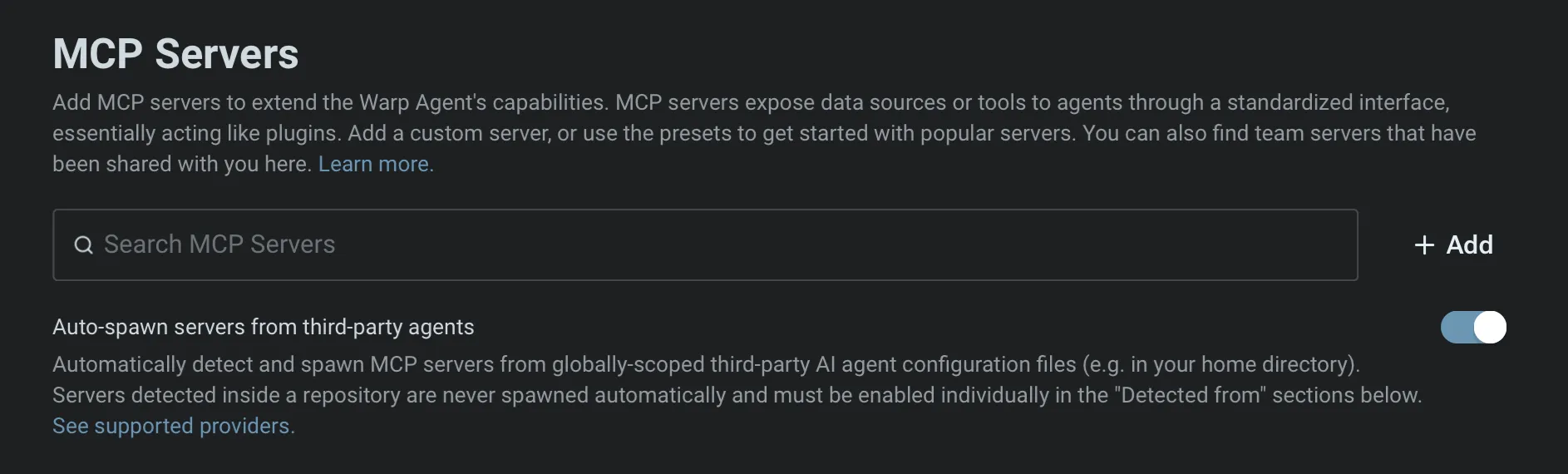
Choose one reviewed server and check:
- the executable or remote URL;
- every argument and environment variable;
- its working directory;
- which local files or accounts it can reach;
- what data leaves the machine;
- whether tool calls require approval in the active Agent Profile.
Warp supports manually configured command, Streamable HTTP, and SSE servers, plus file-based definitions such as global ~/.warp/.mcp.json and project .warp/.mcp.json. Project-scoped servers do not auto-spawn; start each one only after reviewing the repository’s configuration.
For a first test, ask the agent to list the server’s tools without calling them. Then call one harmless read-only tool with a narrow target and inspect the result. Do not add MCP merely because a tutorial lists it.
Step 11: configure privacy before real work
Open Settings → Privacy and review telemetry, crash reporting, network logs, codebase indexing, and Secret Redaction.
Important current boundaries:
- Warp says Git-tracked codebase indexing is local and code is not stored on Warp servers for that feature.
- AI requests and cloud features still require network processing according to the selected model and product surface.
- Secret Redaction is disabled by default.
- Secret Redaction uses regex patterns and can miss unknown formats or match harmless text.
- Session Sharing does not apply Secret Redaction; treat a shared session like screen sharing.
Enable the recommended secret patterns, then add organization-specific patterns without placing an actual secret into the pattern. Keep environment files, wallet material, customer exports, and production credentials out of the practice project.
Before attaching a Block to an agent, inspect it for:
- API keys, tokens, cookies, and signed URLs;
- home-directory usernames and private paths;
- customer or employee data;
- internal hostnames and IP addresses;
- command history that reveals unrelated work.
Update, troubleshoot, and uninstall
Warp’s normal installers include auto-update support. On macOS Homebrew:
brew upgrade --cask warpFor Linux, update with the package manager configured during installation. Read Warp’s update guide when a shell, GPU, rendering, or agent behavior changes.
| Symptom | Likely cause | Recovery |
|---|---|---|
| Input went to the agent instead of the shell | Auto-detection classified it as a prompt | Use Command+I or Ctrl+I to force the intended mode; disable auto-detection if you prefer explicit switching |
| Shell profile behaves differently | Unsupported integration or shell-specific startup code | Confirm the selected startup shell and condition incompatible integrations on TERM_PROGRAM |
| Agent edits outside the intended file | Scope/rules were vague or permissions were broad | Stop with Ctrl+C, reject the diff, restore from Git, tighten AGENTS.md, and retry in the practice repo |
| Agent keeps asking for a command you allowed | The command denylist overrides allow settings | Inspect the matching denylist rule; remove it only if the command is genuinely safe for this profile |
| MCP server will not start | Missing executable, wrong working directory, bad environment variable, or blocked auth | Run the server command manually in the intended directory and fix one cause at a time |
| Warp Drive item cannot be edited offline | The item is cloud-backed | Reconnect, or use a local file/workflow format for offline-critical work |
| Agent features are unavailable | Offline state, logged-out limitation, plan/credit state, or service issue | Confirm network and account state, then check the current Usage/Plan surface rather than an old price table |
To uninstall the app on macOS:
brew uninstall warpOn Windows:
winget uninstall Warp.WarpOn Linux, remove warp-terminal with the package manager used to install it. Warp documents separate paths for settings, logs, databases, codebase context, MCP logs, themes, and launch configurations. Do not run a blanket cleanup command until you have exported any Workflow, rules, theme, or configuration you intend to keep.
FAQ
Is Warp only an AI app?
No. Its core is a terminal, and the shell works without sending every command to a model. Agent and cloud features are separate modes with separate network and plan boundaries.
Do I need a Warp account?
Not for the core terminal. Accounts are relevant for cloud-backed objects, synchronization, agents, and other signed-in features. Initial setup still needs internet access.
Should I use AGENTS.md or WARP.md?
Use AGENTS.md for a new project. Warp still supports WARP.md; if both exist in one directory, WARP.md has priority.
Is codebase indexing the same as sending code to an AI model?
No. Warp documents local indexing of Git-tracked code and says code is not stored on Warp servers for indexing. A later agent request can still send selected context to the chosen model service, so inspect attachments and privacy settings.
When should I use Run until completion?
Only after a task is repeatable, reversible, and safe under the active permissions. Keep the denylist-bypass option off unless you consciously accept that broader behavior.
Are Warp Workflows shell scripts?
They are saved, searchable commands with optional parameters. Warp inserts the selected command into the input so you can review it before execution.
Do I need MCP for a first project?
No. Files, terminal Blocks, Git, and project rules cover many local workflows. Add MCP only when a specific external tool or data source is required.
Official sources
- Warp documentation
- Installation and setup
- Terminal and Agent modes
- Profiles and permissions
- Project and global rules
- Warp Drive Workflows
- MCP servers
- Privacy
- Secret Redaction
- Offline behavior
Finish line
You have completed the Tools collection when CC Switch can switch and restore one verified provider, Vorssaint runs only a reviewed feature set with matching permissions, and Warp can complete one bounded change through a visible plan, diff, and passing check.