MiniMax Code · Tutorial 14
MiniMax Code Plans, Usage, API Keys, BYOK, mcode, and mmx
Choose the correct account and model path, inspect current usage, and stop mixing up MiniMax Code desktop, mcode, and the mmx platform CLI.

0 of 1 complete
Reference guide · Read when needed · View the route
Last tested and updated: August 25, 2026
MiniMax now has two command-line names beside its desktop app:
- MiniMax Code desktop is the graphical local Agent taught throughout this course.
- MiniMax Code CLI (
mcode) is a repository-focused coding Agent in a terminal. Its sessions, goals, providers, models, plugins, usage, and MCP commands belong to the MiniMax Code runtime. - MiniMax Platform CLI (
mmx) is a separate open-source terminal tool for MiniMax text, search, vision, image, speech, video, and music services.
An API key is a credential, not a fourth interface. BYOK means configuring a model provider you pay or authenticate with separately. A Token Plan, credits, and account quotas determine which usage pool is available on a given surface.
When a setup fails, write down the surface, account, region, provider, model, credential type, and quota before retrying. “MiniMax is broken” is not enough information to recover.
One February 21, 2026 X report described using a MiniMax model through Claude Code for small scripts, environment setup, simple DevOps, and disk-space troubleshooting. That is interoperability feedback about a MiniMax model inside another coding host—not evidence about MiniMax Code desktop, mcode, or mmx. The distinction is exactly why the surface table below matters.
The decision table
| Job | Correct starting surface | Normal first auth | First proof |
|---|---|---|---|
| Work on local files with visual panels and Browser Use | MiniMax Code desktop | Sign in through the desktop flow | Correct workspace and active model are visible |
| Work on a repository from a terminal or headless command | mcode | MiniMax OAuth or configured API provider, following current CLI flow | /status shows the intended provider/model and mcode exec reports the model used |
| Call MiniMax search, vision, image, speech, video, or music from a terminal | mmx | mmx auth login using current OAuth/region or API-key flow | mmx auth status and mmx quota succeed |
| Use your own MiniMax API key inside desktop | Desktop MiniMax API setting | Key entered in secure model settings | Connection test passes |
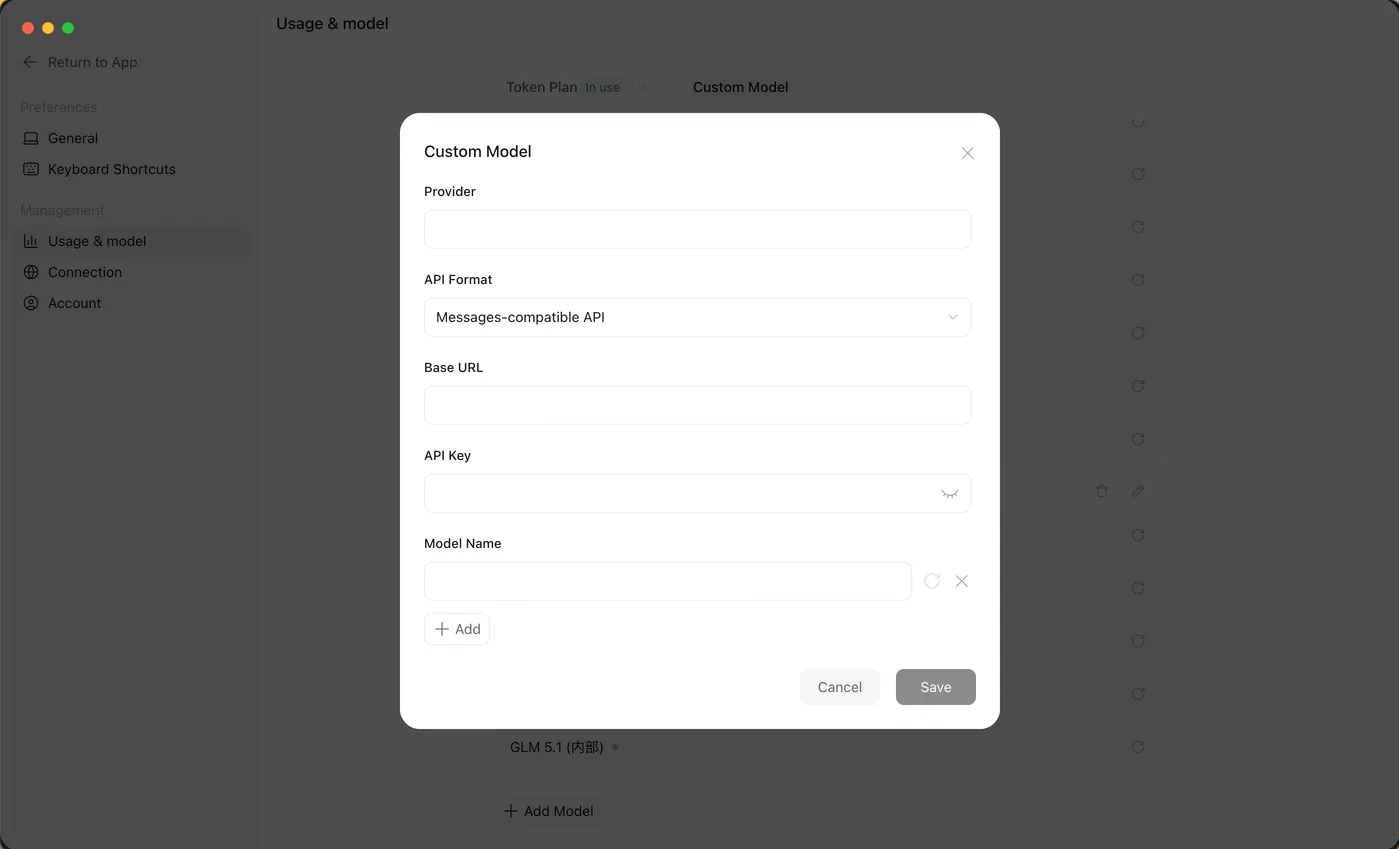
| Use another compatible provider inside desktop | Desktop Custom Model / BYOK | Provider base URL and key in secure settings | Connection test plus harmless prompt |
| Build your own application | MiniMax API or compatible provider API | Server-side credential management | One minimal API call with logged model and usage |
Do not install mmx because a tutorial says “MiniMax CLI” without clarifying the job. Do not paste a key into chat because the desktop reports a plan problem. Do not assume desktop sign-in automatically authenticates every external CLI.
Check usage without freezing a price in time
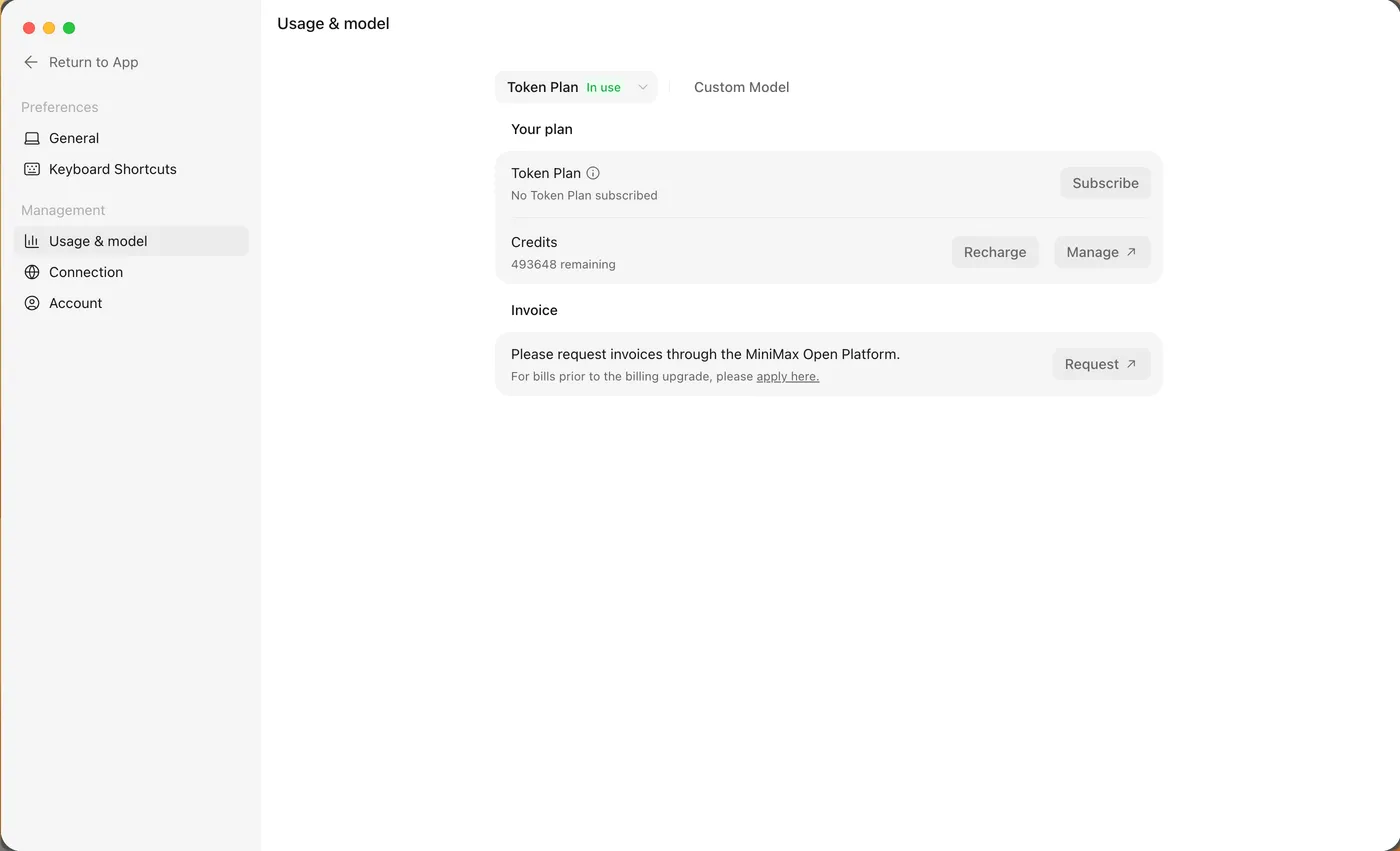
MiniMax’s desktop usage page can show the current Token Plan, credit balance, quota use, subscription or recharge entries, invoices, and check-in entries. Billing rules and quotas follow the latest product UI.
Before a large task, record:
Surface: MiniMax Code desktop / mcode / mmx / API
Signed-in account: [REDACTED IDENTIFIER]
Region: global / mainland China / provider-specific
Plan or credit pool: [CURRENT UI LABEL]
Active provider and model: [CURRENT LABEL]
Usage window or quota: [CURRENT UI VALUE]
Parallel workers planned: [NUMBER]
Stop rule: pause when [THRESHOLD OR WARNING]
Do not copy billing screenshots into public lessons or support issues without removing identity, invoice, payment, and account details.
MiniMax documents daily check-in points in the current desktop product. Treat those numbers as a dated product rule, not part of the core operating model. The app’s current usage page wins when this lesson and the UI disagree.
BYOK in desktop
Use BYOK when you intentionally want MiniMax Code desktop to call a model provider through your own credential. Current settings support provider name, base URL, API key, API format, model ID, context window, maximum output tokens, and reasoning level.
Safe BYOK workflow
- Confirm the provider’s official base URL and supported API format.
- Create the narrowest credential the provider supports.
- Enter it only in MiniMax Code’s secure model settings.
- Set the exact model ID from the provider documentation.
- Do not exaggerate context or output limits beyond the provider’s support.
- Run the built-in connection test.
- Run one harmless prompt and verify the active provider/model.
- Check the provider dashboard for the request and cost.
Connection smoke test

Return exactly: BYOK_CONNECTION_OK
Do not use tools, read workspace files, browse, create files, or continue after the
single response.
A passed connection test proves basic authentication and compatibility. It does not prove tool calling, vision, long context, cost, or production reliability.
mcode: the coding Agent CLI
The MiniMax Code changelog has a separate CLI release track. Current documented features include interactive sessions, goals, providers and models, plugins, MCP management, context and usage views, queued instructions, and headless execution through mcode exec.
If mcode is already installed through the current official MiniMax Code CLI installer, begin with:
mcode --helpIn an interactive mcode session, current changelog entries document:
/status
/provider
/model
/context
/usage
Use /provider and /model to inspect or test the configured provider and select the model. Use /context and /usage to inspect session context and usage. MiniMax says JSON output from mcode exec includes the actual model used, which is useful for audit logs.
Do not use an old mavis command from a community workaround as current mcode setup. Do not guess an installer command from the desktop download. Follow the current official CLI installer and changelog for your platform.
mmx: the separate platform CLI
The official MiniMax-AI/cli repository publishes the mmx command through the mmx-cli package and requires Node.js 18 or newer. Its purpose is direct access to MiniMax platform capabilities, not repository-agent operation.
Current official setup and inspection commands include:
npm install -g mmx-cli
mmx auth login
mmx auth status
mmx quota
The login flow can use the current Global or Mainland China OAuth path or an API-key path. Prefer the interactive documented flow over putting a key directly in shell history. Never paste a real key into a lesson or command screenshot.
Harmless text and search checks:
mmx text chat --message "Reply with exactly MMX_TEXT_OK"
mmx search "MiniMax official documentation"
Other documented command families include:
mmx vision photo.jpg
mmx image "A paper weather instrument on a plain background"
mmx speech synthesize --text "Hello" --out hello.mp3
mmx video generate --prompt "Ocean waves at sunset"
mmx music generate --prompt "Upbeat instrumental" --lyrics "[instrumental]"
Media generation can spend quota, take time, and create files or hosted jobs. Do not use those examples as the first authentication test. Check mmx quota, current pricing, output location, and content rules before generating.
Beginner scenario: choose one connection and prove it
You want to work on a repository from a terminal. You also saw an mmx vision demo. The repository task does not need image understanding or media generation, so your primary surface is mcode, not mmx.
Use this worksheet:
Job
Review one local repository from a terminal and return a read-only report.

Chosen surface
mcode, because this is repository-focused Agent work.

Provider/model
[VALUE SHOWN BY /status]

Credential path
[MiniMax OAuth or configured provider; no secret copied here]

Quota check
[VALUE SHOWN BY /usage]

Boundaries
Read only. No edits, install, commit, push, network tools, plugin changes, or MCP.

Proof
- /status shows intended provider and model;
- /usage is recorded;
- report names the inspected path;
- Git status is unchanged.

Rejected path
mmx, because its platform media/search commands do not own repository-agent work.
Parallel work and usage limits
On July 3, 2026, one MiniMax Code v3.0.47 user reported rapid verifier/session fan-out followed by repeated retries after the Token Plan limit was reached. The report is one dated observation, not a prevalence estimate or a guarantee about the current release.
The operational response is to cap parallel roles, inspect usage before starting, stop on the first quota warning, and avoid “retry until success.” Parallel workers can consume allowance faster than one visible chat suggests.
Safety boundary
- Store credentials only in supported secure settings or secret-management paths.
- Never place keys in prompts, repositories, skills, memory, screenshots, shell history, support tickets, or generated examples.
- Verify region and credential type; a Global OAuth session, Mainland China account, Token Plan key, and pay-as-you-go API key may not be interchangeable.
- Record the active provider and model. A familiar interface does not prove the expected model answered.
- Set a spend or usage stop rule before parallel work or media generation.
- Revoke credentials that appeared in chat, logs, screenshots, or version control.
- BYOK sends task content to the configured provider under that provider’s terms.
- A quota display is evidence about allowance, not permission to spend it on an unrelated task.
Troubleshooting
| Symptom | Likely cause | Recovery |
|---|---|---|
Desktop works but mcode does not | The CLI is separate, not installed, or not on PATH | Use the current official CLI installer; restart the shell; run mcode --help |
mmx opens but cannot see repository sessions | mmx is the platform CLI, not the coding Agent CLI | Use mcode for repository sessions and mmx for platform capability calls |
mmx auth status shows no active auth | Login was not completed, region is wrong, or credentials expired | Run the official interactive mmx auth login flow for the correct region |
| BYOK connection test fails | Base URL, key, model ID, API format, or network is wrong | Compare every field with current provider docs and test once after correction |
| Connection passes but tools fail | The model/provider does not support the expected tool or format | Verify provider capabilities; do not assume desktop features transfer to BYOK |
| Usage rises faster than expected | Parallel Agents, retries, long context, tools, or media jobs consume more | Stop active work, inspect usage/session history, reduce fan-out, and add a hard stop |
| Active model is unclear | Provider or model changed between sessions | Check desktop model settings or mcode /status; record the actual model used |
| A key was pasted into a terminal command | It may remain in shell history or process records | Revoke it, clear it through platform-supported steps, and switch to a secure login flow |
FAQ
Is mcode the same as mmx?
No. mcode is the MiniMax Code coding Agent CLI. mmx is the separate MiniMax Platform CLI for text, search, vision, image, speech, video, and music.
Do I need either CLI for this desktop course?
No. MiniMax Code desktop is the core path. The CLIs are optional surfaces for terminal workflows.
Does my Token Plan include every API or CLI request?
Do not assume so. Check the current plan, credential type, selected surface, and quota documentation for your account.
Is BYOK cheaper?
Not automatically. Cost, caching, retries, context, output length, and provider pricing determine the result. Measure a representative task.
Can I use the same API key in chat, desktop, and mmx?
Never paste a key into chat. Whether one credential works across supported settings depends on its type, region, and provider. Use each product’s secure configuration flow.
Which command should I run first after installing mmx?
Run mmx auth login, then mmx auth status and mmx quota. Use a tiny text check before any media generation.
How do I prove which model mcode used?
Inspect /status in the interactive session. For headless work, MiniMax documents the actual model in JSON output from mcode exec.
Official sources
- MiniMax Code Token Plan and credits
- MiniMax API key in MiniMax Code
- MiniMax Code Custom Models / BYOK
- MiniMax Code changelog, Desktop and CLI tabs
- Official MiniMax Platform CLI repository
- MiniMax Platform CLI documentation
- Token Plan overview
- MiniMax Code issue #108, opened July 3, 2026
What’s next
Diagnose a failure without exposing secrets in L15: Troubleshooting, Updates, Logs, and Feedback.