MiniMax Code · Tutorial 15
MiniMax Code Troubleshooting, Updates, Logs, and Feedback
Isolate auth, quota, context, permission, integration, and runtime failures before retrying, then send a secret-safe report support can reproduce.

0 of 1 complete
Reference guide · Read when needed · View the route
Last tested and updated: August 25, 2026
The same red error can come from different places. A stalled task may be waiting for a permission, out of usage, disconnected from a provider, blocked by a proxy, missing an MCP tool, overloaded with context, or running in the wrong workspace. Repeating the same prompt can waste quota and erase the useful evidence.
Use a fault-isolation ladder:
- Stop new work and preserve the current state.
- Record when, where, and on which version the failure occurred.
- Classify the failing layer.
- Run one smaller, harmless check.
- Apply the least destructive recovery.
- Reproduce once.
- Submit a sanitized report if it persists.
Do not delete local data, reinstall, rotate credentials, edit internal JSON, or disable security controls as a first response.
Build a useful incident snapshot
Record these fields before restarting:
Observed time and time zone:
Operating system and version:
MiniMax Code version:
Global or mainland China build:
Surface: desktop / mcode / mmx / API
Mode and workspace:
Provider and model shown:
Plan/quota state shown:
Task or schedule name:
Last successful action:
First failed action:
Exact visible error:
Recent permission request:
Proxy/VPN in use: yes / no / unknown
External integration involved:
Reproduces in a new disposable task: yes / no / not tested
Remove usernames, account IDs, local home paths, repository names, contact details, tokens, and private URLs before sharing this snapshot.
Classify the layer
| Layer | Typical evidence | Smallest useful check |
|---|---|---|
| App startup | App will not open, renderer exits, service-start dialog | Confirm platform/build, fully quit, then launch once |
| Network or proxy | Timeouts, connection reset, status differs by network | Open official status/docs in a normal browser; record proxy state |
| Account or auth | 401, login loop, wrong plan, provider authorization failure | Confirm signed-in account, region, provider, and secure auth status |
| Usage or quota | Limit warning, credits exhausted, repeated retry after limit | Stop parallel work and inspect the current usage page |
| Model / BYOK | Connection test fails or expected capability is absent | Verify base URL, model ID, API format, and one harmless model response |
| Workspace / permission | File tools fail, wrong root, repeated approvals | Confirm active workspace and read one authorized practice file |
| MCP / plugin | Server enabled but tool absent or command not found | Test server, list tools, and confirm runtime on PATH |
| Context / session | Repetition, stale assumptions, lost earlier constraint | Ask for current goal, evidence, assumptions, and context status |
| Agent Team | Subtasks stall, duplicate, or consume usage rapidly | Stop fan-out; inspect role status and one lead session |
| Schedule / remote | Task never ran or remote view cannot connect | Confirm desktop awake, app running, schedule enabled, and pairing state |
This table prevents category mistakes. A green service-status page does not disprove a local 401. A valid MCP configuration does not prove the tool reached the current task. A permission-looking error can originate from a damaged local permission store.
Beginner scenario: “Service temporarily unavailable”
Suppose the desktop begins a request, waits, and then reports Service temporarily unavailable. Do not immediately reinstall.
1. Freeze the evidence
- Copy the exact visible error.
- Record the time, app version, platform, model/provider, and plan state.
- Stop any repeated retry, background Agent, Goal, or team fan-out.
- Take a sanitized screenshot that excludes private task content.
2. Separate status from authentication
Check the official service status. If it is green, continue the local diagnosis. Open Usage and Model settings and confirm the intended account, plan, provider, and model.
If logs or the UI show 401 or Unauthorized, treat it as authentication until disproved. Do not rotate every credential. Identify whether the failed path used desktop sign-in, MiniMax API key, BYOK provider, mcode, or mmx.
3. Try one disposable request
Start a new task with no workspace, tools, plugins, or attachments:
Reply with exactly: MINIMAX_DIAGNOSTIC_OK
Do not use tools, browse, read files, create files, or continue after the reply.- If it succeeds, the problem is likely task, workspace, context, tool, or integration-specific.
- If it fails the same way, the problem is more likely account, provider, network, quota, or app-runtime related.
- If another provider succeeds, record the provider-specific difference; do not silently switch production work.
4. Apply the least destructive recovery
Use this order:
- Resolve a waiting permission or questionnaire.
- Stop parallel/retrying work and confirm usage.
- Reauthenticate through the supported secure flow when evidence shows auth failure.
- Disable only the suspect integration and repeat the disposable check.
- Fully quit and reopen the app.
- Check for an official update.
- Follow the current official platform-specific common-issues page.
- Back up local state before any official instruction that removes or regenerates data.
Do not use --no-sandbox as a permanent Windows fix. MiniMax documents it only as a temporary diagnostic for a specific renderer-permission problem because it weakens security isolation.
Updates: record before and after
Open desktop settings to see the current version and check for updates. Before installing:
- save or stop active tasks;
- record the current version;
- preserve uncommitted project work;
- note any active schedule, remote session, or team task;
- use the official installer for the correct platform and region.
After updating:
- record the new version;
- reopen the same disposable test;
- confirm the correct workspace and model;
- test only the previously failing layer;
- avoid changing plugins, credentials, and project code at the same time.
Changing one variable makes the result interpretable.
Submit feedback without oversharing
MiniMax Code’s Feedback flow can attach the current task title, session ID, workspace path, client version, system information, screenshots, and diagnostic logs. The app attempts to capture the current window and lets you add up to six screenshots. Description is required; contact information is optional.
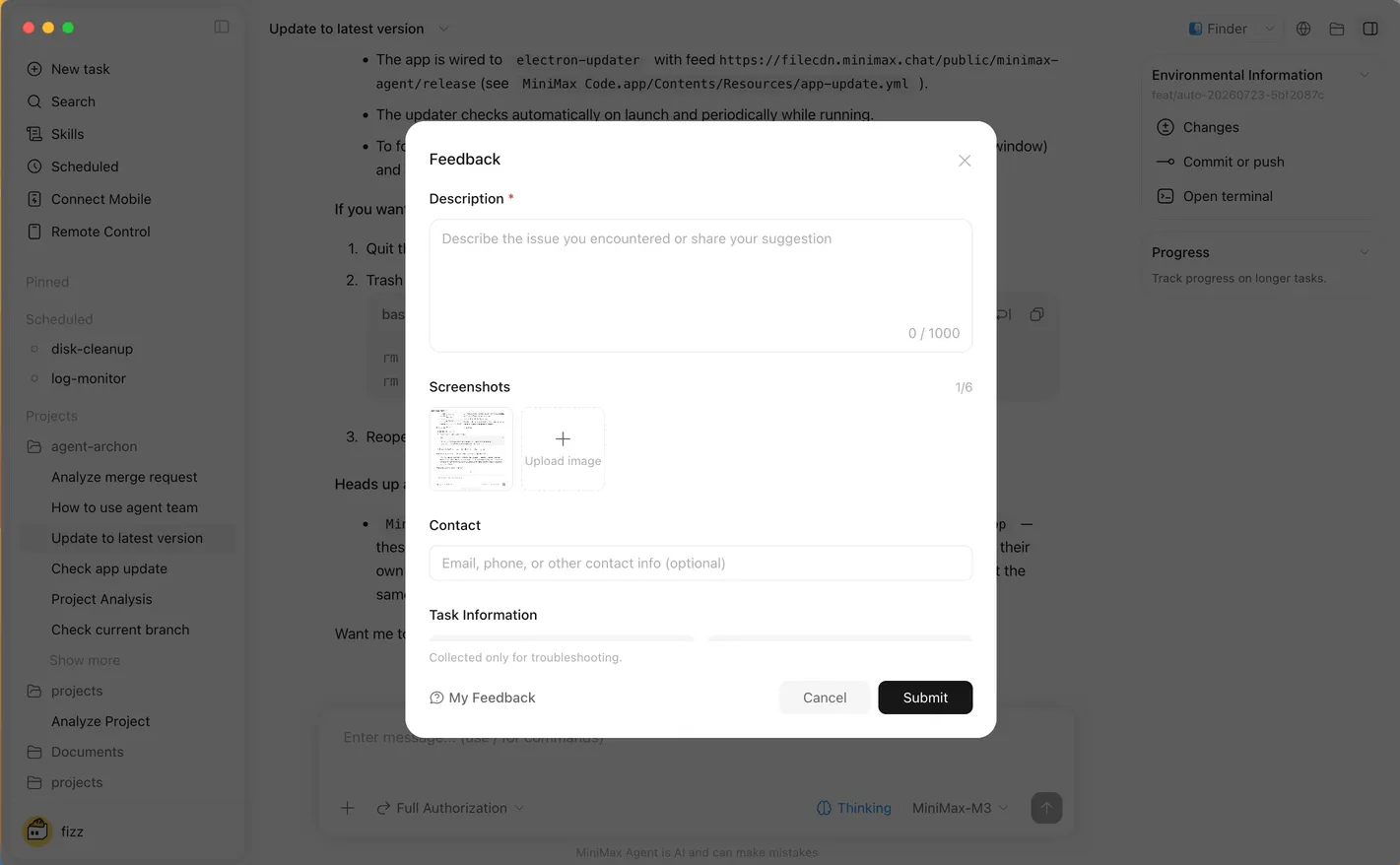
Use this report template:
Title
[Surface] [short symptom] on [platform], MiniMax Code [version]

Observed
2026-08-25 at [TIME ZONE]

Environment
- OS: [VERSION]
- MiniMax Code: [VERSION]
- build/region: [GLOBAL OR MAINLAND CHINA]
- surface: [DESKTOP / MCODE / MMX]
- provider/model: [REDACTED SAFE LABEL]
- proxy/VPN: [YES / NO]

Steps to reproduce
1. [FIRST ACTION]
2. [SECOND ACTION]
3. [FAILURE]

Expected
[ONE OBSERVABLE RESULT]

Actual
[EXACT SANITIZED ERROR]

Scope check
- reproduces in disposable task: [YES/NO]
- reproduces without plugin/MCP: [YES/NO/NOT APPLICABLE]
- service status at occurrence: [VALUE]

Attachments reviewed
- screenshot: identities, paths, contacts, and secrets removed
- logs: sensitive values removed where possible
- no API keys, tokens, cookies, passwords, customer data, or private source
After submission, use My Feedback to copy the ticket ID and track status. Keep the ticket ID with your local incident note.
Dated public reports as diagnostic examples
These issue reports show why exact evidence matters. They do not establish current prevalence:
- On June 18, 2026, a v3.0.46 macOS user reported “Service temporarily unavailable” while the service page was green; their supplied log showed a local
401 Unauthorizedhealth check. - On July 12, 2026, a v3.0.48 macOS user reported all disk tools failing mid-session after concurrent work left the local permission JSON invalid.
- On August 22, 2026, a v3.0.67 Windows user reported an official Codex plugin failing with
spawn codex ENOENTeven though the CLI worked interactively.
Each report names version, platform, area, reproduction, and evidence. That makes it useful without assuming the same root cause applies to your machine. Check the current release notes before using any issue-specific workaround.
Safety boundary
- Stop active retries before investigating quota, context, or Agent Team failures.
- Preserve repository and app state before restart, update, reinstall, or data repair.
- Do not edit internal app files or permission stores unless current official support instructs you and a backup exists.
- Never share raw keys, tokens, cookies, passwords, private chat, customer data, billing data, or full home-directory paths.
- Inspect automatic screenshots, task context, workspace path, and logs before feedback submission.
- Do not disable sandboxing, antivirus, firewall, or permission checks as a permanent workaround.
- Test recovery in a disposable task before reopening sensitive work.
- A workaround from an old issue is evidence about one version, not permanent documentation.
Troubleshooting table
| Symptom | First evidence to collect | Safest next step |
|---|---|---|
| App fails to start | Platform, build, installer source, exact exit text | Use current official installer/common-issues path for that platform |
| Login button does nothing | Region, proxy/system policy, login URL behavior | Use the official direct login link for the correct region, then reopen the app |
| App freezes or request stays pending | Network state, status indicator, active permission, task scope | Stop once, fully quit, reopen, and run the disposable no-tool check |
401 or unauthorized | Surface, provider, region, credential type | Reauthenticate only that path through secure settings |
| Usage limit reached | Current usage page, active teams, retries, schedules | Stop all related work and wait or change the approved plan; do not retry-loop |
| All file tools fail together | Exact parse/permission error and whether parallel work preceded it | Stop the session, preserve evidence, restart, and report rather than rewriting internal JSON |
| MCP tool missing | Server enable/test state, tool list, PATH, workspace | List tools and test the server without exposing credentials |
| Long conversation repeats itself | Context status, current goal, stale assumptions | Save a short evidence summary and continue in a focused session |
| Schedule missed | Computer/app state, enable toggle, time zone | Trigger one manual run while awake and inspect schedule history |
| Feedback screenshot is blank | Screen-recording permission unavailable | Upload a sanitized screenshot manually; the report can still be submitted |
FAQ
Should I click Retry every time an error appears?
No. Retry once only when the cause is plausibly temporary and the action is safe. Stop when auth, quota, permissions, or repeated failure is involved.
Does a green MiniMax status page mean my account is healthy?
No. Service status and local authentication are different layers. Confirm account, provider, region, and the exact error.
Where do I upload logs?
Open Feedback from the user menu, Help, task top bar, session menu, or the Upload Logs entry in Settings. The current flow creates a trackable feedback ticket.
Are logs automatically safe to share?
No. They may contain paths, task context, tool arguments, URLs, and diagnostics. Review the submission and remove sensitive information where possible.
Should I delete .mavis or .minimax when the service fails?
Not as a first step. MiniMax’s common-issues guide uses backup and regeneration only after narrower checks. Preserve state and follow the current platform-specific instructions.
Is reinstalling always the best fix for startup errors?
No. Confirm platform, architecture, installer source, current version, and exact error first. Use the official current installer when packaging is the identified cause.
How much detail belongs in a useful bug report?
Enough to reproduce: time, OS, app version, surface, steps, expected and actual behavior, sanitized error, and relevant screenshots/logs. Avoid unrelated private data.
Official sources
- MiniMax Code Common Issues
- MiniMax Code Updates and Feedback
- MiniMax Code Feedback guide
- MiniMax Code FAQ
- MiniMax Code changelog
- MiniMax service status
- Issue #81, opened June 18, 2026
- Issue #117, opened July 12, 2026
- Issue #130, opened August 22, 2026
What’s next
Apply the full operating loop in L16: Capstone, Ship a Small Feature With Evidence.