MiniMax Code · Tutorial 13
MiniMax Code Schedules, Remote Control, and Messaging
Turn one proven local workflow into a bounded schedule, then monitor it from a phone without treating remote access as unattended cloud execution.

0 of 1 complete
Reference guide · Read when needed · View the route
Last tested and updated: August 25, 2026
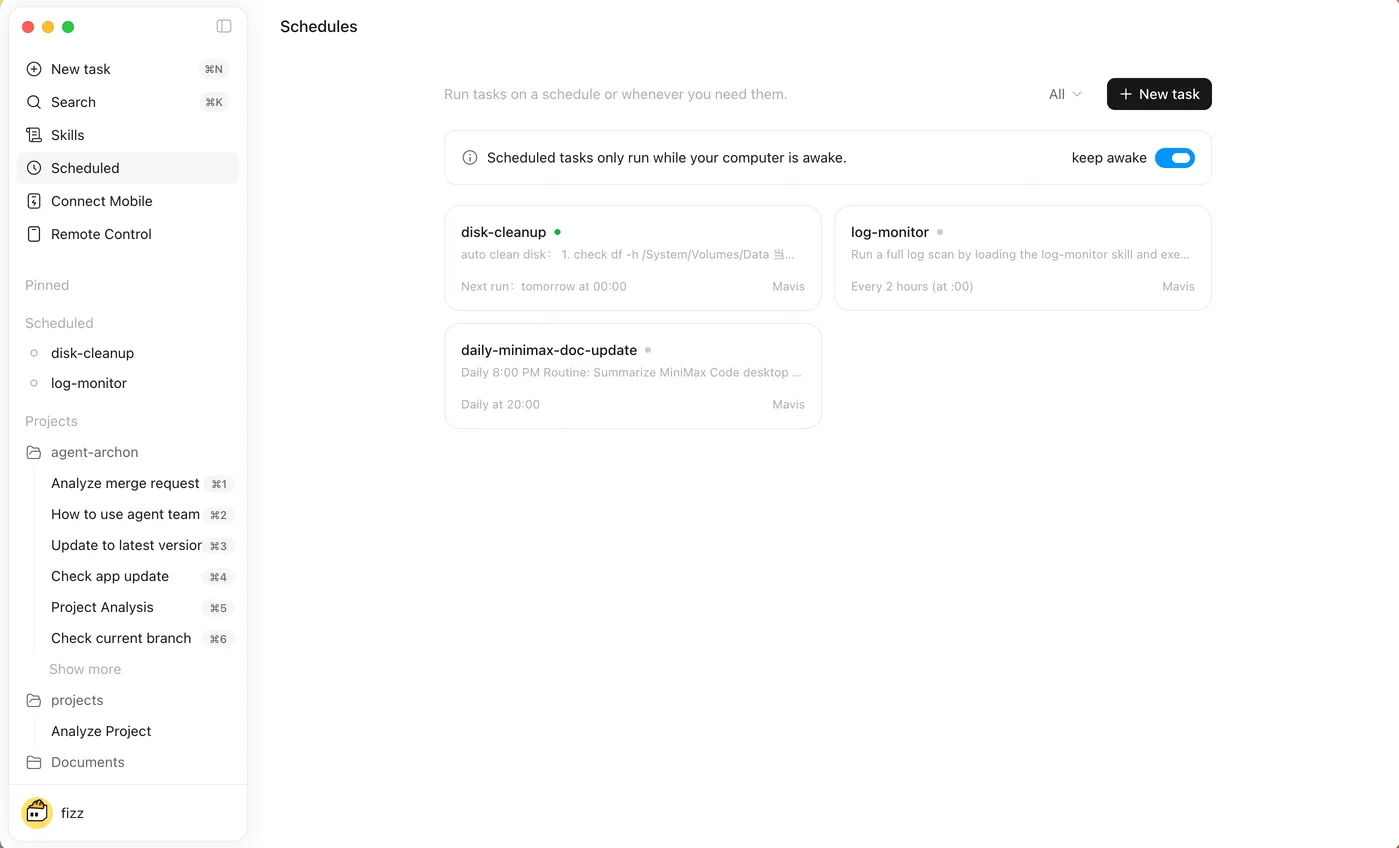
MiniMax Code can start recurring work from Scheduled Tasks, let you follow a running desktop task through Remote Control, and bind an Agent to supported messaging channels. These surfaces make a reviewed workflow easier to start and monitor. They do not make an unclear workflow reliable.
The desktop runtime still matters. MiniMax’s current schedule documentation warns that a task may not run on time when the computer is asleep or the app is not running. Remote Control connects a phone to a running desktop app. Messaging availability depends on locale, account, and the channel shown in the current app.
Use this order:
- Run the workflow manually.
- Verify the deliverable and failure behavior.
- Create a dry-run schedule.
- Bind one private monitoring path.
- Review the first real run.
- Only then decide whether it can recur unattended.
Three surfaces, three jobs
| Surface | Best use | What it does not guarantee |
|---|---|---|
| Scheduled Tasks | Start a named instruction with an Agent at a chosen time | Computer awake, app running, fresh inputs, successful output, or automatic delivery |
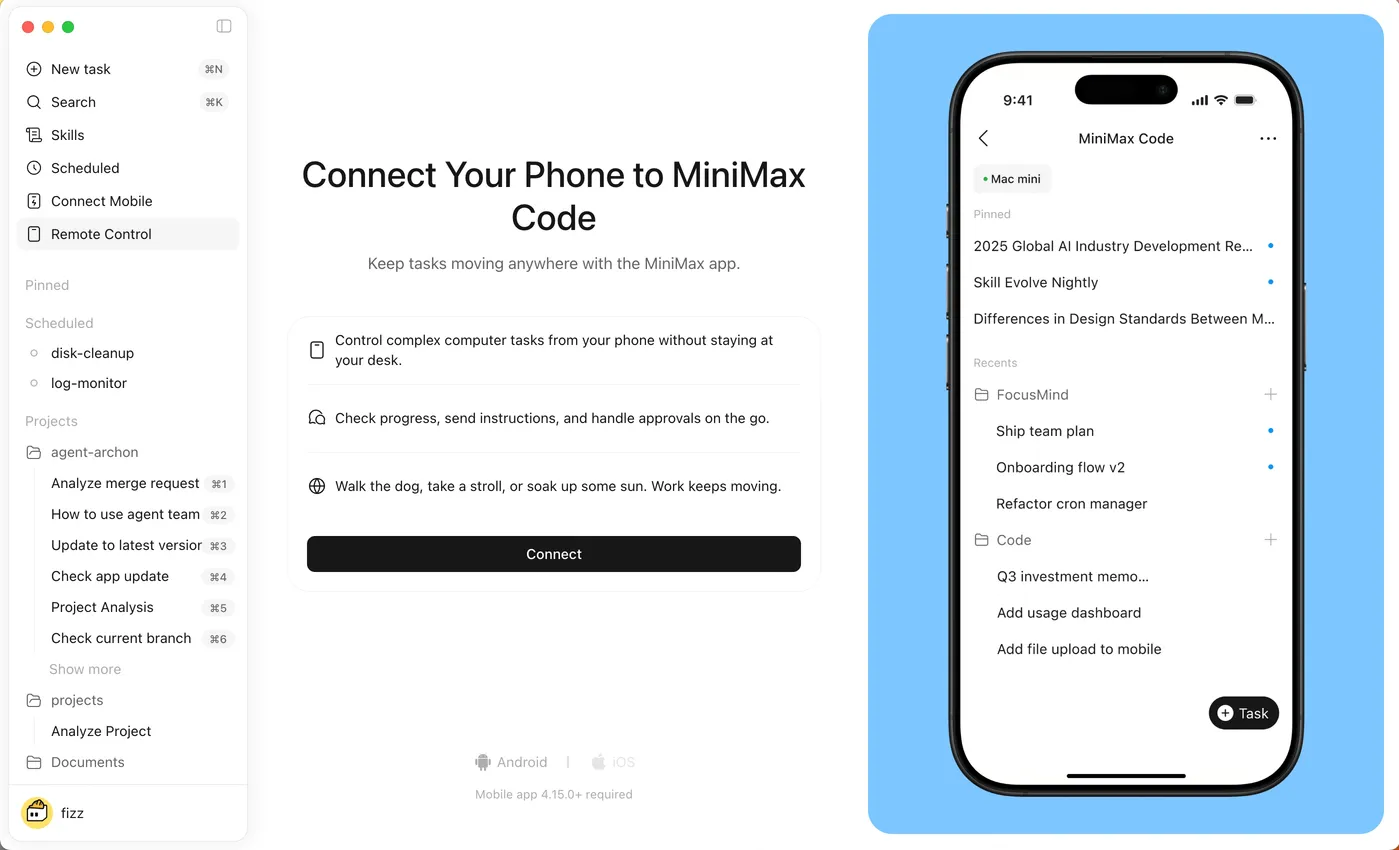
| Remote Control | Check progress, add instructions, approve permissions, and view selected outputs from a paired phone | Cloud execution after the desktop stops, or a separate security boundary |
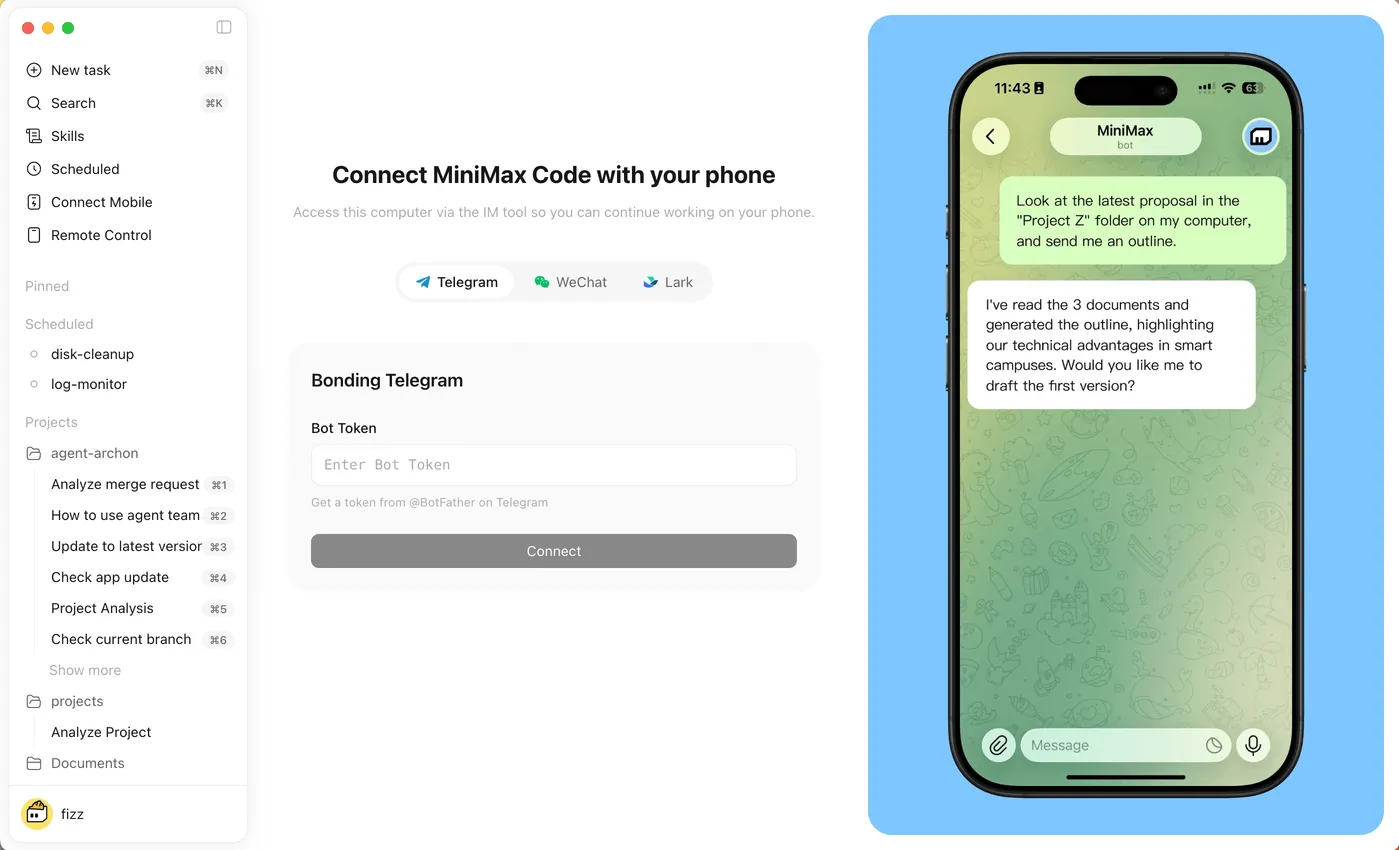
| Messaging | Send lightweight instructions and receive updates through a bound channel | Private group membership, correct recipient, or permission to expose local data |
Pick a safe first automation
A first schedule should be read-heavy, reversible, and easy to inspect. Good examples include:
- summarize new public files placed in a practice folder;
- check a public status page and save a dated note;
- create a weekly draft from approved local notes;
- run a non-destructive project check and record the result.
Avoid sending customer messages, publishing posts, purchasing, changing accounts, deleting data, merging code, deploying production, moving money, or operating a wallet. A schedule can repeat a mistake faster than a manual task.
Beginner scenario: a daily practice-project check
You maintain a disposable website project. Every weekday, you want MiniMax Code to inspect the repository status, run the existing lightweight check, and save a dated report under reports/. It must never edit code, install dependencies, commit, push, deploy, or message a group.
First, run it manually
Use this prompt in the intended workspace and Agent:
Outcome
Create reports/project-check-YYYY-MM-DD.md for the current practice repository.

Inputs
- current Git status;
- the existing lightweight validation command documented by this project;
- no network sources and no files outside this workspace.

Report
- observation time and current branch;
- changed paths grouped as staged, unstaged, and untracked;
- command run and exit result;
- concise failures copied accurately;
- "No changes" or "Check passed" only when proven.

Boundaries
Read-only inspection except creating the one report file. Do not edit source,
format, install, delete, commit, push, deploy, open a PR, or contact anyone.
If the check command is missing or would install dependencies, stop and report it.

Finish line
Show the report path and the exact command result. Stop after one run.
Review the report and confirm that its only new change is the intended file. If the workflow cannot pass manually, do not schedule it.
Write the schedule contract
Turn the manual task into a contract with seven fields:
Name: Weekday practice-project check
Owner Agent: [AGENT NAME]
Workspace: [EXACT PRACTICE PROJECT]
Timing: weekdays at 09:00 [TIME ZONE]
Instruction: [THE TESTED PROMPT]
Output: reports/project-check-YYYY-MM-DD.md
Failure rule: stop after one failed check; do not retry or repair automatically
Review rule: first five runs require human review before any follow-up
Time zone belongs in the contract even if the interface displays local time. It prevents ambiguity when you travel or compare logs.
Create and dry-run the schedule
- Open Scheduled Tasks from the sidebar.
- Set the name, instruction, Agent, timing, and current conversation mode.
- Confirm the exact workspace and output path inside the instruction.
- Save it disabled if the UI permits, or set a one-time near-future dry run.
- Trigger it once immediately from the schedule page.
- Inspect the generated report and repository status.
- Enable recurrence only after the dry run matches the manual run.
Do not use the first scheduled execution as your first test of the workflow.
Add one private monitoring path
Remote Control
Open Remote Control in the desktop app and follow the current pairing instructions. From the paired phone, MiniMax says you can check task progress, add follow-up instructions, approve permission requests, and view outputs or selected file content.
Pair on a trusted device. Review what the phone can display before using it around other people. A remote approval has the same effect as clicking approval on the desktop.
Messaging
Current global documentation lists Telegram, WeChat, and Lark. Mainland China documentation can show WeChat and Feishu. Telegram uses a Bot Token; WeChat uses a QR flow; Lark and Feishu use the authorization flow presented in the app.
For the first test:
- use a one-to-one private conversation;
- do not add the Agent to a group;
- send a progress question, not a new broad task;
- return only the report filename and pass/fail state;
- keep local file content out of the message unless it is explicitly safe to share.
Report the current status of "Weekday practice-project check".
Return only: run state, report filename, check exit result, and whether review is
required. Do not start another run, reveal file contents, change the schedule, or
approve any permission.
MiniMax’s changelog documents /stop for supported messaging channels in relevant builds. Check the current channel help before relying on it as the only emergency stop. Keep desktop access available for the first runs.
Monitor the first week
Record five runs:
| Run | Started on time | Correct workspace | One report only | Check accurate | Human decision |
|---|---|---|---|---|---|
| 1 | keep / edit / disable | ||||
| 2 | keep / edit / disable | ||||
| 3 | keep / edit / disable | ||||
| 4 | keep / edit / disable | ||||
| 5 | keep / edit / disable |
Disable the schedule when the input format changes, the project moves, the Agent changes, permissions expand, repeated failures occur, or nobody is reviewing the result.
Safety boundary
- Keep the desktop awake, connected, and running only when the schedule should be eligible to execute.
- Use a dedicated practice workspace and an Agent with the narrowest useful instructions.
- Never put Bot Tokens, QR captures, login codes, API keys, or contact lists in a prompt, repository, screenshot, or skill.
- Pair Remote Control only with a trusted device and remove old pairings.
- Use private one-to-one channels before groups; verify sender and recipient controls.
- A phone approval is a real permission. Read the target, command, file path, and consequence before approving.
- Do not schedule external publication, money movement, purchases, account settings, destructive commands, or production deployment as a beginner exercise.
- Add a stop condition and a retry cap. “Keep trying until it works” is unsafe automation.
Troubleshooting
| Symptom | Likely cause | Recovery |
|---|---|---|
| Scheduled task did not run | Computer slept, app was closed, task was disabled, or timing was misunderstood | Wake the computer, open MiniMax Code, confirm enable state and local time, then trigger one manual run |
| Task runs in the wrong project | Workspace was omitted, moved, or inferred from an old conversation | Put the exact workspace and output path in the instruction and rerun once |
| Schedule edits code despite read-only intent | The instruction described an outcome but not mutation limits | Disable it, inspect changes, restore the known-good state, and add explicit allowed writes |
| Phone cannot connect | Pairing expired, desktop runtime is unavailable, or network policy blocks it | Reopen Remote Control on the desktop and follow the current pairing flow |
| Messaging channel is not listed | Region, locale, account, or build exposes another set | Use only the channels shown in the current app and official locale documentation |
| Telegram binding fails | Bot Token is invalid, revoked, pasted incorrectly, or blocked by policy | Revoke exposed tokens, create a fresh token through Telegram’s official flow, and save it only in the supported field |
| A group member can trigger the Agent | Group access was broader than intended | Disable the channel, remove the Agent, review sender controls, and return to one-to-one testing |
| Results repeat or fan out | Retry and stop rules were missing | Disable the schedule, inspect task history and usage, then add one-run and no-retry limits |
FAQ
Will schedules run if my laptop is asleep?
MiniMax’s current documentation says scheduled tasks depend on the desktop runtime and may not run on time if the computer is asleep or the app is not running.
Is Remote Control a cloud copy of my project?
No. It connects your phone to a running desktop Agent conversation. Review what file content and outputs the paired phone can display.
Which messaging channels are supported?
The current global docs list Telegram, WeChat, and Lark. Mainland China can show WeChat and Feishu. Use the current app and locale-specific documentation as the authority.
Can I approve permissions from my phone?
Yes, MiniMax documents permission approval through Remote Control. Treat it as a real desktop approval and read the full action before accepting.
Should the Agent send the whole report to my messaging app?
Not for the first workflow. Start with status, filename, and pass/fail. Share content only when you have reviewed its sensitivity and the channel’s audience.
What is the safest first schedule?
A read-only check over a disposable workspace that writes one local report, has no retries, and is reviewed after every early run.
Does a successful dry run mean I can forget the schedule?
No. Inputs, tools, accounts, model behavior, and product versions change. Review early runs and audit recurring tasks periodically.
Official sources
- MiniMax Code Scheduled Tasks
- MiniMax Code Remote Control
- MiniMax Code messaging integrations
- MiniMax Code overview
- MiniMax Code changelog
- Permissions and safety
What’s next
Choose the correct account, quota, model, and command-line surface in L14: Plans, Usage, API Keys, BYOK, mcode, and mmx.