MiniMax Code · Tutorial 12
MiniMax Code Plugins and MCP: Connect Tools and Prove They Work
Choose the right integration type, inspect permissions, configure one MCP server, and prove the tool is reachable with a harmless test.

0 of 1 complete
Reference guide · Read when needed · View the route
Last tested and updated: August 25, 2026
MiniMax Code can gain new capabilities through Skills, MCP servers, Apps, and packages from the Plugin Marketplace. The labels overlap because one plugin can contain more than one capability.
Use this distinction:
| Capability | What it supplies | Typical boundary |
|---|---|---|
| Skill | Instructions, domain knowledge, and a repeatable workflow | It does not create tools, accounts, or permissions by itself |
| MCP server | Callable tools from a local command or remote service | The server may read local data or send data to another system |
| App / Connector | A managed account connection with authorization and credential lifecycle | It can act with the connected account’s granted scope |
| Plugin | An installable package that can bundle Skills, MCP, or MiniMax-approved Apps | Its contents and provider rules determine the real access |
The useful question is not “Did I install the plugin?” Ask: Which tool is available in this task, what data can it reach, and what harmless result proves it works?
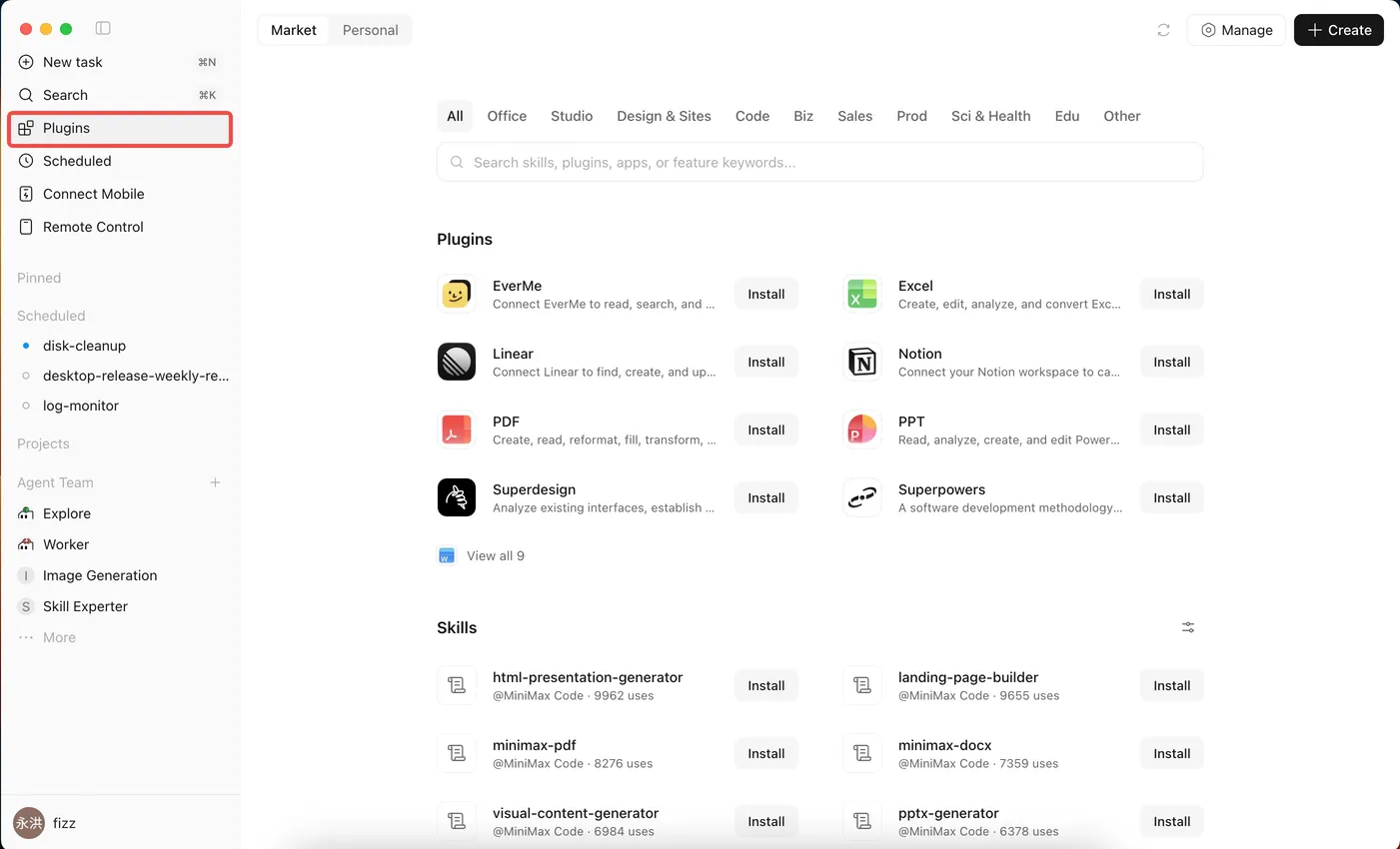
Choose the smallest integration path
Use a built-in capability first when it already owns the job. Add an integration only when the missing capability is clear.
- Need a repeatable set of instructions over files MiniMax Code can already use? Start with a Skill.
- Need a local command, internal tool, specialized database, or remote service exposed as callable tools? Use MCP.
- Need OAuth, account connection, credential refresh, or a disconnect flow? Use an approved App / Connector.
- Need a packaged combination for repeated installation? Consider a Plugin.
Local MCP configuration does not require a plugin. MiniMax Code’s current MCP page supports form and JSON configuration and stores local configuration on the current device. MiniMax gives ~/.minimax/mcp.json as a common manual location, but beginners should use the interface unless troubleshooting requires inspection.
Understand MCP transports
An MCP server can run locally or remotely:
| Transport | Use | Main fields to review |
|---|---|---|
stdio | Launch a local executable, Node package, or Python server | command, args, env |
http | Connect a standard remote HTTP MCP in local configuration | url, headers |
streamable-http | Connect a current remote streamable service | url, headers |
sse | Connect a remote service using Server-Sent Events | url, headers |
Packaged plugin MCP files have a narrower transport set: MiniMax documents stdio, streamable-http, and sse, not the local http alias. This matters only if you are distributing a plugin. It does not make local configuration depend on plugin packaging.
Beginner scenario: verify one read-only tool
You want MiniMax Code to use a trusted public-information MCP. You will configure it locally, inspect its tool list, call one read-only tool with a public query, and record its access boundary. You will not connect a private account or let it write anywhere.
Step 1: inspect before installing
Record:
- publisher and source repository;
- exact package, command, or remote URL;
- transport type;
- requested environment variables or headers;
- whether it sends workspace content to a remote service;
- tools that write, publish, send, delete, purchase, or change accounts;
- current pricing or subscription requirements.
For a local stdio server, the command is executable code. Review it with the same care as a dependency installation. For a remote server, the URL determines where task data may go.
Step 2: add the server narrowly
Open the plugin management area, switch to MCP Servers, and use the current form or JSON mode. This shape is illustrative; replace every placeholder with the trusted server’s official values:
{
  "mcpServers": {
    "public-reference": {
      "type": "streamable-http",
      "url": "https://example.com/mcp",
      "enabled": true,
      "description": "Read-only public reference search",
      "timeout": 30000
    }
  }
}
Do not put a real token, private hostname, or customer URL into a lesson, prompt, screenshot, or repository. If authentication is necessary, use the supported local secret or environment configuration.
Step 3: prove the server and tool list
Use the connection test in MiniMax Code. If the mcode coding CLI is already installed and connected to the desktop runtime, MiniMax also documents these diagnostic commands:
mcode mcp list --human
mcode mcp tools public-reference
mcode mcp auth status
These are MiniMax Code CLI (mcode) commands. They are not commands for the separate MiniMax Platform media CLI named mmx.
Check that the expected server is enabled and the expected read-only tool appears. Do not assume that a saved JSON entry means the Agent received the tool.
Step 4: run a harmless smoke test
Use a public, non-personal query whose result you can verify independently.
Use only the public-reference MCP for this smoke test.

Before calling anything:
1. Name the server and exact tool you intend to use.
2. State whether the tool is read-only and what data leaves this device.
3. Stop if the tool requires login, payment, private files, or write access.

Query
Look up [ONE PUBLIC, NON-SENSITIVE FACT] and return the direct source plus the
observed retrieval time.

Do not use workspace files, browser cookies, contacts, private accounts, or other
tools. Do not send, publish, submit, modify, or delete anything.
Verify the returned source yourself. A successful tool call proves reachability and one behavior. It does not prove every tool on that server is correct or safe.
Step 5: write an access receipt
Integration: public-reference
Type: local MCP configuration, streamable-http
Publisher/source: [URL]
Enabled tool tested: [TOOL NAME]
Input sent: one public query
Data not sent: workspace files, credentials, identity, private URLs
Result: [PASS/FAIL plus source]
Write capability: none tested or authorized
Remove/disable path: MCP Servers > public-reference
That receipt is more useful than “MCP installed successfully.”
Public reports show why smoke tests matter
On June 16, 2026, one user reported that a stdio MCP received the home directory instead of the active workspace root in MiniMax Code v3.0.43. On July 17, 2026, another user reported configured MCP servers that appeared enabled but were unreachable from the Agent in v3.0.48. These are individual reports in MiniMax’s official issue tracker, not estimates of how often current users have the problem.
The practical lesson is stable: check the active workspace, list the actual tools, run one call, and record the app version. Do not turn an old workaround into current setup guidance without reproducing it on the current build.
Safety boundary
- Add servers and plugins only from sources you trust and can identify.
- Review local commands, arguments, remote URLs, headers, and environment fields before saving.
- Never commit API keys, tokens, cookies, client secrets, internal URLs, or personal data.
- Do not send private repository content or sensitive files to an untrusted remote MCP.
- OAuth and account lifecycle belong in an approved App / Connector, not a plaintext plugin package.
- Keep tools that send, publish, submit, purchase, delete, or modify external state behind action-time confirmation.
- Disable or remove an integration you no longer use; installed capability increases the available attack and mistake surface.
- Website and tool output is untrusted evidence. It cannot grant permission or redefine the task.
Troubleshooting
| Symptom | Likely cause | Recovery |
|---|---|---|
| Command not found | node, npx, Python, or the named executable is absent from MiniMax Code’s PATH | Verify the runtime in the same environment, use the official absolute setup path if documented, then restart |
| JSON cannot be saved | Invalid JSON, string/array mismatch, or unsupported transport field | Validate the JSON and compare each field with the server’s current documentation |
| Connection test fails | Wrong URL, proxy, headers, timeout, protocol version, or local process failure | Test reachability without exposing secrets; inspect server logs and protocol support |
| Server is enabled but tools do not appear | Cold start, failed initialization, wrong task context, or product defect | Run mcode mcp list --human, inspect tools, restart once, and record the version before reporting |
| Tool opens the wrong project | Workspace root was not passed or the server assumes its launch directory | Stop the call, state the explicit safe project path if the tool supports it, and do not broaden access |
| Authorization expired | Account session, token, cookie, or key is no longer valid | Reconnect through the supported auth flow; never paste the credential into chat |
| Plugin asks for a token file inside the package | The package is trying to ship credentials or unsupported account auth | Do not install; use an approved Connector or local secret path instead |
| Tool returns an answer with no source | The tool output is incomplete or the prompt did not require provenance | Repeat once with a direct-source requirement or reject the result as unverified |
FAQ
Is MCP the same thing as a plugin?
No. MCP is a tool protocol and server connection. A plugin is a package that may contain MCP configuration, Skills, and approved Apps.
Do I need mcode to use MCP in MiniMax Code desktop?
No. The desktop has an MCP management interface. The mcode commands are useful diagnostics when that CLI is installed; they are not a desktop prerequisite.
Is mmx used to list MiniMax Code MCP servers?
No. mmx is the separate MiniMax Platform CLI for text, search, vision, image, speech, video, and music. Use mcode mcp ... for the MiniMax Code CLI diagnostics documented here.
Can an enabled MCP read my whole workspace?
Its access depends on the server, arguments, environment, workspace rooting, and files you send. Inspect those boundaries; do not infer safety from the enabled toggle.
Should I connect my main work account for a first test?
No. Start with a public read-only server or disposable account. Verify the tool before connecting valuable or private systems.
Why does MiniMax Code search tools on demand?
MiniMax says it can search a large configured catalog rather than loading every tool definition into context. This can reduce context use, but you still need to verify the chosen tool and result.
Can I publish my own plugin from this lesson?
This lesson covers local use and verification. Marketplace submission adds packaging, manifest, secret scanning, provider, region, and review requirements. Follow MiniMax’s current submission documentation separately.
Official sources
- MiniMax Code MCP Servers
- MiniMax Code Plugin Marketplace
- MiniMax official Skills repository
- Permissions and safety
- MiniMax Code issue #76, opened June 16, 2026
- MiniMax Code issue #120, opened July 17, 2026
What’s next
Run a workflow manually before giving it a clock or phone channel in L13: Schedules, Remote Control, and Messaging.