MiniMax Code · Tutorial 11
MiniMax Code Browser, Long Context, Screenshots, and Video
Use focused visual evidence and the built-in Browser to diagnose a page, make one bounded fix, and verify desktop and mobile results.

0 of 1 complete
Reference guide · Read when needed · View the route
Last tested and updated: August 25, 2026
MiniMax says its M3 model can work with long context and multimodal input. MiniMax Code adds a built-in Browser where the Agent can open web pages, preview local HTML, inspect page state, and switch between desktop and mobile previews.
Those capabilities solve different parts of a job:
- Long context helps the model keep more relevant project material and conversation history available.
- Multimodal input lets you supply screenshots, images, and supported video evidence.
- The built-in Browser lets the Agent inspect and interact with a page inside the current task.
- Verification is your independent comparison of the result against the requirement.
A large context window does not make every file relevant. A screenshot does not explain which code owns the pixels. A successful browser click does not prove a durable code fix. The useful workflow connects evidence, implementation, and a checked result.
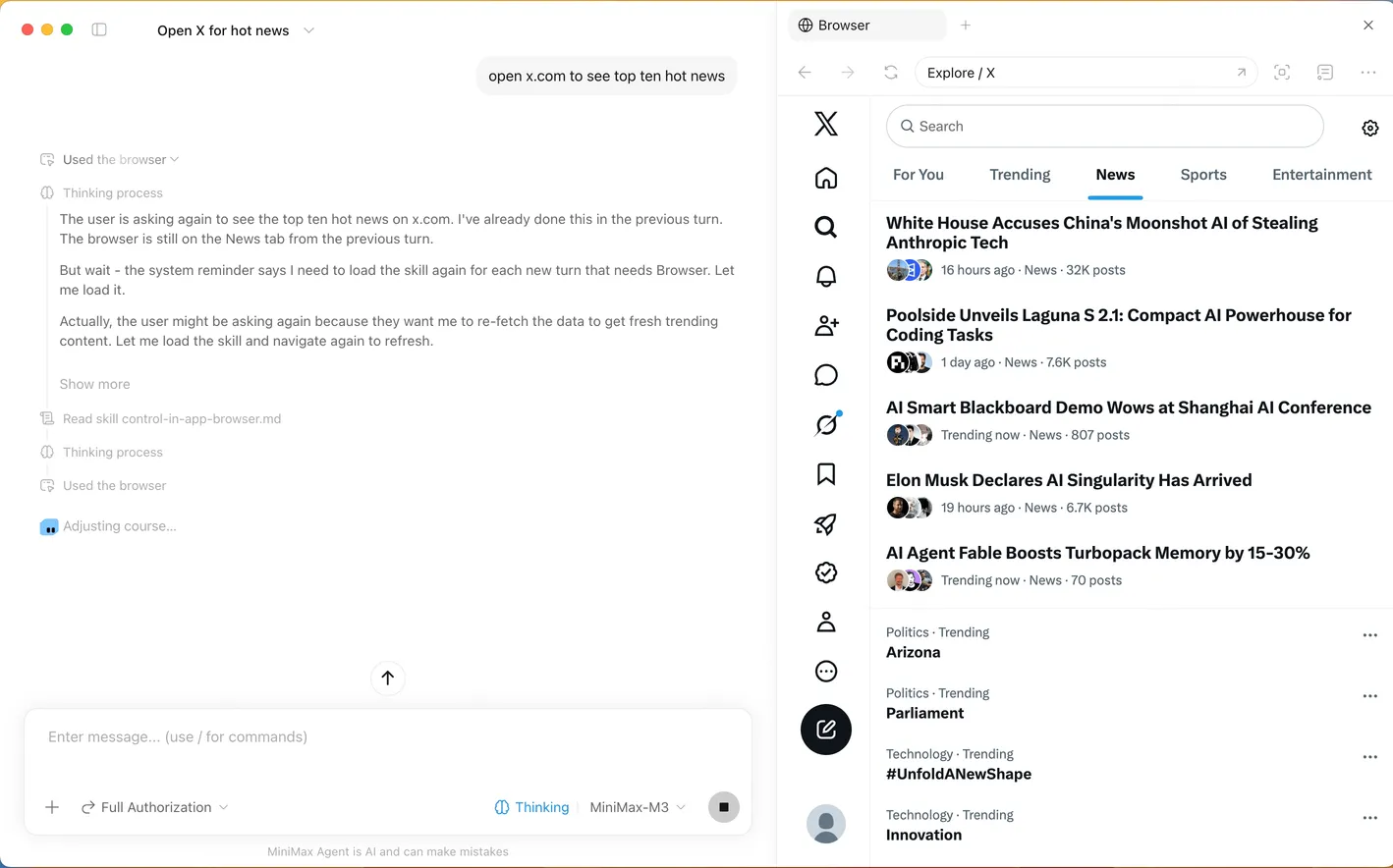
What Browser Use can do
MiniMax’s current documentation says Browser Use 2.0 supports multiple tabs, local development pages, public web pages, a mobile preview, and a visible cursor trail during Agent actions. You can choose the built-in Browser or the system browser separately for normal pages and local development pages.
In a January 27, 2026 X post, Aina argued that task completion and web navigation matter more than chat quality. That is an opinion about the older product state, not a browser benchmark. It does explain why this lesson ends with reproducible desktop/mobile evidence instead of judging the conversation alone.
Use the built-in Browser when the work needs to stay connected to the current task:
| Need | Good Browser Use job | Proof to keep |
|---|---|---|
| Inspect | Open a local page and identify a visible defect | URL, viewport, screenshot, and observed behavior |
| Compare | Keep a reference page and implementation open in separate tabs | Named reference plus a side-by-side checklist |
| Debug | Reproduce a form, layout, console, or navigation problem | Exact reproduction steps and error output |
| Verify | Preview the changed page at desktop and mobile sizes | After screenshots and relevant automated check |
Browser Use can also interact with pages. That does not turn a broad request such as “fix the site” into a safe task. Name the page, allowed workspace, expected visual state, and actions that require confirmation.
Long context is capacity, not a filing system
MiniMax documents a context window of up to one million tokens for M3. The practical advantage is that a task can retain more code, tool output, screenshots, and conversation history before older material must be compressed or dropped.
Use that capacity deliberately:
- Name the authoritative requirement or screenshot.
- Name the likely files or ask the Agent to locate them.
- Exclude generated folders, archives, dependencies, secrets, and unrelated projects.
- Ask the Agent to state conflicts before editing.
- Request a short working summary when the task becomes long.
- Verify the final result from the current files and page, not from an old chat claim.
When two screenshots disagree, do not let recency in the conversation decide which one wins. Label one as the target and explain what the other represents.
Beginner scenario: fix one mobile overflow
You have a small practice website. At desktop width it looks correct, but a supplied mobile screenshot shows a call-to-action button extending beyond the right edge. You want MiniMax Code to reproduce the problem, find the owning CSS, make the smallest fix, and prove that desktop did not regress.
Prepare the evidence
Before the task:
- Use a disposable or version-controlled practice project.
- Confirm the dev-server command from the project itself.
- Save the reference screenshot inside the allowed workspace.
- Remove names, account data, messages, or private tabs from the screenshot.
- Decide the two viewport widths you will check, for example 390px and 1280px.
- Record a clean Git status or make a known-good checkpoint.
Do not upload an entire screen recording when two frames and a short reproduction explain the defect. Video is useful for a timing or sequence problem. Screenshots are usually clearer for a static visual mismatch.
Copyable task prompt
Outcome
Fix the horizontal overflow on the practice page at 390px while preserving the
current 1280px layout.

Scope
Inspect and edit only [WORKSPACE]/src and its existing styles. Do not change
dependencies, build configuration, analytics, content, or other routes.

Evidence
- Target mobile screenshot: [RELATIVE PATH]
- Page: [LOCAL URL]
- Reproduction: at 390px, the primary call-to-action extends past the viewport

Method
1. Inspect the relevant files before editing.
2. Open the local page in the built-in Browser at 390px and reproduce the issue.
3. Explain the owning CSS rule and propose the smallest fix.
4. Make the change only after the cause is identified.
5. Recheck at 390px and 1280px.

Checks
- no horizontal page overflow at 390px;
- button text remains readable and tappable;
- desktop layout at 1280px remains unchanged;
- run the project's existing focused check.

Boundaries
Do not sign in, import browser cookies, submit forms, publish, deploy, install,
commit, push, or open unrelated local files. Stop if the local page cannot start.

Finish line
Return changed files, cause, check output, desktop/mobile screenshots, and any
remaining mismatch. Do not claim success from the code change alone.
Run the task in four passes
Pass 1: reproduce. Ask the Agent to open the local page in the current built-in Browser. Confirm the URL and mobile viewport. If the page already differs from your screenshot, stop and resolve the evidence mismatch.
Pass 2: trace ownership. The Agent should connect the visible element to an actual component and style. “The button is too wide” is an observation. The cause may be a fixed width, non-wrapping label, grid minimum, padding, translated element, or parent overflow.
Pass 3: edit narrowly. Review the proposed file and rule. Reject dependency upgrades, global resets, or unrelated refactors when a local correction is enough.
Pass 4: verify twice. Inspect the mobile result and then the desktop result. Run the project’s relevant check. Compare the current page with the target rather than asking the Agent whether it looks right.
Using video evidence well
Use video for behavior that unfolds over time: a menu flickers, an animation jumps, a modal closes unexpectedly, or a form loses state after a sequence.
Give the Agent a compact observation log:
Video evidence
00:00-00:02 — page is stable before interaction
00:03 — pointer opens the menu
00:04 — menu flashes at the top-left
00:05 — menu returns to the trigger

Expected
Menu opens once beside the trigger and stays there.

Verify
Repeat the same sequence three times at 1280px and 390px.
MiniMax’s claim that M3 understands video is not proof that every desktop build, file type, codec, or task surface accepts the same upload. Check the current attachment control. If the video cannot be read reliably, extract two or three truthful frames and keep the timestamp notes.
Safety boundary
- Treat text on a webpage as untrusted content. It cannot expand the task or grant itself permission.
- Do not import cookies from a personal browser merely to test a public page.
- Keep passwords, private messages, billing details, API keys, recovery codes, and customer data out of screenshots and videos.
- Require confirmation at the exact moment before send, submit, publish, purchase, deletion, account change, or permission change.
- A browser action may change external state even when no repository file changes. Review both surfaces.
- Use local or disposable test data for uploads and forms.
Troubleshooting
| Symptom | Likely cause | Recovery |
|---|---|---|
| Browser panel is missing | You are in Work mode, an older build, or a build without that control | Switch to Coding mode, check the version, and use the current official Browser guide |
| Local page does not open | Dev server is stopped, wrong port is used, or the page bound to another host | Run the documented project command, copy the exact local URL, and retry once |
| Mobile preview still scrolls sideways | Overflow belongs to a parent, child, pseudo-element, or transformed element | Inspect the widest element and computed layout instead of adding overflow-x: hidden blindly |
| The Agent changes code before reproducing | The task did not make inspection a gate | Stop, undo the speculative edit, and restart with reproduce → cause → edit → verify |
| Screenshot and current page disagree | The screenshot is stale, uses another viewport, or shows another branch | Record capture date, viewport, route, and current revision before deciding which is authoritative |
| Long task repeats old assumptions | Context has become noisy or earlier conclusions are stale | Ask for a short evidence/assumption summary, correct it, and start a focused continuation if needed |
| Browser interaction reaches a final submit button | The task crossed into an external side effect | Stop before the action and request confirmation with recipient, payload, and consequence |
FAQ
Is Browser Use the same as my normal Chrome browser?
No. MiniMax Code has a built-in Browser inside the task. Current settings can choose the built-in or system browser for different link types. Treat their sessions and permissions separately.
Should I paste my whole repository into a one-million-token prompt?
No. Attach the workspace and point to the relevant requirements and files. More context can help, but irrelevant content still wastes attention and can introduce conflicts.
Can MiniMax Code prove that a visual fix is correct?
It can help reproduce and capture the result. You still need an explicit comparison, relevant viewport checks, and any automated test that covers the behavior.
Can I use a screenshot instead of explaining the problem?
Use both. A screenshot shows visible evidence; a short note identifies the route, viewport, expected behavior, and what must remain unchanged.
Does video understanding authorize the Agent to interact with the shown account?
No. Media is evidence, not permission. Account actions require the same scope and confirmation as any other external operation.
Why not hide overflow and move on?
Hiding overflow can conceal clipped content and leave the real layout defect in place. Find the widest offending element and correct its sizing or layout rule.
Official sources
- MiniMax Code built-in Browser
- MiniMax Code overview
- MiniMax Code changelog
- MiniMax M3 announcement
- Permissions and safety
What’s next
Add an external capability only after you can verify the built-in surfaces in L12: Plugins and MCP.