MiniMax Code · Tutorial 05
Permissions, Panels, Git, and Code Review
Checkpoint a practice project, inspect permissions and diffs, run a first-pass review, and restore one file safely.

0 of 6 complete
Essentials · Step 5 of 6 · View the route
Last checked and updated: August 25, 2026
MiniMax Code’s panels help you see files, diffs, and command output. Permission prompts help you decide what may happen. Git gives you a known-good checkpoint and a precise comparison. The built-in Code Review command adds an automated first pass for correctness, security, and maintainability.
None replaces the others:
| Control | What it tells you | What it does not prove |
|---|---|---|
| Permission prompt | Which action is requesting approval now | That the whole task is safe or correct |
| Files panel | Which files and deliverables you can open | That no other path changed |
| Changes panel / Git diff | What local content differs | That the new behavior works |
| Terminal | Which commands and checks ran, with output | That the command tested the right thing |
| Code Review | Potential issues in the current local diff | That every defect was found |
| Git checkpoint | A recoverable state and comparison base | A backup of untracked secrets or external systems |
Your proof in this lesson is a tagged local checkpoint, one controlled edit, a reviewed diff, a passing whitespace check, and restoration of the named file to the checkpoint.
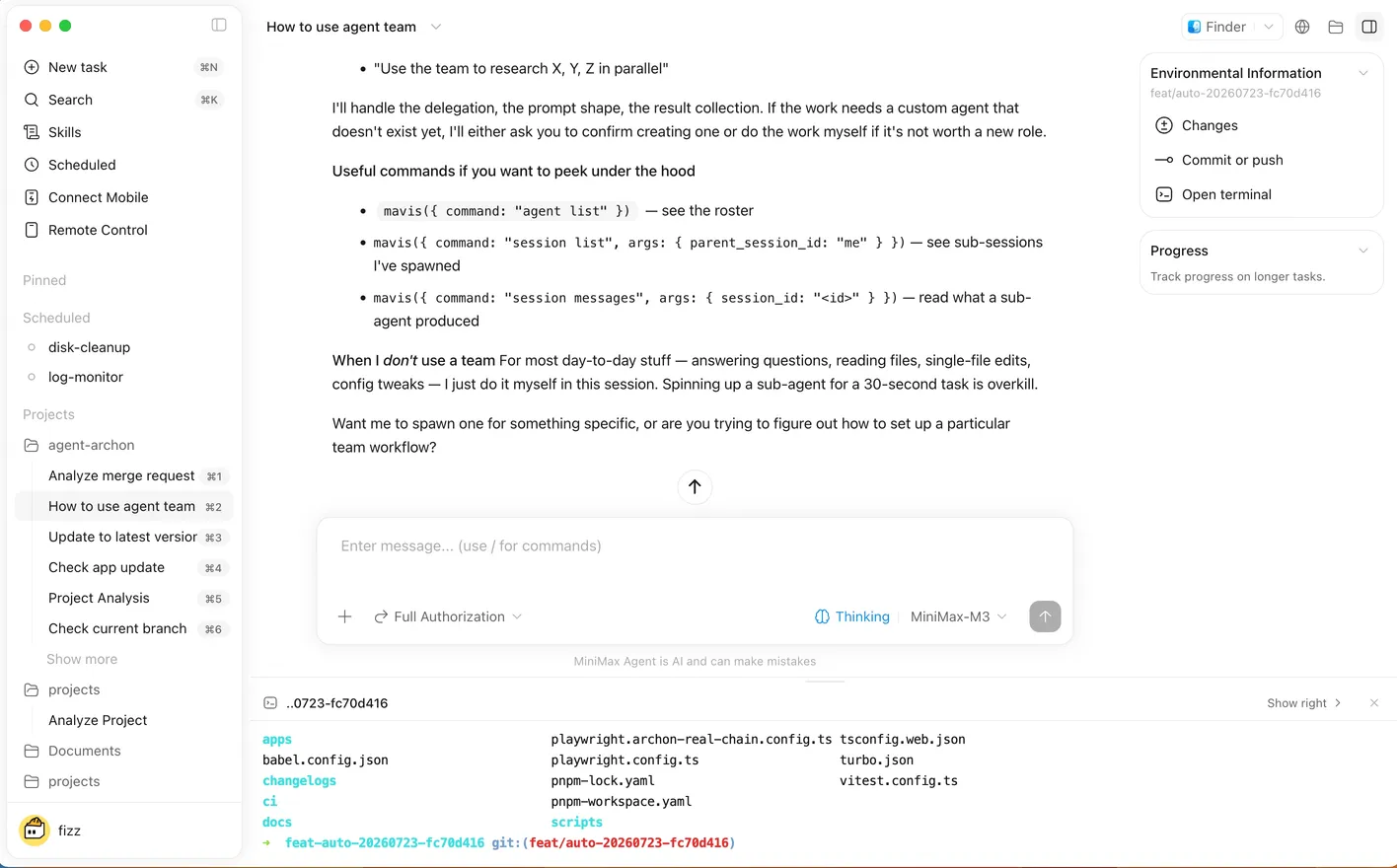
Understand permission prompts
Official documentation says MiniMax Code may ask before reading outside the workspace, editing or deleting files, running commands, using tools with external side effects, or handling remote/messaging actions.
Before choosing Allow, answer four questions:
- Action: Is it reading, writing, deleting, executing, uploading, or sending?
- Target: Is the exact file, folder, command, account, or service named?
- Reason: Does it match the brief and current step?
- Reversibility: What checkpoint or recovery path exists?
Approve the narrowest action for the shortest useful duration. Keep manual approval for delete, overwrite, upload, outbound messaging, account changes, production work, and spending.
Step 1: check Git in the practice workspace
Switch to Coding mode and select minimax-code-practice. Open Terminal and run:
git --versionIf Git is unavailable, install it from your operating system’s trusted channel or the official Git site, restart MiniMax Code, and run the version check again. Installation changes system state, so read the installer prompts yourself.
The rest of the commands assume the terminal’s current directory is the practice workspace. Confirm before continuing:
pwd
git status --short
In Windows PowerShell, pwd also displays the current location. The path must end in minimax-code-practice. If it does not, stop and open the correct workspace instead of adapting destructive commands to an unknown folder.
Step 2: create a known-good checkpoint
First ask the agent for a plan only:
Outcome
Create a local Git checkpoint for the current minimax-code-practice workspace so one later
README.md edit can be reviewed and undone.

Scope
Only initialize Git metadata in this practice folder and track README.md.

Evidence
The current README.md is the known-good content. Current terminal path and Git status are authoritative.

Constraints and approvals
Do not add another file, configure a remote, push, delete, reset, clean, or change global Git settings.
Show each proposed command and explain its target before asking to run it.

Checks
The commit contains only README.md; tag lesson-05-start points to it; status is clean.

Finish line
Stop after reporting the commit ID, tag, tracked path, and final status.
Review and run these commands one at a time, approving only if the terminal path is correct:
git init
git status --short
git add README.md
git diff --cached
git commit -m "checkpoint: start MiniMax Code review exercise"
git tag lesson-05-start
git status --short
Why name README.md instead of using git add .? Exact paths prevent an unrelated or secret file from being staged by accident. git diff --cached shows exactly what the commit would contain.
If Git asks for an author name and email, configure an identity appropriate for this disposable local repository. Do not put a private email into a screenshot or published lesson artifact.
Step 3: make one reviewable defect
Ask MiniMax Code to change only the status line:
Change only README.md in the active practice workspace.
Replace “Status: ready for review.” with “Status: review complete.   ” including the three
trailing spaces, so I can practise finding a whitespace problem.

Do not run commands or change another path. After editing, stop and report every changed file.
This is a controlled exercise. The trailing spaces are deliberate and will be removed by restoring the checkpoint.
Use Files to open the result and Changes to inspect the exact line. Then run read-only checks in Terminal:
git status --short
git diff -- README.md
git diff --check
Expected evidence:
- status shows only
README.mdmodified; - the diff shows only the status line;
git diff --checkreports trailing whitespace.
If any other path appears, stop. Do not hide it with another edit or broad cleanup command.
Step 4: run Code Review as a first pass
Use MiniMax Code’s built-in Code Review command, or ask it to review the current local changes:
Review the current uncommitted local diff only. Focus on unintended content changes,
whitespace defects, scope violations, and maintainability. Do not edit files or run write commands.
Link each finding to the smallest relevant line when possible. If a check is needed, propose it first.
The review should notice the whitespace or at least preserve the one-file scope. It may miss the issue. That is why git diff --check and human inspection remain part of the gate.
Code Review is an automated first pass, not approval to merge or publish. Critical changes still need relevant tests, previews, security review, and human judgment.
Step 5: restore only the named file
Before restoring, read the diff one last time. The next command discards uncommitted changes in the named README.md by replacing it with the version at the tag. It does not rewrite branch history.
git restore --source lesson-05-start -- README.md
git status --short
git diff --check
Now reopen README.md and confirm the Lesson 4 content is back. A clean status and silent git diff --check complete the exercise.
Do not substitute git reset --hard or git clean. Those broad commands can discard unrelated work. For a change already shared with other people, restoring a local file may not be the right recovery method; use the repository’s collaboration process and consider a new revert commit.
Public reports: why the recovery loop matters
The official repository includes:
- one report of writing outside the selected project;
- a request for a read-only review mode;
- a report of concurrent work affecting the local permission store.
These are individual reports and feature requests, not proof of general frequency or current behavior in every release. The practical response is still useful: preserve evidence, avoid concurrent retries during a permission failure, inspect paths, and restore from a known-good state.
Safety boundary
Stop before approving any command that:
- names a parent folder, home directory, drive root, wildcard, or unresolved variable;
- deletes files, runs
git clean, or performs a hard reset; - modifies a remote, pushes, opens a pull request, or publishes;
- installs software or changes global settings without a separate decision;
- exposes
.env, keys, wallet files, credentials, or private repository data; - acts on an external account, production service, message, upload, or payment.
Git protects tracked file history after a commit. It does not undo an email, purchase, deployment, database mutation, or leaked credential.
Troubleshooting
| Symptom | Likely cause | Recovery |
|---|---|---|
git is not recognized | Git is not installed or the app has not inherited the updated PATH | Install from a trusted source, restart MiniMax Code, and rerun git --version |
git commit asks for identity | No author is configured | Set an appropriate local repository identity; avoid publishing private contact details |
git status --short lists unexpected files | The folder contained pre-existing work or the agent changed more than approved | Stop, inspect each path, and never stage them with git add .; separate ownership before proceeding |
Changes panel and git diff disagree | The panel may be filtered, Git may ignore a file, or you are in a different workspace | Confirm the exact path, refresh the panel, and compare pwd, git status --short, Files, and the on-disk file |
Code Review reports no findings but git diff --check fails | Automated review missed a concrete defect | Trust the direct check, fix or restore the file, then rerun both checks |
| Permission prompts repeat or fail during concurrent work | Multiple tasks may be competing or the permission state may be unhealthy | Stop concurrent attempts, preserve screenshots and logs, restart if appropriate, then submit a secret-safe report if it recurs |
git restore removed work you wanted | The command replaces uncommitted content in the named path | Stop editing; inspect Git history and backups. This is why the lesson requires reading the exact diff and naming one file first |
FAQ
Is Git the same as GitHub?
No. Git is the local version-control tool used here. GitHub is an external hosting and collaboration service. This lesson creates no remote and pushes nothing.
Why tag the checkpoint?
lesson-05-start gives the known-good commit a readable name. It is easier for a beginner to verify than copying a long commit hash into every command.
Is git restore always safe?
No. It deliberately discards uncommitted content in the named path. Inspect the diff, confirm the source tag and exact file, and preserve wanted work before running it.
Can Code Review replace tests?
No. It can identify possible issues in the diff. Tests, previews, logs, and human judgment prove different parts of correctness.
Should I reduce permission prompts after this lesson?
Only for a trusted, low-risk routine whose actions and targets you understand. Keep manual approval for deletion, overwriting, uploads, messages, production changes, and external side effects.
Official sources
- Permissions and safety
- Files, Changes, and Terminal panels
- Code Review
- Workspace and project context
- Official Git tutorial
- Official
git restorereference
What’s next
You now have the core operating loop: define the outcome, attach a narrow workspace, inspect first, approve deliberately, verify independently, and restore when needed. The next course section turns proven preferences and workflows into memory, skills, and bounded Agent Teams.