Release guide · October 28, 2026
Grok Bot's October 27 Update: A Practical Setup Guide
Try Grok Bot Pages, set up Vault and 1Password, and limit phone-app permissions with practical prompts and checks for the October 27 update.

Build a private Page first, choose a deliberate login flow, and grant phone access one app at a time. Review sharing, purchases and routine actions separately.
Matt Palmer’s October 27, 2026 Grok Bot video shows a useful combination: Pages for presenting work, Vault and 1Password for signing in, and phone permissions for acting on that work. Start with a small task whose result you can check before giving a Bot more access.
Credit Matt Palmer, whose 7:44 update is titled What’s new in Grok Bot - Oct 27, 2026. He identifies himself as “I’m Matt with SpaceXSI” at 7:32.
This guide pairs the supplied transcript with official release notes and 1Password guidance. These exercises are prompts to try, not results from a Superbash authenticated product test. October 27 is the video date: features span October 22, 23 and 26 releases. Phone-app rollout began the week before the video.
Build a Page you can check before sharing
Pages are reports, memos and dashboards you can edit with a Bot or ask it to update, documented in the October 22 v0.75.2 changelog. Matt discusses them at 0:13–1:05. X posting and training are his personal examples; Q3 sales is a suggested business use, not a report he actually made.
- Choose one small source you are allowed to upload. Remove customer identifiers, private messages and unrelated columns. A sanitized CSV makes reconciliation easier.
- Specify the date range, time zone, units and calculation. Ask for missing data to be marked, not inferred.
- Ask for a private Page. Review its sharing setting yourself; a prompt does not prove the audience.
- Check source rows and recompute a total before accepting charts. Request corrections in the same Page to avoid sharing an outdated copy.
Three Pages prompts to copy
These are original, untested examples. Replace bracketed fields before use.
X activity:
Create a private Page from my attached X activity export for [date range].
Use [time zone]. Group posts by weekday and posting hour, showing post
counts and median engagement. State which engagement fields are available
and how you calculate the metric. Compare time slots only when there are
at least five posts; label smaller samples insufficient. Show the source
rows behind each chart and suggest two posting windows to test next week.
Treat this as a hypothesis, not proof that posting time causes engagement.
Do not post, schedule, or share anything.
Check the time zone conversion, one bucket’s post count and the chosen metric. An export may omit impressions or reach; the Page must not invent them. Small samples can suggest a test without establishing a reliable posting schedule.
Weekly training log:
Build a private weekly training dashboard from this attached log.
Use Monday to Sunday in [time zone]. Show sessions, total minutes,
distance where recorded, and a weekly trend. Keep missing values distinct
from zero and keep different units separate. Include a table of the
underlying entries so I can correct them. Describe activity patterns;
do not diagnose injuries or prescribe treatment. Do not share the Page.
Compare one week’s duration to the original log. Remove unnecessary health details before uploading, and keep personal training information private. An absent entry may mean an incomplete log rather than a day without exercise.
Q3 sales:
Create a private Q3 2026 sales summary Page using only the attached
sanitized CSV. Filter July 1 through September 30 using [time zone].
Ask me which date column defines a sale and how refunds should be counted
if the file does not make that clear. Show monthly net sales, order counts
and product totals in [currency]. Flag duplicates, missing dates and
mixed currencies; do not silently convert them. Include reconciliation
totals and an exceptions table. Do not email, publish, or share the Page.
Agree the refund and duplicate policy first, then reconcile monthly totals to the CSV. A convincing chart cannot fix a wrong denominator. Check that the date filter includes the final day and that a refund has not been counted twice.
Choose the smallest audience
These are audience choices, not exact UI labels. Team and organization options depend on account availability; v0.75.2 describes organization and another-team sharing for Teams.
| Scope | Appropriate first use | Check before sharing |
|---|---|---|
| Private | Personal log or first draft | Confirm no broader audience is selected. |
| Team | Reviewed report for collaborators | Confirm which team can open it; remove unnecessary private data. |
| Organization | Report cleared for company-wide use | Treat everyone in the organization as a potential reader. |
| Public link | Material cleared for public distribution | Remove secrets, personal data and internal links; expect redistribution. |
The October 22 notes document unsharing or deletion from the dashboard’s Pages section. October 26 v0.77.0 adds owner deletion from Library, removing access for everyone it was shared with. That does not establish Library unsharing. Removing access cannot retrieve copies others made. Review broader boundaries in security, privacy and account safety; its older Auto-review location predates October’s Settings > Permissions section.
Set up Vault without moving secrets into chat
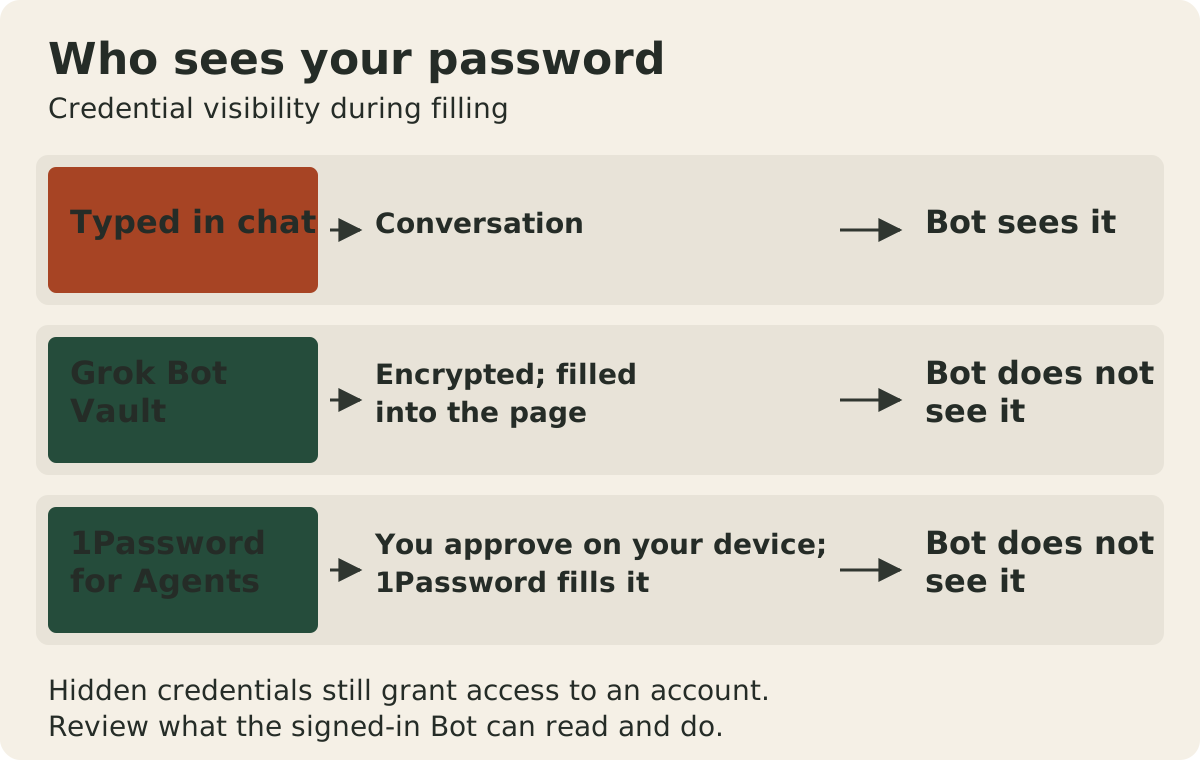
The changelog introduced saved logins, cards and contact information in Settings with v0.75.5 on October 23. October 26 v0.77.0 adds Payments, Hints and CSV import. At 1:41, Matt says “the bot doesn’t have access to the information, it’s encrypted.” This is his description of Vault behavior, not an independent audit or evidence of a particular encryption algorithm or zero-knowledge design.
Vault setup checklist
- Open Settings > Vault and start with one low-risk login. Enter the secret in Vault, never in a conversation or Page.
- Check the website and account identity. Add only contact information the workflow needs.
- Use Hints to explain when an entry belongs in a task. For example:
Use for the demo shop account only. Ask before checkout.A hint guides selection; it is not an access-control rule. - Add a card only for a needed checkout workflow. In Payments, choose the preferred method. This selects what Bots try first; every purchase still requires approval, according to v0.77.0.
- For CSV migration, review the export locally and import only needed entries. Check duplicates and websites. Never attach a password export to chat. Treat it as sensitive and remove temporary copies after verification according to your retention policy.
- Try signing in to the low-risk site and stop before changes. Verify the account and ensure no password appeared in the conversation.
This original, untested prompt keeps the first check small:
Use my saved demo-shop login to open the account overview. Confirm which
account is signed in, without printing credentials or personal details.
Do not change the profile, place an order, or add another login. Stop if
the requested site or account does not match the saved entry.
Do not stockpile recovery codes, seed phrases, master passwords, identity numbers or production secrets for hypothetical tasks. Matt mentions sensitive identity information; our recommendation is to minimize it, without claiming Vault supports or rejects every item type. Keep secrets out of Hints too.
Bots try Vault logins and cards before a password manager. Test 1Password with a login that has no Vault duplicate. Connecting a manager does not change that precedence. A hidden credential still opens an account containing data and actions.
Connect 1Password and review each login request
1Password announced its agent integration on October 22. Grok Bot’s October 26 v0.77.0 notes record connection without a shared vault, with a 0.68.0+ compatibility badge. At 2:05–2:17, Matt describes working with 1Password to improve the experience.
Check account and app requirements
The 1Password setup guide has stricter platform minimums than the changelog badge. Update both apps and follow your platform’s guide.
| Requirement | What to check |
|---|---|
| 1Password account | Individual or family on 1Password.com. Teams, Business, 1Password.ca and 1Password.eu are unsupported by the cited guide. |
| Local 1Password app | 8.12.42 or later, on the same computer or mobile device as Grok Bot. |
| Grok Bot changelog minimum | October 26 labels the feature Grok Bot 0.68.0+. |
| Current setup-guide minimum | Grok Bot desktop 0.75+ or iOS/Android 1.16+. Follow the platform requirement. |
Approve the sign-in, then limit the task
Follow the documented connection and approval flow:
- In Grok Bot, open Connect apps > Password Managers, select Connect beside 1Password, then Connect 1Password. Sign in to the intended 1Password.com account and approve the connection. If labels differ, consult Settings and the current guide.
- Request one read-only task on a known site, explicitly using 1Password. Pick a login absent from Vault.
- Inspect the requesting agent, website and suggested login on your device. Deny unexpected requests or select the correct login before approval.
- 1Password fills the approved login into the Bot’s browser without exposing the credential to the Bot. Check the resulting account and task scope.
- Stop before purchases or changes. Request sign-out afterward if you do not want the website session retained.
Try this original, untested example:
Use 1Password to sign in to [known test website] and read the account
status. Let me approve the requested login on my device. Do not copy
credentials into chat, update settings, send messages, or buy anything.
Stop if the account is not [test account]. Sign out after the check.
Each login requires approval according to the changelog. An already authenticated website session is a different boundary: do not expect a fresh prompt on every page or tool call. MFA and website automation restrictions can still block the task. Stop and resolve the requirement rather than bypassing it.
Choose Vault or 1Password deliberately
| Need | Starting choice | Boundary to verify |
|---|---|---|
| Small set of Bot logins and checkout details | Vault | Hints, selected account and purchase approval. |
| Existing eligible logins with device approval | 1Password for Agents | Account eligibility, local versions and requested login. |
| Preferred saved card for checkout | Vault Payments | Default selection does not approve purchase; this 1Password flow does not establish card filling. |
| Duplicate login in both | Resolve intended source first | Vault takes priority; connecting a manager does not guarantee its approval flow runs. |
| Teams/Business or regional account | Check current support | Unsupported under cited requirements; do not export everything as a workaround. |
Give phone apps one permission at a time
The October 23 report and embedded official October 22 announcement place rollout the week before Matt’s video. It covers iOS and Android, without establishing identical capabilities. No changelog version was verified for this rollout.
Matt names Calendar, Reminders, Contacts, Location, Home and Alarms at 2:34–2:45. The official graphic also lists Messages; iMessage is excluded. Alarms is a video claim absent from that graphic. Check your device’s available permissions.
A least-privilege phone checklist
- Choose one task before tapping Allow. Each listed app has its own control; leave unrelated apps disabled.
- For Calendar, begin by reading a day’s events. Review a proposed event before creating it.
- Enable Reminders when needed. Inspect the list and due time before accepting a reminder.
- Leave Contacts and Messages unapproved unless required. Verify the person before sending or changing contacts. Do not expect iMessage.
- Enable Location for a location-dependent task. Inspect phone settings and choose the narrowest available scope.
- Enable Home for an agreed action. Start with one harmless lamp rather than consequential devices such as locks.
- Check Alarms in the installed app rather than assuming a permission tile. Confirm alarms in the phone’s own interface.
- Remove unneeded access after testing. Review Auto-review separately in Grok Bot’s Settings > Permissions.
Try Matt’s 5 PM lights-off idea as a routine
This original, untested adaptation uses Matt’s corrected 5 PM example at 2:50–3:01:
Help me prepare a daily 5:00 PM routine in [time zone] for the Apple Home
light named [test lamp]. First check that you can identify this exact
light and read whether it is on. Show me the schedule and next run before
enabling the routine. Each day, if this light is on, ask me before turning
it off; if it is already off, leave it alone. Never operate locks, other
lights, or any other Home devices. If access fails or the device is
ambiguous, report that and stop. Do not enable the routine until I confirm.
Confirm the lamp connects through Apple Home/HomeKit, verify the time zone and do one supervised trial before repetition. The approval stop is our added precaution; a prompt does not establish an enforced product rule. Inspect Permissions too.
Use routines and scheduled work for testing, history and pausing. The mobile guide covers monitoring and takeover; its August platform discussion predates this October iOS/Android rollout.
Small updates worth trying once
The changelog corroborates the versioned entries below. Video-only items retain their uncertainty. Each trial is an editorial suggestion, not a tested result.
| Change | Evidence/date | Try or check |
|---|---|---|
| Video with Imagine models | Matt 3:21–3:33 names Imagine; description/image video creation appears in v0.75.2, Oct 22 | Ask for a five-second video of a paper sailboat on a desk. Review the result before publishing; duration is a request, not an output guarantee. |
| Subagents make images and video | v0.75.2, Oct 22; Matt 5:13–5:24 | Ask for two visual variants while the main Bot drafts captions. Review each output; this is delegated work, not proof of lower cost or better quality. |
| Library pins | v0.75.2, Oct 22; Matt 5:25–5:40 | Open Library, pin a reusable image, and confirm you can find it again. Pinning is organization, not sharing permission. |
| Forwarded email preserves formatting | v0.75.5, Oct 23; Matt 5:41–5:47 | Try an email you own with harmless formatting; inspect the recipient and attachments before forwarding. The notes also mention images and attachments. |
| Fewer approval cards | v0.75.5, Oct 23; v0.77.0, Oct 26 | Review Settings > Permissions and its Auto-review rules. Fewer prompts do not remove the need to check consequential actions. Cards now remain open for 30 minutes. |
| Greater-than block quotes | v0.75.2, Oct 22; Matt 6:13–6:20 | Type > Text to discuss in chat. Formatting quoted material does not make it trustworthy. |
| Cmd+/ shortcuts sheet | v0.75.2, Oct 22; Matt 6:23–6:28 | Press Cmd+/ on Mac to see the available shortcuts. Check the app for other platforms. |
| Desk-aware notifications | v0.71.2, Oct 14; Matt 6:35–6:42 | When using Mac or Windows, check desktop alerts before assuming a delayed phone alert means the Bot stopped. Matt describes a few minutes; do not promise a fixed delay. |
| .docx to Google Doc | Video 6:46–7:02; no matching release verified | Try a harmless document with the intended Google account and compare formatting, tables and sharing afterward. This is not a verified lossless conversion. |
| X Spaces and lists | Video 4:21–4:26; no exact release verified | Ask what actions the connected X integration offers and request a draft list first. Specific scheduling, hosting and moderation operations remain unverified. |
| Pumpkin Bot | v0.75.5, Oct 23; Matt 3:47–4:10 | Check available avatar choices if wanted. Seasonal appearance is optional, with no workflow benefit claimed. |
| New typeface and mobile polish | v0.77.0, Oct 26 for the typeface; Matt 4:31–4:49 for mobile polish | Check readability on the screens you use. No font family is verified here. |
| Simpler right pane and reconnect cards | Matt 4:54–5:08; v0.77.0, Oct 26 corroborates reconnect behavior | Investigate Not connected or Reconnect, verify the intended account, and rerun a harmless read. See the connector guide below. |
See Plugins and integrations for connection basics. After one bounded task works, explore reusable skills; that catalog does not imply every skill is a supported Grok Bot integration.
What is coming, and what remains unverified
Matt’s preview of the next updates
At 7:21–7:28, Matt points to more Apple integrations and shared team functionality. These are directions, without dated commitments or features to enable now. They are separate from Page sharing already documented in October’s releases.
Your 15-minute setup checklist
This timing assumes accounts and apps are ready. Stop to resolve failed checks instead of rushing.
- Minutes 0–2: Check versions and account eligibility. Inspect existing Auto-review rules in Settings > Permissions.
- Minutes 2–6: Create a private Page from sanitized data. Verify one total, one chart and its audience.
- Minutes 6–10: Choose Vault or 1Password for one low-risk login. Check Vault duplicates, confirm the signed-in account and avoid purchases.
- Minutes 10–13: Allow one phone app. Read an event or inspect a test lamp before changing anything.
- Minutes 13–15: Review results, sharing and permissions. Remove unnecessary access. Leave recurring actions disabled until a supervised trial and its approval boundary work.
You should have one checked private Page, one understood sign-in flow and one deliberate phone permission. Any unresolved requirement stays on your checklist rather than becoming broader access.
Put this to work
Separate access to a password from permission to act inside an account.
Try
Create one Page from a sanitized CSV, then test one login and one phone permission.
Prove it worked
Reconcile the Page with its source, inspect its audience, and confirm each approved action stays within the task.
Keep in view
- Keep the first Page private and verify its numbers before sharing.
- Vault credentials take priority over a connected password manager.
- Review each phone-app permission and keep purchases subject to approval.