Product case study · November 11, 2026
Before you reinstall Claude Code, find the copy you're running
Diagnose Claude Code installation trouble with a PATH exercise, version checks and claude doctor before choosing a repair.
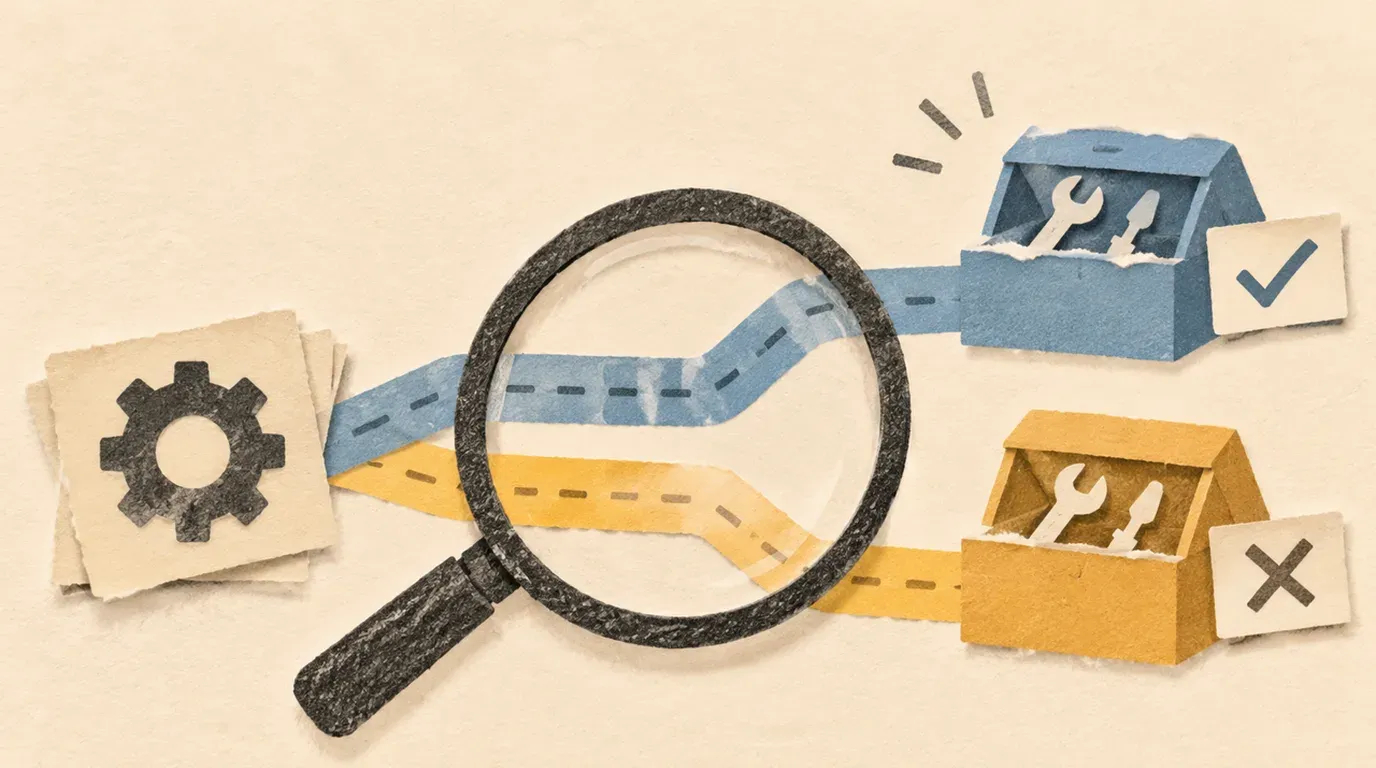
Find the executable first. Reinstalling is a poor first move when your terminal may be launching a different copy.
You update Claude Code, open a terminal, and the old version is still there. Before running the installer again, ask a smaller question: which copy did that terminal launch?
A command name is a shortcut. If two installations answer to claude, repairing one may leave the other happily answering your commands. My preferred first move is to find the executable, check its version, then ask it to diagnose itself. That gives a reinstall something useful to solve.
This walkthrough targets Bash on macOS, Linux or WSL. The disposable shell exercise was tested locally; the Claude Code diagnosis and repair steps are documentation-backed instructions, not a reported repair of a broken installation. Official sources checked November 11, 2026.
Make the wrong-copy problem visible
You can understand the problem without touching Claude Code. Paste this into Bash. It creates two fictional commands called sb-demo-tool in a fresh temporary directory:
(
  lab_root=$(mktemp -d /tmp/claude-path-lab.XXXXXX)
  mkdir "$lab_root/first" "$lab_root/second"
  printf '#!/bin/sh\necho "demo copy A"\n' > "$lab_root/first/sb-demo-tool"
  printf '#!/bin/sh\necho "demo copy B"\n' > "$lab_root/second/sb-demo-tool"
  chmod +x "$lab_root/first/sb-demo-tool" "$lab_root/second/sb-demo-tool"

  export PATH="$lab_root/first:$lab_root/second:$PATH"
  type -a sb-demo-tool
  sb-demo-tool
  "$lab_root/second/sb-demo-tool"
  printf 'Practice files: %s\n' "$lab_root"
)
The lookup lists both demo paths. The short command prints demo copy A; the explicit second path prints demo copy B. Both files work. You merely asked the shell to find one by name and the other by address.
The parentheses keep the PATH change inside a subshell. When the block finishes, your original shell’s PATH remains intact; the printed temporary folder retains the practice files. Nothing installs a replacement claude or edits your shell startup files.
That is the useful insight to carry into troubleshooting: “a newer copy exists” and “my terminal runs that copy” are different observations.
Inspect the terminal that actually fails
Run these in the affected terminal, before opening a fresh shell or changing settings:
type -a claude
command -v claude
claude --version
type -a can expose aliases, functions and multiple executable locations. command -v shows how this shell resolves the name; it is not always a filesystem path. If it reports an alias or function, inspect that definition before treating the result as an installed binary.
Write down the selected path or wrapper and the version output. Repeat in your editor’s terminal if the problem occurs there but not in your ordinary terminal. A difference is a lead worth investigating, not proof that either installation is corrupt.
Anthropic’s installation troubleshooting guide covers conflicting installs and missing PATH entries. It also notes that the VS Code extension bundles its own CLI for its chat panel without adding a standalone claude command to PATH. An extension that works does not establish that your terminal command is installed.
If the shell cannot find claude, stop before the doctor step. For a native installation on these platforms, inspect the documented launcher location:
ls -l "$HOME/.local/bin/claude"If it exists and you recognize it as your installation, try its explicit path:
"$HOME/.local/bin/claude" --versionIf that works while the short name fails, follow the official guide’s PATH instructions for your shell. If the file is absent, first establish whether you installed through another method. Adding an empty directory to PATH will not create a program.
Ask for a diagnosis before choosing a repair
Once the intended command resolves and starts, run:
claude doctorThe CLI reference describes this terminal command as read-only installation and settings diagnostics without starting a session. Read the actual findings; do not assume every version prints the same labels.
Inside an existing Claude conversation, /doctor is a different interaction: the troubleshooting overview says it can propose fixes and apply them after confirmation. For this exercise, use the shell command so diagnosis stays a separate step from repair.
Choose the next move from the evidence:
| What you observed | Useful next move |
|---|---|
| Short name fails; recognized explicit path prints a version | Fix command lookup for the affected shell. |
| Multiple locations appear | Identify the intended install method and compare the selected executable before removing anything. |
| Intended executable starts; doctor identifies a settings error | Inspect the named setting rather than reinstalling the executable. |
| Version prints; sign-in still fails | Follow the login troubleshooting section with the exact error. |
| Doctor reports an update problem | Use the update procedure for that installation method. |
Updating is method-specific. Anthropic’s setup guide distinguishes native automatic updates from package-manager installations that require manual updates by default. Use its instructions for the installation you actually selected. Running a different installer just to get a newer number can make the original mystery harder to untangle.
Define what “fixed” means before changing anything
Keep a short local note. Fill it with your observations, not this example’s placeholder words:
Failing terminal: ordinary terminal / editor terminal / WSL
Command resolution: path, alias or function observed
Version: exact output or error
Doctor finding: exact relevant warning, or command could not start
Proposed repair: one change tied to that finding
Recheck: the original failing command in the same environment
After your chosen repair, open a fresh terminal of the same kind and rerun the lookup, version check and relevant diagnostic. Then repeat the original failing action. A version number proves the executable starts; it does not prove authentication or your coding task works.
If the result is unchanged, keep the before-and-after note and revisit your diagnosis. Do not stack a reinstall, a configuration reset and a permission change into one experiment. You would lose the ability to tell which change mattered.
Once the intended copy starts and your original failure is gone, return to the first Claude Code project lesson. A good repair ends with you doing the work you opened the terminal for.
Official sources
Checked November 11, 2026:
- Troubleshoot installation and login: PATH, conflicting installations, standalone CLI versus the VS Code extension, and login errors.
- Claude Code CLI reference: terminal
claude doctorbehavior. - Troubleshooting overview: the in-session diagnostic and confirmation flow.
- Advanced setup: installation verification and update methods.
Put this to work
Identify the Claude Code executable your shell selects before changing an installation.
Try
Run a disposable Bash PATH exercise, then inspect your real command and version.
Prove it worked
Record the selected path, version and exact diagnostic finding before and after any repair.
Keep in view
- See how command lookup can select an unexpected installation.
- Separate a missing command from a working executable with configuration trouble.
- Use terminal diagnostics to choose one repair and a matching recheck.