Hermes Agent Setup with Discord (Complete Guide)

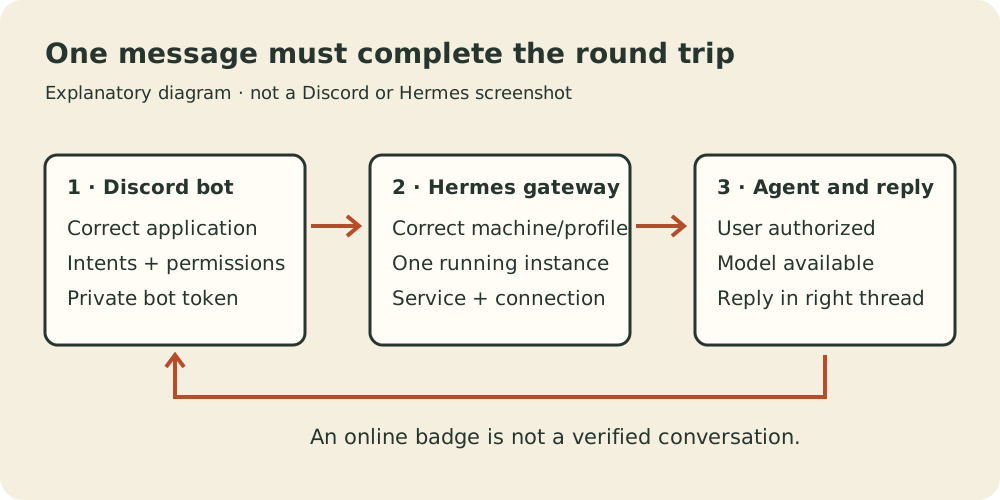
Discord gives a Hermes agent a place to work that you can return to from your phone or laptop. A research request can have its own thread, while the home channel collects notifications. The setup is useful once you understand three separate pieces: Discord supplies the bot identity, Hermes runs the work, and the gateway carries messages between them.
Watch the complete Discord setup alongside this guide for the application creation, terminal setup and first conversation. The recording is from April 2026. The instructions below account for current Hermes documentation checked on November 12; some wizard prompts and thread defaults have changed. This is a documentation-checked guide, not a claim that we provisioned a fresh bot for this article.
Before you start
Have Hermes installed on the computer that will run the agent, with a working model connection. Send it a simple request locally first. A Discord connection cannot repair a missing model credential or an unavailable local model. Start with the Hermes lessons if that part is unfinished.
You also need a Discord account, a server where you can install apps, and a private place to store the bot token. Create a small test server or a dedicated channel before connecting a busy team room. The video uses a VPS; a local computer also works, but it must remain awake and connected for the gateway to receive messages.
Choose the machine and Hermes profile deliberately. Configuring a laptop while the service runs on a VPS leaves two different installations with different settings. SSH into the VPS first if that is where you want the bot to run. Keep a note of the chosen profile, server and channel, without copying any secrets into that note.
Create the Discord application and bot
Open the Discord Developer Portal, create an application and give it a name you will recognize in chat. Open its Bot settings and choose an avatar if useful. The video’s application setup starts around 1:50.
For the Discord-provided installation link, the current Hermes guide uses Public Bot enabled and Require OAuth2 Code Grant disabled. Public Bot controls installation; it does not decide who Hermes will accept instructions from. You still need an allowlist.
Enable Server Members Intent and Message Content Intent. Presence Intent is optional in the current Hermes Discord instructions. The April recording enables all three and grants Administrator. For a normal text-and-thread workflow, use the documented channel, message, history, attachment, embed and thread permissions instead of copying that broad Administrator setting.
Create or reset the bot token, then store it privately. Resetting a token invalidates the previous one: if another running instance used that token, it will need the replacement. Never paste a token into a Discord conversation, a screenshot, an article or a repository.
Connect Hermes and invite the right bot
On the machine running Hermes, enter:
hermes gateway setupSelect Discord and paste the token into the private prompt. Recent versions validate the token, check intents, offer an invite link and help allowlist the owner. Older versions ask for your numeric Discord user ID. With Developer Mode enabled in Discord settings, copy your own user ID, not the application ID or server ID.
For a manual install, Guild Install needs the bot and applications.commands scopes. Open the invite and check the server name before authorizing. Including the command scope matters: a bot appearing in the member list does not prove its slash commands were installed.
If the wizard asks for a home channel, copy the intended channel’s ID. In the recording this is where scheduled messages and notifications should arrive. A home channel is a delivery destination; it does not automatically make every message in that channel a request to the bot.
The three identifiers are easy to mix up. Your user ID controls who can ask for work. The channel ID chooses a destination. The bot token authenticates the bot itself. If setup accepts a value but the bot ignores you, check that distinction before rebuilding the application.
Start one gateway and verify delivery
The messaging gateway documentation distinguishes a foreground run from an installed service. For an initial foreground check:
hermes gatewayKeep that terminal open while testing. Once the connection works, stop the foreground process before installing a service so you do not leave competing copies running. The documented user-service sequence is:
hermes gateway install
hermes gateway start
hermes gateway status
On Linux, a boot-time system service is a separate choice:
sudo hermes gateway install --system
sudo hermes gateway start --system
sudo hermes gateway status --system
A VPS does not inherently require a system service. A correctly configured user service with lingering is another documented option. Choose the service lifecycle you intend to maintain, rather than installing both.
The recording hits a sudo PATH problem. If normal hermes works but sudo hermes does not, use command -v hermes to locate the executable and inspect the returned path. Follow the system-service instructions with that actual path; do not copy someone else’s home directory from a screenshot. If sudo itself is absent, that is a different host configuration issue.
In the test channel, mention the exact bot and ask: “Reply with Discord connection confirmed. Do not run tools.” Read the reply in Discord. An online badge proves less than this round trip: the request must reach Hermes, obtain a model response and return to the intended conversation.
Organize work with threads and a home channel
The last part of the video shows a useful source of confusion: the first mention creates a thread, and the presenter experiments with follow-up mentions. Treat that as observed April behavior, not a permanent rule for every release.
Current documentation supports mention-free rooms through DISCORD_FREE_RESPONSE_CHANNELS. Threads have separate session history, and shared-channel sessions are normally separated by user. Review the current settings before making a team room share one conversation. Merely seeing the same channel does not mean two users share the same model context.
Use /sethome in the intended destination and /help to inspect available commands. For a practical exercise, start a thread called “Friday reading list” and ask the agent to summarize two public URLs you supply, keeping each claim beside its source. Review the result before asking for a recurring delivery. This exercise is a suggested first task, not a demonstrated automated news service.
Keep each thread narrow enough that you can tell whether the task finished. A successful setup is one useful exchange you can repeat. Adding a second bot before the first has reliable delivery makes troubleshooting harder.
Troubleshooting a silent or misplaced reply
If the bot remains offline, check the gateway status and its logs on the selected machine. A privileged-intent error points back to Developer Portal settings. A rejected token points to the credential you entered, particularly after a reset. Avoid repeatedly reinstalling the bot while its gateway is simply stopped.
If it is online but silent, mention it explicitly and check the user allowlist and channel permissions. A numeric ID copied from the wrong object can look plausible. For DM pairing, inspect pending requests with hermes pairing list and approve only the person you intended to authorize using the documented pairing flow.
If replies work in the channel but fail in threads, inspect thread permissions and inherited channel restrictions. Missing slash commands suggest an installation-scope or command-registration issue. The video initially uses the Installation tab for this reason; current documentation also provides a manual invite method with both required scopes.
If replies go to the wrong place, check the home channel separately from the active conversation. Test a normal reply before debugging scheduled notifications. If everything stops when you log out, check the chosen service lifecycle rather than asking the model to fix Discord.
Return to the exact setup video when comparing the visible installation flow, and use the linked current docs for settings that have changed. Keep the first working configuration small enough to understand before expanding it into a team of agents.