Qwen 3.5 Setup on Your Local Computer (Step-by-Step Guide)

Running Qwen locally gives you control over where inference happens, but it also makes your computer responsible for loading the model and producing every token. The practical first goal is modest: download a compatible model, load it without exhausting memory, and get a useful answer to a task you can check.
Watch the Qwen 3.5 local setup for the Windows installation and the actual successes and failures. This guide keeps that same workflow and adds current official documentation checked on November 12, 2026. We have not rerun the video’s generation tests for this article.
Before you start
Check LM Studio’s system requirements for your operating system and processor before downloading weights. Its documented recommendations are application guidance, not a guarantee that a particular Qwen file will fit. For example, the current macOS page requires Apple Silicon and macOS 14 or newer; the recording’s casual “any Mac” description should not be read as Intel Mac support.
Have enough free disk space for the model download and enough available memory to load it. Those are different resources. On a discrete GPU system, GPU memory and system RAM are also different pools; an Apple Silicon machine uses unified memory shared with the rest of the system. Leave room for your operating system and other applications.
The video uses an NVIDIA RTX 3060 and chooses the 9B variant, described there as a roughly 6GB download. That is a source-specific selection, not a universal minimum specification. The exact quantization, context length and runtime affect memory use. Do not buy hardware from that single number.
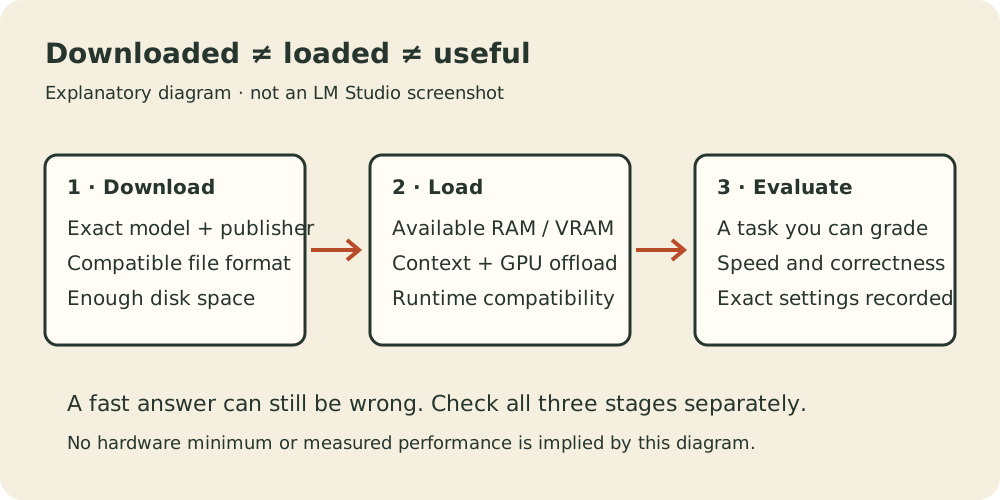
Choose the model file, not just the family name
“Qwen 3.5” describes a family. Start by identifying the exact size you intend to run. The official Qwen3.5-9B model card identifies the base model and documents its supported use. In a desktop runtime, you will often select a converted or quantized distribution of those weights. Check the publisher, base-model reference and format before downloading.
Quantization reduces the storage and memory needed for weights by using lower precision. It can also change output quality. A smaller download can be a sensible first choice when it fits comfortably, but the smallest available file is not automatically the best choice for your work. Keep the exact repository and quantization label in your notes so a later comparison uses the same model.
In the model-selection portion of the video, the presenter rejects a larger download that would require partial GPU offload and chooses the smaller option for full GPU loading. That is a useful decision pattern: begin with a model your machine can handle, then evaluate whether a larger one earns its slower responses or additional memory use.
Install LM Studio and download Qwen
Download the installer from LM Studio, select the build for your machine and complete installation. Open the application. You do not have to accept the first suggested model during onboarding if your purpose is to try Qwen.
Open Discover and search for the exact Qwen 3.5 variant. Inspect the available files, their sizes and the runtime compatibility information. Start the download and wait until it finishes. The official getting-started guide separates this step from loading: a file saved on disk is not yet a model ready to answer.
Go to Chat, open the model loader and select the downloaded file. Review its load settings, then load it. Keep the initial context modest. Long context capacity is useful only if you need it and can afford the memory; selecting the maximum advertised context adds another variable to your first test.
Expect the computer to work harder while generating. The video calls out fan noise and memory competition. Close another GPU-heavy application if it is competing for resources, and unload models you are not using rather than assuming idle chat tabs are free.
Check memory before blaming the model
LM Studio’s command-line tools provide a useful optional diagnostic. Once lms is available through the official CLI setup, list the downloaded models:
lms lsCopy the exact model key from that output. The following is a command template: replace YOUR_MODEL_KEY with the listed key before running it.
lms load --estimate-only YOUR_MODEL_KEY --context-length 4096The load-command documentation explains the memory estimate and GPU offload options. Here, 4096 is an example test context, not a Qwen requirement. An estimate helps you choose settings; it is not proof that generation will succeed under every workload.
If the estimate is comfortable, load through the UI or use:
lms load YOUR_MODEL_KEY --context-length 4096Leave automatic GPU allocation in place for the first attempt unless you have a reason to change it. Forcing maximum offload onto a GPU that cannot hold the model is not a speed optimization. Record the actual load configuration before comparing performance with someone else’s machine.
Run a small test you can grade
Begin with a short request such as “What is the capital of France? Answer in one sentence.” Confirm that the selected model responds and the application reports completion. Then try a small task representative of your own work.
For example, paste a short paragraph you wrote and ask for a five-item checklist containing only actions explicitly mentioned in it. Compare every item with the source paragraph. This proposed exercise checks whether the model follows a constraint; it is more informative for an editing workflow than asking whether the model considers itself intelligent.
Keep four observations separate: whether the model loads, how long the first response takes, how quickly tokens appear, and whether the final answer is correct. In the recording, the presenter reports about 37 tokens per second on the RTX 3060 during an early response. That is an observed result from that setup, not a benchmark promised for every 3060 or every Qwen quantization.
The car-wash test starts around 8:57. It produces prolonged reasoning and generation failures; a later attempt with thinking disabled recommends walking. The point of the question is that taking a car to be washed requires bringing the car. Fast token output did not rescue that answer.
The video later obtains a quick meal-plan response. It does not establish nutritional accuracy or reliability on a larger task set. Use the contrast to decide what to test next, rather than turning one puzzle into a verdict on the whole model family.
Thinking mode and privacy have limits
If your runtime exposes a supported thinking control, compare a fresh chat with it enabled and disabled. The recording does this after failed generations. Keep the model and prompt constant, and record whether the final answer improves. Do not assume a text instruction to “stop thinking” is equivalent to the runtime’s actual control, or that disabling reasoning fixes every failure.
For privacy, LM Studio documents offline operation after downloading the model and runtime. Model discovery, downloads and updates require network access. Adding an external tool, remote API or agent changes the data path again. Check that full path before making a blanket claim that a workflow never sends anything off the machine.
The video mentions connecting a local model to OpenClaw, then explicitly leaves that integration for another video. This guide therefore stops at local chat. A model responding in LM Studio does not prove that an agent can call it correctly or use tools safely.
Troubleshooting loading and generation
If Qwen does not appear in search, check the exact spelling and whether the runtime supports that model architecture. Update through LM Studio’s supported app/runtime controls before assuming the weights are corrupt. If the download is incomplete, finish or repair that download before changing inference settings.
If loading runs out of memory, reduce context, unload another model or choose a smaller compatible file. Record which change helped. If loading succeeds but generation is very slow, check the offload configuration and whether the system is swapping; a model partly running on the CPU is a different test from a model entirely in GPU memory.
If generation fails after lengthy reasoning, preserve the error and exact settings. Start a new chat with a simple prompt, then compare the supported thinking mode. The source video demonstrates the symptom, but it does not establish one definitive cause for all such failures.
If the model answers confidently and incorrectly, changing the installer will not necessarily help. Keep a few representative prompts with answers you can verify, and judge changes against those. The AI model lessons provide a broader framework for choosing tasks. Return to the full setup video to see why successful installation and a useful daily driver are separate decisions.