Tencent WorkBuddy · Tutorial 05
Files, Documents, and Batch Work with WorkBuddy
Safely rename, organise, extract, convert, and summarise copied files with a manifest, preview, and rollback path.
0 of 7 complete
Essentials · Step 5 of 7 · View the route
Last checked and updated: September 3, 2026
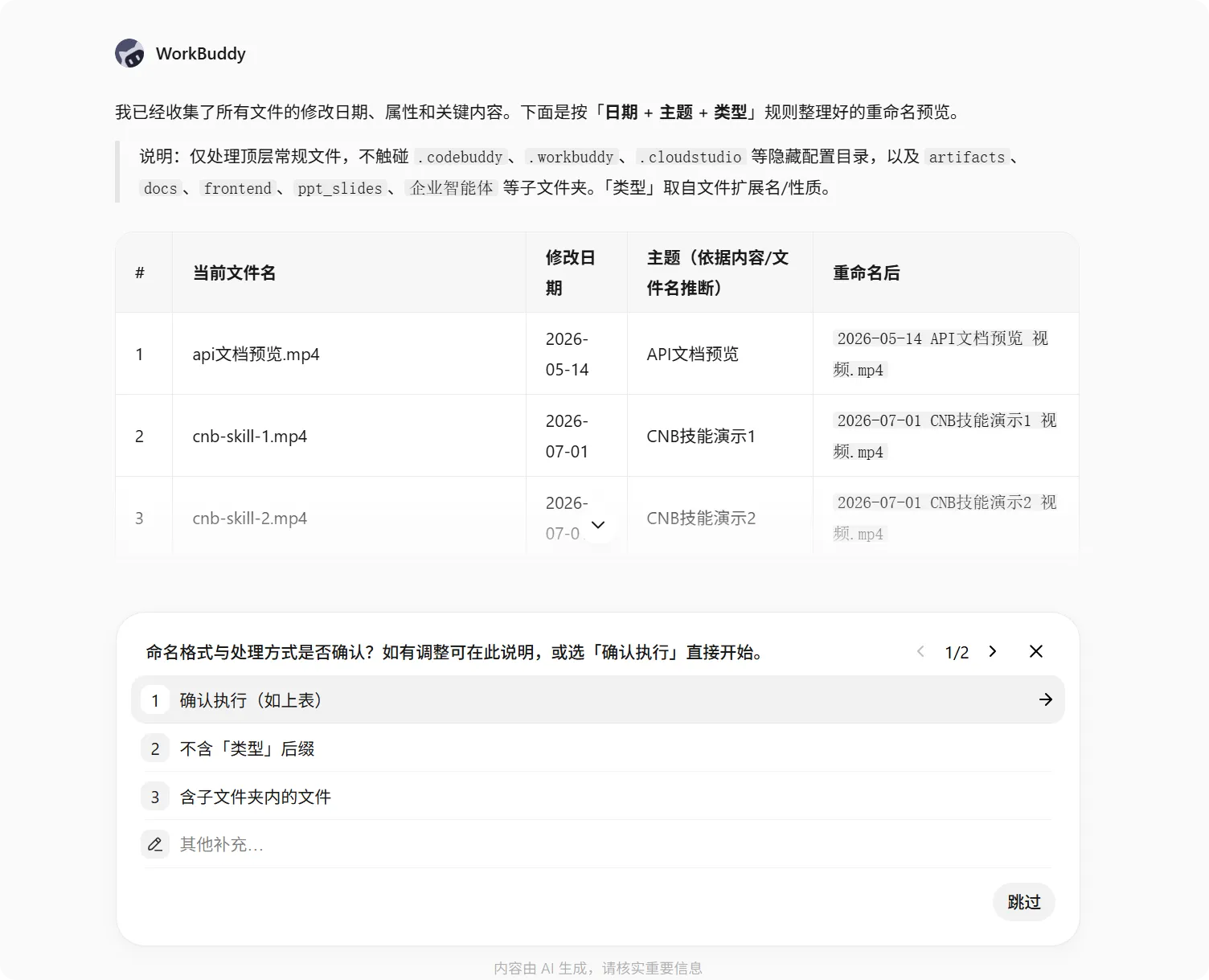
WorkBuddy can organise, rename, convert, and extract information from many files. The official practice examples include batch renaming, meeting minutes, and video translation. The safe pattern is inventory → preview → copy → execute → reconcile.
Scenario: organise an event photo handoff
You have copied photos with inconsistent names into workbuddy-practice/photos-copy. You want names such as 2026-09-03-keynote-001.jpg and a CSV manifest.
Do not point the first task at your only originals. Copy a small representative batch of 10–20 files and keep the source set read-only.
Step 1: inventory in Ask mode
Inspect only the selected photos-copy workspace. Do not rename, move, edit, or delete anything.
Create no files yet. Report:
- total file count,
- extensions and counts,
- duplicate filenames,
- files with missing capture dates,
- a proposed naming rule,
- any file that cannot be renamed confidently.
Compare the count with Finder or File Explorer. If the inventory is wrong, stop; every later step depends on it.
Step 2: request a dry-run manifest
Use Plan mode:
Plan a batch rename without changing files yet.
Produce a preview table with columns:
original_path, proposed_path, reason, confidence, conflict.
Rules:
- keep the original extension,
- never overwrite an existing path,
- assign a stable three-digit sequence,
- leave uncertain files unchanged,
- do not infer a person, event, or date that metadata does not prove.
Wait for my approval after showing the complete preview.
Review collisions, ordering, and uncertain metadata. A clean-looking filename is not worth inventing a false date or identity.
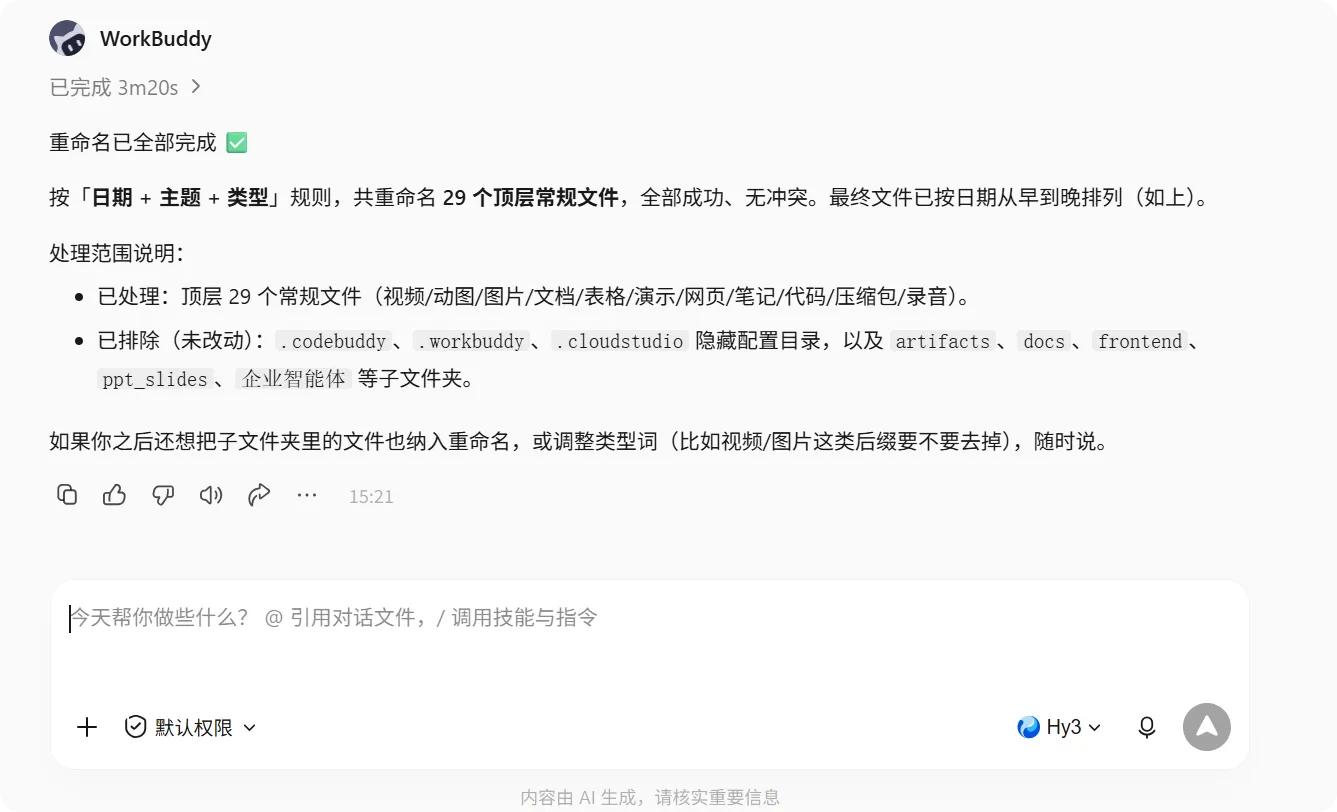
Step 3: execute on copies
Approve only the reviewed rename map. Also request:
rename-manifest.csvwith old and new paths.rollback-map.csvreversing new path to old path.- A final count of renamed, unchanged, skipped, and failed files.
Step 4: reconcile
The task passes when:
- Input count equals renamed + unchanged + skipped + failed.
- No two rows share the same destination.
- Extensions remain correct.
- Every renamed file opens.
- No original-copy file disappeared without a manifest row.
- The rollback map recreates the old names without collision.
Document workflow: notes into a reviewed brief
For Word, Markdown, PDF, or text inputs, preserve the evidence boundary:
Create meeting-minutes.md from the supplied transcript.
Use four sections: Decisions, Action items, Open questions, Evidence gaps.
For every action item include owner only when explicitly named and quote the timestamp or line reference.
Do not invent owners, deadlines, decisions, or consensus.
List unclear audio or missing context under Evidence gaps.
Do not edit the source transcript.
If you request PDF, Word, and Markdown versions, check that content survived conversion. Page layout can hide truncated tables or missing links.
What not to batch first
- Deleting duplicates
- Replacing the originals in place
- OCR plus destructive conversion of scans
- Editing legal, financial, medical, or HR records
- Moving files between shared drives with inherited permissions
- Sending finished documents to external recipients
Start with a preview and a copied subset. Scale only after counts and samples pass.
FAQ
Does “single file size unlimited” mean every file works?
The task guide says drag-and-drop supports up to 50 files and describes no single-file size limit, while also saying file-format rules still apply. Very large files can still affect performance, credits, parsing, and available storage. Test one representative file.
Can WorkBuddy edit the original Word file?
It may be able to through supported document workflows, but use a copy and ask for a new filename first. Review formatting and tracked content before replacing anything.
What if some files fail halfway through?
Stop the run, preserve the manifest and logs, reconcile completed items, and retry only failed rows. Do not rerun the whole batch blindly.
Quick self-check
Q1. What proves a 100-file rename completed correctly?
Answer: A reconciled manifest and actual folder inspection—not the assistant’s success message alone.
Official sources
- File recognition and processing practice
- Document generation and editing practice
- Task-bar file upload behaviour
What’s next
Turn a copied dataset into a checked analysis in L06: Spreadsheets and Data Visualisation.