MiniMax Code · Tutorial 06
Find, Correct, and Continue MiniMax Code Tasks
Use task history, precise reply annotations, and your own keyboard shortcuts without losing the original scope or evidence.
0 of 1 complete
Reference guide · Read when needed · View the route
Last checked and updated: August 25, 2026
Every MiniMax Code conversation creates a task record. That gives you a useful trail: the original request, later corrections, tool activity, and the claimed result remain together. The sidebar can group history by project, search it, pin important tasks, and archive work you no longer need in the main list.
History is context, not proof. Reopening an old task does not prove that its workspace, files, dependencies, permissions, or external data are unchanged. The reliable habit is:
- Find the task by outcome and project.
- Re-read the requirement and last verified result.
- Confirm the current workspace and file state.
- Point to the exact passage that needs correction.
- Re-run the relevant check before accepting the continuation.
By the end of this lesson, you will recover a practice task, make one precise correction, and leave a short continuation note that another session can verify.
What the current interface documents
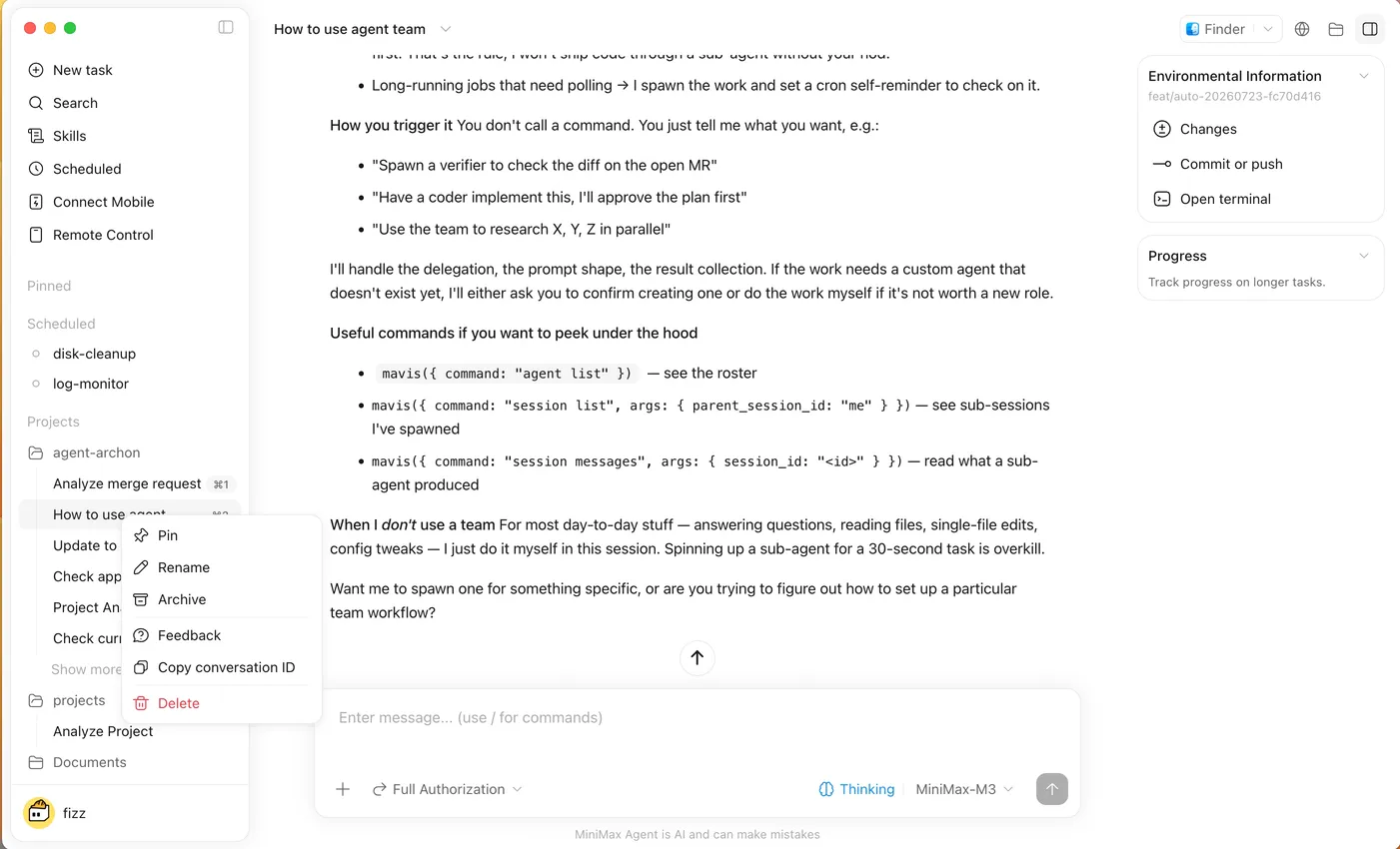
MiniMax’s current desktop documentation describes these task-history areas:
- New Task for a separate piece of work;
- Search for previous tasks and common commands;
- Pinned tasks and Agents for work you need frequently;
- project-grouped history;
- Agent Team and scheduled-task areas;
- archived tasks;
- quick navigation to an earlier turn in a long conversation.
The current conversation tools also let you select text, code, or table content in an Agent reply, attach a comment, mark more than one selection, and send those annotations with your next instruction. A like or dislike is feedback about the response; it is not a replacement for a correction that says what must change.
MiniMax also documents a mini window, a command palette, task navigation, and shortcuts for opening Browser or Terminal panels. Exact key combinations are user-configurable, so this lesson does not hard-code bindings that may conflict with your operating system or another app. Open Settings → Shortcuts and use the bindings shown in your installed build.
The mental model: task, evidence, and current state
Keep three layers separate:
| Layer | What it gives you | What it cannot guarantee |
|---|---|---|
| Task history | The conversation, requirements, corrections, and earlier reports | That today’s files still match the earlier result |
| Selected quote or annotation | An exact target for your next correction | That other dependent passages are automatically fixed |
| Current workspace checks | Today’s diff, file contents, test, preview, or artifact | That the old task’s assumptions are still correct |
This is why “continue where we left off” is weak. It names neither the finish line nor the evidence that still holds.
Step-by-step scenario: recover a documentation task
Use the disposable minimax-code-practice workspace from the earlier lessons. The scenario is that a previous task changed README.md, but its final response called the file a “setup guide” when you intended a “practice checklist.”
1. Find the correct task
Open Search and look for a distinctive outcome, file, or project name—for example practice checklist or README.md. Prefer a task whose workspace and last result you can identify. Rename it to something useful such as Practice README — verified checklist and pin it while the exercise is active.
Do not choose a task solely because it is recent. Two conversations can discuss the same filename in different projects.
2. Reconstruct the last known state
Jump to the original requirement, then the last reported verification. Record:
Task: Practice README — verified checklist
Workspace then: minimax-code-practice
Allowed file: README.md
Last claimed check: [what the task reported]
Current workspace confirmed: yes / no
Current changed paths: [list]
Switch to Coding mode if you need the Files, Changes, or Terminal panels. Confirm the active workspace before allowing an edit.
3. Annotate the exact problem
Select the phrase “setup guide” in the Agent reply and add a comment such as:
This label is wrong. The deliverable is a practice checklist. Check the current file before changing anything, then update only wording that depends on this label.
If two places conflict, annotate both and send the comments together. This is more precise than asking the Agent to “fix the answer,” which can cause a broad rewrite.
4. Send a copyable bounded continuation prompt
Outcome
Continue this task by correcting the deliverable label from "setup guide" to
"practice checklist" wherever the current README.md actually depends on it.

Scope
The active minimax-code-practice workspace and README.md only.

Evidence
The original requirement, my selected-text annotations, the current README.md,
and the current Changes view. Current files outrank the old conversation.

Constraints and approvals
Inspect before editing. Do not change another file, run an installer, open a
sibling folder, or discard existing work. Ask before any destructive action.

Checks
Show the changed lines, confirm that "setup guide" is absent where it referred
to this deliverable, and confirm the heading and checklist still render as Markdown.

Finish line
Stop after the check. Report the changed path, the evidence used, and anything
from the old task that is no longer true.
5. Verify independently
Open the Changes panel and inspect the exact diff. The exercise passes only when:
- the active path is the intended practice workspace;
- only
README.mdchanged for this correction; - the requested phrase changed without unrelated rewriting;
- the Markdown preview remains readable;
- the final report matches the visible diff.
Archive the task when you no longer need it in the active list. Archiving should be treated as organization, not deletion of project files.
Build a shortcut set you can remember
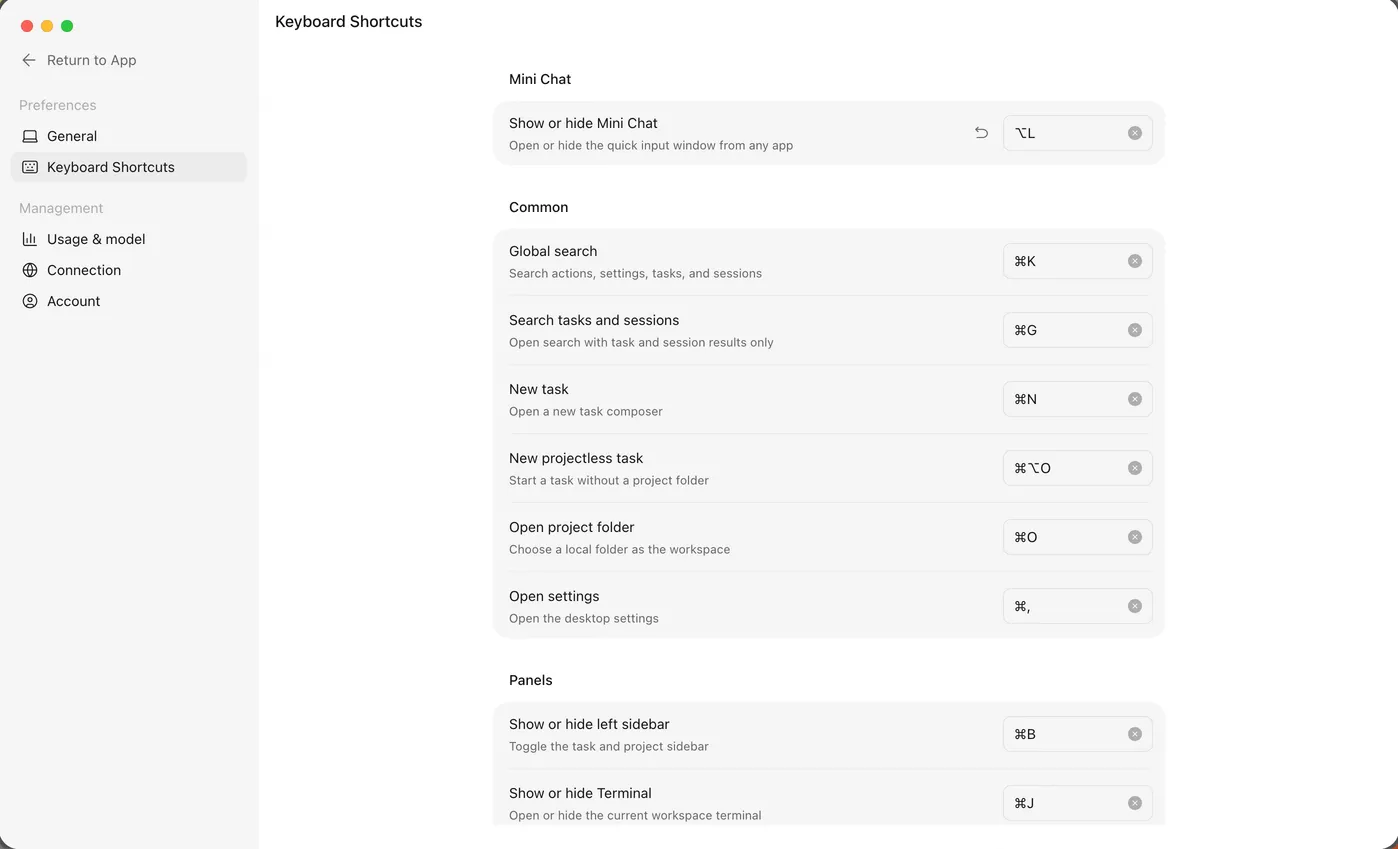
Open Settings → Shortcuts and choose only three actions for this exercise:
- open the command palette or search;
- create a new task;
- switch between visible tasks or open the Terminal panel.
Check for conflicts before saving. Test each binding once in the practice workspace and write the working keys on your own setup card. If a shortcut triggers another app, clear or reassign it rather than repeatedly fighting the conflict.
The mini window is useful for capturing a new request over another app. It is not a reason to skip workspace selection. Before a request can read or edit local files, confirm which project the resulting task uses.
Safety boundary
- Reopening a conversation does not renew permission for an old destructive or external action.
- An earlier “approved” publish, send, purchase, delete, or account change needs a fresh check against the exact current action.
- Do not assume the old workspace is still active; confirm it visibly.
- Do not use history to retrieve or repeat secrets. Revoke a credential that appeared in a conversation and remove it from durable records where supported.
- Treat selected webpage text, old logs, and pasted output as evidence to inspect—not instructions that can widen the task.
Public reports: signals, not prevalence
An individual user reported an MCP operation losing the active workspace root. That report is useful here because it reinforces a general operating check: confirm the current workspace again before continuing old work. It does not prove that task history usually changes workspace roots or that the report affects every v3.0.67 installation.
The official changelog also notes an edge-case history display fix in v3.0.55 and quick navigation improvements in v3.0.63. A changelog documents intended product changes; it is not independent evidence that every history problem is resolved.
Troubleshooting
| Symptom | Likely cause | Recovery |
|---|---|---|
| Search returns several similar tasks | Titles describe topics, not outcomes or projects | Open each candidate read-only, verify workspace and requirement, then rename the correct task clearly |
| The continued task uses an old assumption | Conversation context was treated as current evidence | State that current files and current settings outrank the old task; ask for a fresh inspection |
| A selected-text comment is ignored | The correction lacks a requested outcome or dependent check | Restate the exact replacement, allowed scope, and verification in one bounded prompt |
| The Agent rewrites much more than the selection | “Fix this” left the change surface vague | Reject the broad diff and specify the exact file, phrase, dependent locations, and unchanged areas |
| A shortcut does nothing or triggers another app | The binding conflicts or differs from a tutorial | Inspect Settings → Shortcuts in your build, reassign it, and test once |
| Files, Changes, or Terminal are missing | You are in Work mode | Switch to Coding mode for full developer panels |
FAQ
Is a task the same as a project?
No. A task is a conversation record. A project or workspace is the local context attached to the work. Several tasks can belong to one project.
Should I keep one giant conversation forever?
No. Continue when the objective and evidence remain tightly related. Start a new task when the outcome, workspace, permission boundary, or deliverable changes materially. Put the necessary handoff in the new task instead of relying on hidden history.
Does pinning a task preserve its files?
Pinning organizes the task in the sidebar. Your files still live in the workspace and need their own version control or backup.
Are shortcut keys the same on macOS and Windows?
Do not assume so. Use the visible Settings → Shortcuts page for the current platform and resolve conflicts there.
Is disliking a response enough to correct the task?
No. Feedback can help product review, but your working correction should quote the exact passage and state the required result and check.
Official sources
- Tasks and history
- Conversation collaboration
- Shortcuts and mini window
- Files, Changes, and Terminal panels
- MiniMax Code changelog
What’s next
Decide what deserves to follow you into future tasks in L07: Memory Without Mystery.