Hermes Agent · Tutorial 12
Set Up Hermes Agent Browser Use Mode Safely
Enable Hermes Browser Use, choose a local or cloud backend, protect private URLs and credentials, and compare it with the built-in browser tools on one real task.

0 of 12 complete
Source-checked and updated: August 11, 2026. Setup behavior, supported backends, private-URL routing, and safety controls were checked against Hermes Agent and Browser Use documentation.
By the end of this tutorial, you will have Browser Use mode installed, one explicit backend choice, an audit or recording setting, and a side-by-side result from the same browser task with Browser Use enabled and disabled.
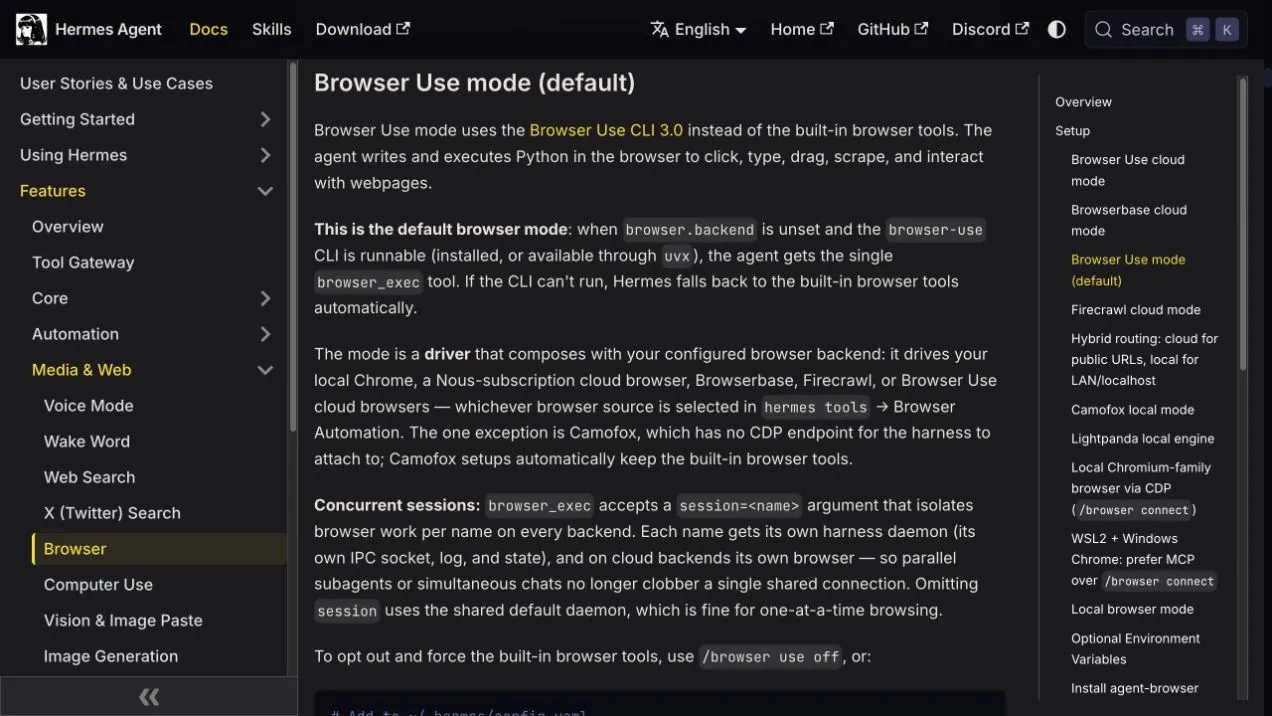
Hermes Agent has changed how it drives a web browser, and for most installs the default is now on: Browser Use mode, built on the Browser Use CLI 3.0, a browser harness Nous describes as state-of-the-art for web tasks.
The old model gave the agent a toolbox of fixed verbs: browser_navigate, browser_snapshot, browser_click, browser_type, one tool call per action. The new model gives the agent a single tool, browser_exec, and lets it write Python instead. That Python does not execute inside the browser. It runs on the Hermes host through the Browser Use CLI, whose Browser Harness controls the browser over CDP, clicking, typing, dragging, scraping, and composing whatever interaction the page needs.
Hermes model
→ one browser_exec tool
→ model-written Python
→ browser-use CLI
→ Browser Harness / CDP
→ local Chrome or cloud browser
One tool instead of a dozen. That’s the whole story, and it matters more than it sounds.
What changed
Hermes conditionally defaults to Browser Use mode. Three things have to be true at once: browser.backend is unset, the browser-use CLI is runnable (installed, or available through uvx), and the session has terminal access. Only then does Hermes offer the agent browser_exec and nothing else. If the CLI can’t run, it falls back to the built-in browser tools automatically. To force the mode explicitly, set backend: "browser-use"; to opt out and force the old toolset, run /browser use off, or set it in config:
# ~/.hermes/config.yaml - force the built-in browser tools
browser:
backend: "off"
Browser Use mode is a driver, not a browser source. The harness is the Browser Use CLI; the browser itself comes from whichever backend you’ve configured in hermes tools → Browser Automation:
- your local Chrome, Brave, Chromium, or Edge via
/browser connect(CDP); - Nous subscription cloud browsers through the Tool Gateway;
- Browserbase, Firecrawl, or Browser Use’s own cloud browsers.
The one exception is Camofox, the Firefox-based anti-detection server, which has no CDP endpoint for the harness to attach to. Camofox setups automatically keep the built-in tools.
Why one exec tool beats twelve verbs
Two reasons: tokens and recovery.
With the verb menu, every action is a round trip. Navigate, snapshot, read the accessibility tree, click, snapshot again to confirm. Each snapshot is a serialized page (thousands of tokens of DOM), and a long task burns through dozens of them. We’ve measured this on the channel: UI schema overhead is real money on long agent runs.
With browser_exec, the agent writes a short Python script that performs a whole sequence and gets back one output:
new_tab("https://example.com/login")
fill("#email", email)
fill("#password", password)
click("button[type=submit]")
wait_for_text("Dashboard")
print(page_info())
Fewer round trips, smaller payloads, and the agent can use actual control flow: loops, retries, conditionals. When a click misses, the script can recover inline instead of burning three more tool calls re-snapshotting the page. Nous reports a 48-66% reduction in token usage with no accuracy loss, but that’s an internal vendor result, not an independently reproduced benchmark; treat it as a hypothesis until you measure your own tasks.
This is the same pattern that made code-execution harnesses win everywhere else: give the model a REPL, not a remote control.
The private-URL sidecar is the quiet killer feature
Cloud browser providers have a standing problem for developers: they can’t reach your localhost. Hermes now solves this by default. When a cloud provider is configured and the agent navigates to a private, loopback, or LAN address (localhost, 192.168.x.x, *.local, and friends), Hermes auto-spawns a local Chromium sidecar for that URL. Public URLs keep using the cloud provider in the same conversation.
So the agent can screenshot your dev dashboard at http://localhost:3000 and scrape GitHub in the same session, without you switching providers or weakening the SSRF guard (the rule that blocks agent traffic to internal addresses). The cloud provider never sees the private URL, and redirect tricks from public to private addresses stay blocked. It’s on by default; browser.auto_local_for_private_urls: false turns it off if you have a reason.
The security trade you should understand
browser_exec executes model-written Python on your machine. Hermes knows exactly what that means, which is why the tool is only offered to sessions that also have terminal access. A locked-down messaging surface (a Telegram or Discord gateway with no terminal toolset) keeps the default browser tools instead.
That’s the right call, and you should extend the same thinking:
- Browser tasks touch credentials. Logged-in profiles, cookies, session storage: a browser agent is a credential-bearing agent. On any remote or shared machine, keep it behind Tailscale or your VPN of choice. Never expose the agent’s control surface (or Chrome’s CDP port) to the public internet.
- Treat page content as untrusted input. Prompt injection can ride in page text, emails, documents, and search results. An agent that browses and acts should require your confirmation before purchases, account changes, publishing, or sending messages.
- Watch hostile pages. If the agent browses untrusted sites with a logged-in profile, consider
browser.restrict_evaluate: true, which denylists sensitive JS primitives (cookies, storage, clipboard, network calls) from page evaluation. It’s a blunt instrument (it matches names, so it blocks some legitimate expressions too), but it’s a real knob. - Use headed mode when it matters.
browser.headed: true(orAGENT_BROWSER_HEADED=1) opens a visible window that stays up between turns, so you can watch the agent work, handle sign-ins and CAPTCHAs yourself, and keep session state warm. This only applies to the local browser path; cloud sessions stay invisible to you, and idle sessions are still reaped afterbrowser.inactivity_timeout(default 120s). For anything touching money or accounts, watch the first few runs. - Record sessions for audit.
browser.record_sessions: truesaves WebM recordings of browser sessions to~/.hermes/browser_recordings/. Cheap insurance when an agent does something you didn’t expect.
Setup checklist
- Make sure the
browsertoolset is enabled:hermes config set toolsets '["hermes-cli", "browser"]'or pick it inhermes setup tools. - Install the Browser Use CLI:
uv tool install browser-use(or make it runnable viauvx browser-use). Verify the install withbrowser-use doctor. - Register the Browser Use skill so Hermes knows when and how to invoke the CLI:
browser-use skill install. - If you’ll use Browser Use cloud browsers, authenticate with
browser-use auth login, or putBROWSER_USE_API_KEYin~/.hermes/.env. Note this is separate from Hermes’s Browser Use cloud backend option (browser.cloud_provider: browser-use), which keeps the built-in browser tools instead of switching to the CLI harness. - Pick your browser source:
/browser connectfor your live Chrome, local Chromium through theagent-browserCLI (auto-installed byhermes setup tools→ Browser Automation, but a Chromium install still needs to be on the machine), or your existing Nous portal, Browserbase, or Firecrawl credentials. - Run one known task and compare. Then decide whether
backend: "off"ever needs to exist in your config. For most people it won’t.
What to watch
Browser Use mode makes Hermes’ browser story simpler and, on Nous’s internal numbers, measurably cheaper on tokens, and the hybrid LAN routing removes the most annoying cloud-provider limitation. The open questions are the ones only your own workloads can answer: whether the token savings hold up outside vendor tests, and whether agent-written Python stays reliable over long, messy tasks, since it fails differently than fixed verbs do. We’ll be running both paths against our standard web-task list to see where each one breaks.
As always: the harness is the product now. This is what that looks like.