Grok Bot · Tutorial 02
Grok Bot Pricing, Availability, and Setup
Check whether your plan includes Grok Bot, install the right desktop app, sign in, and reach your first safe task.

0 of 8 complete
Essentials · Step 2 of 8 · View the route
Last tested and updated: August 2026
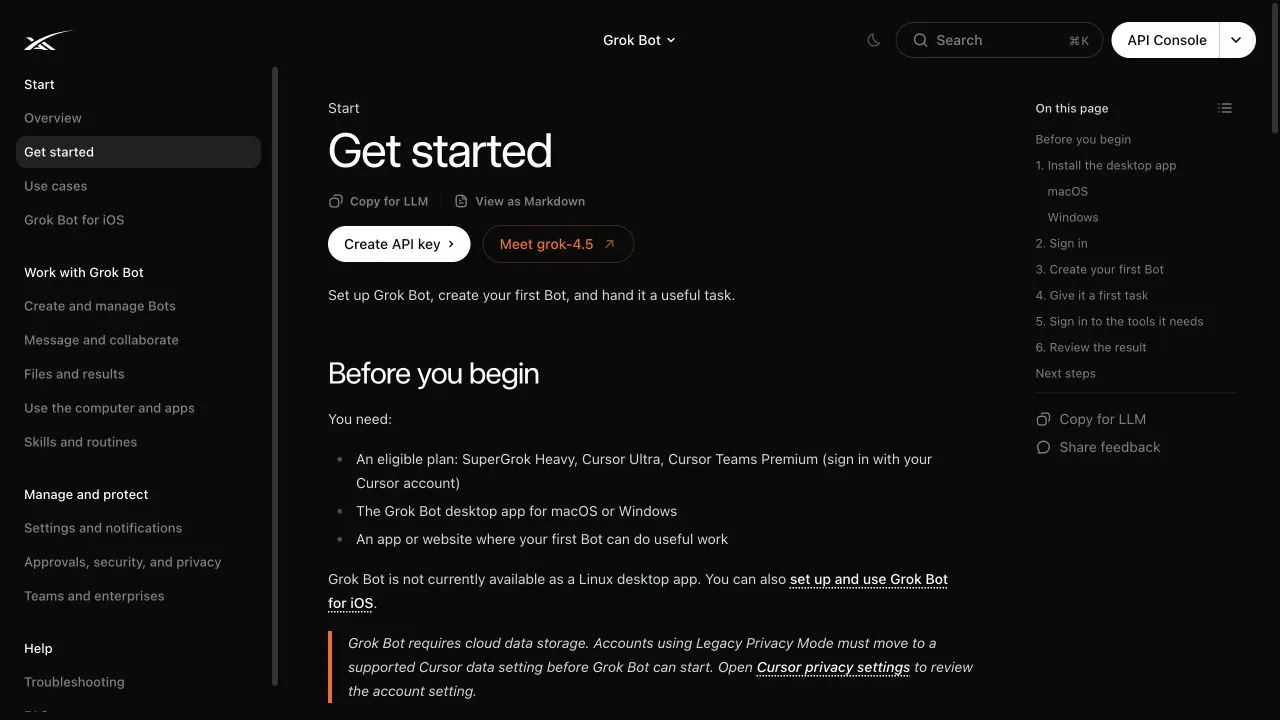
Grok Bot was in early beta when this guide was tested. Access was included with SuperGrok Heavy, Cursor Ultra, and Cursor Teams Premium. The desktop app supported macOS and Windows, and the same Bots were available on iPhone. There was no Linux desktop app.
Check access before downloading
The official pricing page listed these direct purchase paths on August 12, 2026:
| Plan | Public monthly price | Grok Bot access |
|---|---|---|
| Cursor Ultra | $200 per month | Included |
| Cursor Premium Teams | $120 per seat per month | Included, plus team controls |
| SuperGrok Heavy | Price shown inside the current Grok billing flow | Included according to the launch post and access page |
Prices, taxes, regional availability, and app-store billing can change. Confirm the amount shown in your own checkout before paying. The public page did not provide a separate Grok Bot-only plan or a complete numerical task limit.
Enterprise access was a waitlist rather than general availability. Team administrators may also need to approve account or data settings.
Before you install
You need:
- An eligible subscription
- A supported Mac or Windows PC for the desktop app, or an iPhone for mobile access
- A Cursor account, because Grok Bot currently uses Cursor authentication
- Cloud data storage enabled
- One safe, useful first task
Accounts using Cursor’s Legacy Privacy Mode cannot start Grok Bot until they move to a supported data setting. Read the current Cursor Privacy Policy and Cursor security information before placing sensitive work on the shared computer.
Install on macOS
- Open the official Grok Bot access page.
- Choose Apple silicon or Intel. On your Mac, open Apple menu → About This Mac. A Chip field means Apple silicon; a Processor field means Intel.
- Open the downloaded disk image.
- Drag Grok Bot into Applications.
- Open Grok Bot. If macOS asks you to confirm, choose Open.
Use the link from the official access page instead of downloading an installer from a forum or file-sharing site.
Install on Windows
- Open Settings → System → About → System type.
- Download the matching x64 or Arm64 installer from the official access page.
- Run the installer.
- Open Grok Bot from the Start menu.
The app checks for updates automatically. You can also open Settings → Beta → Check for Updates.
Sign in and finish onboarding
- Choose Get started on the welcome screen.
- Complete Cursor authentication in the browser window.
- Return to the desktop app.
- Answer the onboarding questions about the tools you use.
- Wait while Grok Bot prepares the shared cloud computer.
- Choose a suggested teammate or Create your own.
The onboarding answers shape teammate suggestions. They do not connect or modify your tools by themselves. A Bot may later ask you to take control of the cloud computer to complete a login.
Your first five-minute test
Do not start by connecting email or production systems. Attach a non-sensitive document and ask:
Summarize this document in five bullets.
List every date, decision, and open question in a separate section.
Cite the page or section for each item.
Do not change the source file.
Review the result against the document. Check every date and citation. Ask the Bot to correct omissions. This gives you a first success without passwords, external messages, or irreversible actions.
Where billing and usage details live
Grok’s general subscription documentation says paid products draw from a shared weekly usage pool. Different work consumes different amounts, and the app shows usage under Settings → Usage. The Grok Bot public pages did not publish an exact number of Bot tasks or computer hours per plan.
If you reach a limit, do not assume a failure is a broken Bot. Check the current plan and usage screens. Manage a web purchase through the account that originally bought the subscription. App-store purchases follow the store’s billing process.
Setup problems to check first
| Problem | What to check |
|---|---|
| Grok Bot says your plan is ineligible | Confirm the exact plan and the Cursor or Grok account used to buy it. |
| The app signs into the wrong account | Sign out, then authenticate with the account that holds the eligible plan. |
| Grok Bot cannot start its computer | Check the required cloud-data setting and the current service status. |
| No Linux download appears | Linux desktop was not supported at the time of testing. |
| A website asks for a password or CAPTCHA | Take over and complete it yourself. Never paste a password into chat. |
Use the official troubleshooting guide and status page when the basic checks do not resolve the problem.
Exercise: record your setup
Write down these details before moving on:
- Plan and purchase platform
- App version
- Operating system and architecture
- Account used for sign-in
- Weekly usage reset date shown in Settings
- The first document task and whether every citation was correct
This short record will save time if access, pricing, or behavior changes during the beta.
Sources and open gaps
- Official Get started guide, updated August 11, 2026
- Official Grok Bot product and pricing page
- Official launch post
- Grok billing and usage FAQ
The public sources did not state a fixed numerical Bot-task allowance, cloud-computer hour limit, storage quota, or standalone Grok Bot price. Check the signed-in product rather than guessing.
What’s next
Create a focused role in L03: Create Your First Grok Bot Agent.