Product case study · October 29, 2026
Gemini CLI .geminiignore: Check Which Files Reach Context
Test Gemini CLI file filtering with synthetic notes, compare fresh sessions, and learn why .geminiignore is not a secret-storage boundary.
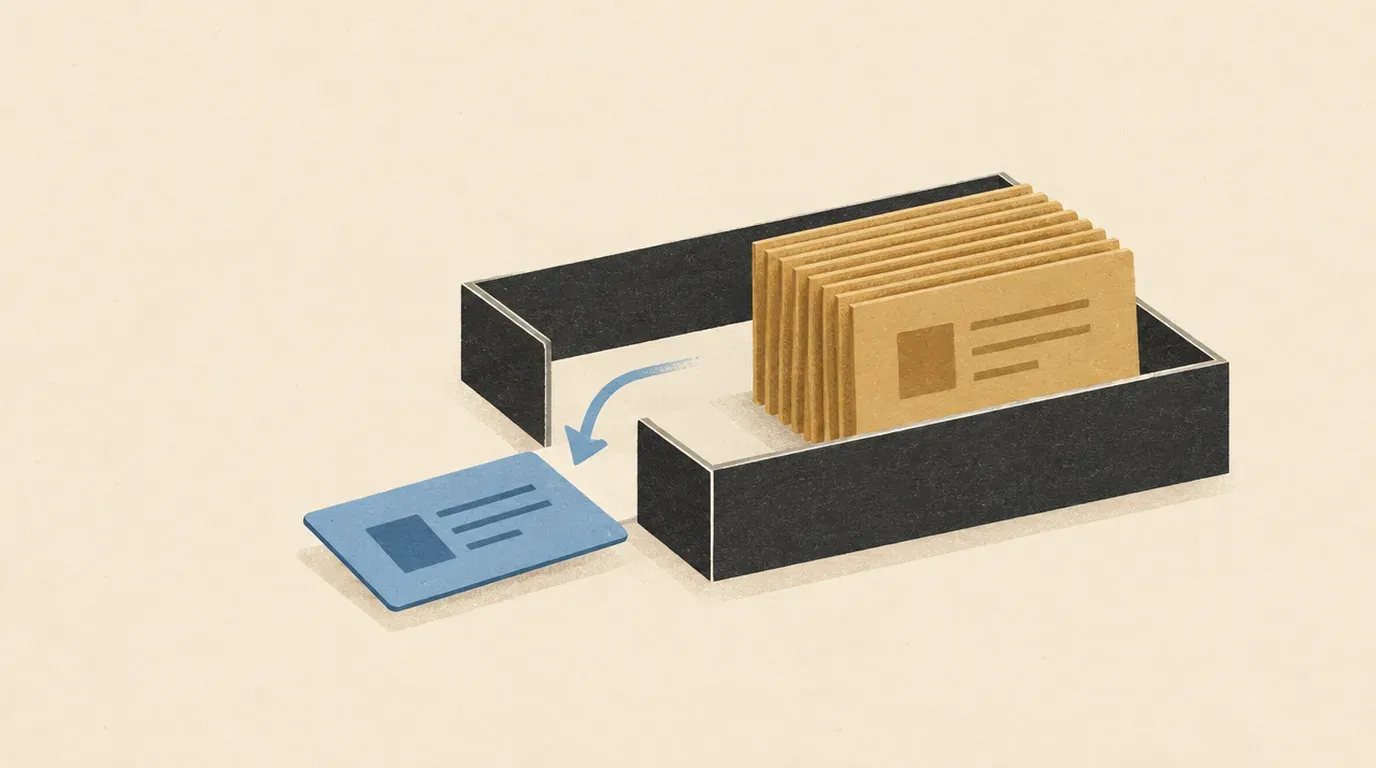
Use a visible control and an excluded fixture to check context filtering before applying ignore patterns to a real project.
A project can contain useful source files alongside old exports and scratch notes that add noise to an agent’s context. Gemini CLI’s .geminiignore lets supporting tools skip selected paths. This lab checks one small case: two explicit file attachments before filtering, then the same attachments after excluding one file.
Sources checked October 29, 2026. This is a documentation-backed exercise. We checked the local fixture creation, ignore-file creation and byte comparisons. We did not run authenticated Gemini sessions. The expected observations below are acceptance criteria for your run, not reported model results.
You need Bash, Python 3, and an installed, authenticated Gemini CLI. Use only the invented notes below. There is no reason to involve credentials, customer records or an actual private document in a filtering test.
Make a pair of notes with an independent answer key
Run this in your terminal, outside an existing project:
lab_root=$(mktemp -d /tmp/gemini-ignore-lab.XXXXXX)
mkdir -p "$lab_root/project/notes" "$lab_root/evidence"
cd "$lab_root/project"
cat > notes/current.txt <<'CURRENT'
Project: Lantern
Review day: Friday
CURRENT
cat > notes/archive.txt <<'ARCHIVE'
Project: Pebble
Review day: Tuesday
ARCHIVE
cp notes/current.txt "$lab_root/evidence/current.before.txt"
cp notes/archive.txt "$lab_root/evidence/archive.before.txt"
printf 'Lab root: %s\n' "$lab_root"
Keep that shell open and record the printed path. The evidence folder is outside the project so later file attachment checks do not accidentally pick up the backup copies.
Your answer key is simple: the current note says Lantern and Friday; the archive says Pebble and Tuesday. Neither note contains instructions. Avoid adding a GEMINI.md that repeats these facts: that would give the model another way to produce the answer.
Establish that both attachments work
From the new project directory, record the CLI version and start a fresh session:
gemini --version > "$lab_root/evidence/cli-version.txt"
gemini
Keep your normal permission controls. Submit only this prompt, not the article or its answer key:
@notes/current.txt @notes/archive.txt
Report the project and review day from each attached file, naming the
source path. If an attachment is unavailable, say so. Use only the
attached content; do not run shell commands, search for alternate copies,
use other tools, edit files, or infer missing facts. Stop after the report.
Google’s command reference documents @ file references as a way to insert file content into a prompt. It also distinguishes explicit files from directory references, which may let the model inspect the directory rather than eagerly attaching everything. This exercise names each file so that directory exploration does not become another variable.
Check that both notes were attached and that the answer matches both pairs of facts. Save the answer and any attachment diagnostics in your evidence folder. If either attachment fails here, fix that before adding an ignore rule; otherwise the filtered run has no useful baseline.
Exit Gemini fully. Do not resume this conversation for the next step. A previous answer containing the archive facts would undermine a test of whether a new attachment supplies them.
Exclude the archive and repeat the exact prompt
In the original shell, still inside the disposable project, create:
cat > .geminiignore <<'IGNORE'
/notes/archive.txt
IGNORE
The official ignore guide places this file at the project root and documents a leading slash as a root-relative anchor. It says supporting tools, including @ file sharing, exclude matching paths, and instructs readers to restart the session after changes.
Launch gemini again from the same directory. Paste the exact same two-file prompt. Do not tell the model what the excluded note contained or ask it to demonstrate that the rule worked.
Review these observations together:
| Check | Expected observation for this exercise |
|---|---|
| Visible control | notes/current.txt supplies Lantern and Friday. |
| Excluded attachment | The attachment diagnostics show notes/archive.txt was skipped or unavailable. Exact wording can vary. |
| Answer | The response does not claim to have read the archive or supply its two facts. |
| Alternate access | No shell command, alternate file read, search or external tool is used to recover the missing content. |
A missing fact in the answer alone is insufficient: a model can omit material it received. Prefer the CLI’s attachment status as evidence about filtering, then inspect the answer for unsupported claims. If the UI does not expose enough detail to determine whether the archive was attached, record the result as inconclusive.
A response that guesses the archive facts is also inconclusive about the filtering mechanism. Record both the attachment evidence and the answer instead of turning a plausible sentence into proof of a file read.
Diagnose the comparison without changing every setting
First check your working directory and the exact spelling of .geminiignore. The archive file must still exist at notes/archive.txt; deleting it would test a different behavior.
The configuration reference documents context.fileFiltering.respectGeminiIgnore and context.fileFiltering.respectGitIgnore as enabled by default, with a restart required for changes. It also lists additional ignore files under context.fileFiltering.customIgnoreFilePaths. Inspect your effective configuration if the baseline or filtered run behaves unexpectedly. Do not overwrite an existing user settings file with a tutorial snippet.
If both files disappear, investigate other ignore rules and configuration before concluding that your one-line pattern is too broad. If the archive still attaches, confirm that you restarted, launched in the intended project and did not disable Gemini-ignore handling. Keep the version record with the result so you can repeat the comparison after an update.
This exercise deliberately avoids wildcard exceptions. Get an exact file match working before expanding the rule to a whole archive directory.
Confirm that filtering did not alter the source files
After exiting Gemini, run these checks in the original shell:
cmp "$lab_root/evidence/current.before.txt" "$lab_root/project/notes/current.txt"
cmp "$lab_root/evidence/archive.before.txt" "$lab_root/project/notes/archive.txt"
python3 - <<'PY'
from pathlib import Path
assert Path('.geminiignore').read_text() == '/notes/archive.txt\n'
for path in sorted(Path('.').rglob('*')):
    if path.is_file():
        print(path.as_posix())
PY
Each cmp should return zero with no output. The listing should include the two notes and .geminiignore; investigate additional files rather than automatically removing them. A nonzero comparison is a failure or an unreadable file, not a pass. These checks cover this project fixture, not every possible write elsewhere on the computer.
The archive remains readable by ordinary local programs. For example, run this yourself after the agent exits:
cat "$lab_root/project/notes/archive.txt"You should still see Pebble and Tuesday. The file has neither been deleted nor had its operating-system permissions changed.
Use the result to reduce context noise
Google describes the shell tool as executing commands on the system shell. Combined with the ignore guide’s explicit limitation to supporting tools, that is a reason to treat .geminiignore as a context filter, not a universal access restriction. A shell or another integration can have a separate route to a file. Our local cat check illustrates the filesystem distinction; it is not a test of Gemini’s shell permissions.
For a real project, start with a narrow exclusion such as an obsolete export directory. Keep required source files and test fixtures visible, and repeat a small attachment check after changing the pattern. Do not use an ignore file as your only protection for secrets; control what data the agent environment can access separately.
Keep your version, two answers and attachment observations as the deliverable. If you want to test filesystem isolation, use the separate Gemini sandbox verification lab. For broader project work, the lesson on concrete acceptance checks explains how to turn an agent’s output into something you can independently review.
Primary sources and scope of verification
All sources checked October 29, 2026:
- Ignoring files: supported-tool filtering, project-root placement, pattern syntax and restart requirement.
- CLI commands: explicit file attachments and directory-reference behavior.
- Configuration reference: file-filtering defaults and additional ignore configuration.
- Shell tool: command execution as a separate access mechanism.
The note contents, comparison procedure and acceptance table are authored practice. Local fixture checks validate the shell mechanics only; they do not establish that any particular Gemini release passed the attachment comparison.
Put this to work
Distinguish context filtering from filesystem access restrictions.
Try
Run a before-and-after comparison using two synthetic project notes.
Prove it worked
Confirm that the visible note remains readable while the excluded note is skipped in the filtered run.
Keep in view
- Create two harmless notes and exclude only one from file-based context.
- Compare the same explicit file references in separate Gemini sessions.
- Inspect attachment diagnostics as well as the final answer.